


Annual Pro comes with 2× normal AI credits

Explore now

Subscribe now to get 6,000 credits/month (up from 3,000) for the next 2 months

Explore now
Visily
Visily
  • Use Cases
    • Wireframing
    • Prototyping
    • Brainstorming
    • Collaboration
  • AI Design
  • Templates
    • Design Templates
    • Premade Themes
    • Smart Components
    • UI Presets
    • Images & Icons
  • Resources
    • Help Center
    • Explore Visily
    • FAQs
    • Blog
    • Release Notes
  • Pricing
  • Login
Log in
Sign up for free
  • Use Cases
    • Wireframing
    • Prototyping
    • Brainstorming
    • Collaboration
  • AI Design
  • Templates
    • Design Templates
    • Premade Themes
    • Smart Components
    • UI Presets
    • Images & Icons
  • Resources
    • Help Center
    • Explore Visily
    • FAQs
    • Blog
    • Release Notes
  • Pricing
  • Login
  • Use Cases
    • Wireframing
    • Prototyping
    • Brainstorming
    • Collaboration
  • AI Design
  • Templates
    • Design Templates
    • Premade Themes
    • Smart Components
    • UI Presets
    • Images & Icons
  • Resources
    • Help Center
    • Explore Visily
    • FAQs
    • Blog
    • Release Notes
  • Pricing
  • Login
Visily
Visily
Sign up for free
Visily
Visily
  • Use Cases
    • Wireframing
    • Prototyping
    • Brainstorming
    • Collaboration
  • AI Design
  • Templates
    • Design Templates
    • Premade Themes
    • Smart Components
    • UI Presets
    • Images & Icons
  • Resources
    • Help Center
    • Explore Visily
    • FAQs
    • Blog
    • Release Notes
  • Pricing
  • Login
Log in
Sign up for free

[Help center] Browser Extension

With Visily’s browser extension – Screenshot Capture & Design, you can effortlessly capture web screenshots and import them directly into Visily – either as fully editable wireframes or as simple reference images. This makes it easy to speed up editing your existing app or draw inspiration from online websites.

Install the Extension

The Visily browser extension is available on Chrome, Firefox, and Edge. Search for “Visily – Screenshot Capture & Design” in any of these web stores and install it. After installation, pin the extension to your browser toolbar for quick access.

  • Chrome web store
  • Firefox Add-ons
  • Edge Add-ons

light-bulb
Important Note: Due to some technical limitations, certain functions are disabled on Firefox in responsive mode
    Install the Extension

    Capture screenshots

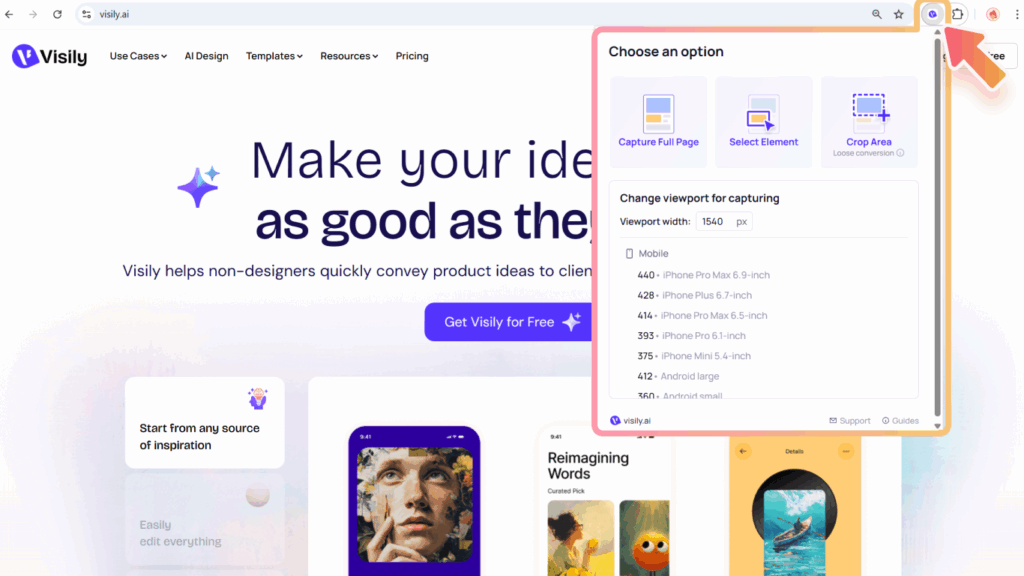
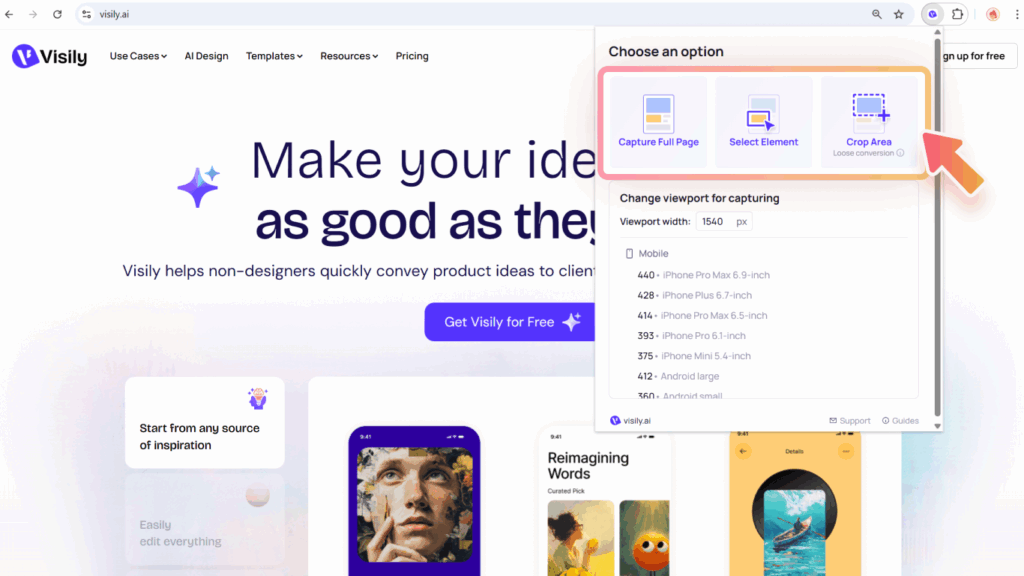
    Choose from three options to capture screenshots:

    • Capture Full Page. Automatically scrolls to capture the entire page.
    • Select Element. Capture a specific element from the viewport.
    • Crop Area. Drag to select a custom area on the screen. This option generates an editable conversion output that only loosely matches the selected area.
    Capture screenshots

    The “Change viewport for capturing” allows you to capture responsive pages in desktop, mobile, and tablet views. In the extension, you can select from preset device options or customize the viewport size before capturing.

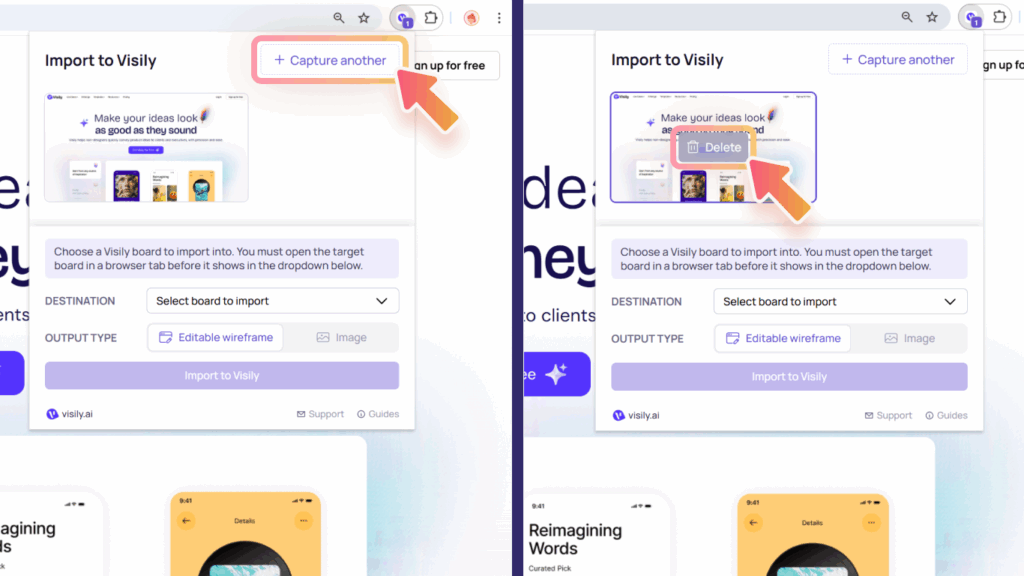
    You can take multiple screenshots before importing. Click on the “Capture another” button and pick the desired option.

    You can only import a maximum of 10 screenshots at a time. If you reach the maximum, import first before taking more screenshots, or remove the undesired ones.

    To remove an undesired screenshot, hover over it and click “Delete”.
    Capture another Delete

    Import into Visily

    Import destination

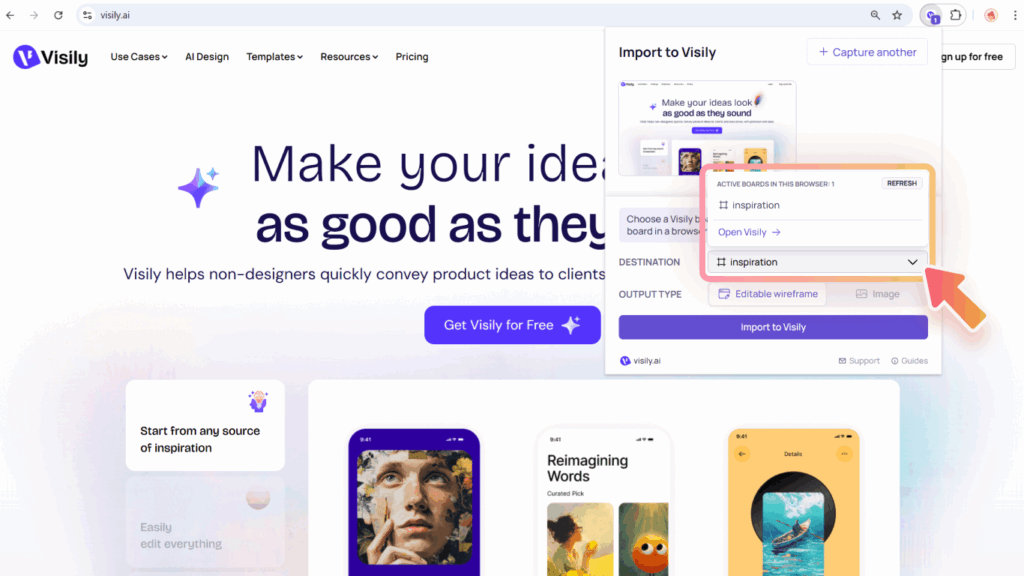
    To import screenshots, you need to select a Visily board as the import destination. Before importing, make sure you have:

    • A Visily account
    • At least one board created (see Boards & Folders)
    • The board opened in the same browser tab

    Once the board is open, you can choose it from the Destination dropdown in the browser extension.
    light-bulb
    Tip: In short, to import screenshots, open the Visily board you want to import the screenshots into, then select the board name from the destination dropdown.
    Import into Visily

    Output type

    You can choose between two output types:

    • Editable wireframe. Converts your capture into a fully editable design.
      In Visily, “fully editable” means the converted output becomes Visily elements. On the design canvas, you can freely edit, delete, move, or enhance anything: adding shapes, components, or connectors as needed. You can then continue refining the design manually or use AI chat to make further adjustments.
    • Images. Use this option if you want an exact image to reference.

    After selecting the destination and output type, click Import to Visily to bring the screenshots into Visily.

    light-bulb
    Tip: For the best and most accurate results, we highly recommend using Capture Full Page or Select Element.
    Use Cases
    • Wireframing
    • Brainstorming
    • Prototyping
    • Collaboration
    Features
    • AI UI Design Generator
    • Screenshot Editor
    • Online Sticky Notes
    • UI Mockup Tool
    • AI Prototype Generator
    • Diagram AI
    Resources
    • Vibe Designing
    • Blog
    • Release Notes
    • Help Center
    • FAQs
    Features
    • Screenshot Editor
    • Online Sticky Notes
    • UI Mockup Tool
    Use Cases​
    • AI Prototype Generator
    • Diagram AI

    © 2025 Visily. All rights reserved.

    Privacy Policy

    Terms of Service

    Terms Of Use