
Annual Pro comes with 2× normal AI credits

Explore now

Subscribe now to get 6,000 credits/month (up from 3,000) for the next 2 months

Explore now
Visily
Visily
  • Use Cases
    • Wireframing
    • Prototyping
    • Brainstorming
    • Collaboration
  • AI Design
  • Templates
    • Design Templates
    • Premade Themes
    • Smart Components
    • UI Presets
    • Images & Icons
  • Resources
    • Help Center
    • Explore Visily
    • FAQs
    • Blog
    • Release Notes
  • Pricing
  • Login
Log in
Sign up for free
  • Use Cases
    • Wireframing
    • Prototyping
    • Brainstorming
    • Collaboration
  • AI Design
  • Templates
    • Design Templates
    • Premade Themes
    • Smart Components
    • UI Presets
    • Images & Icons
  • Resources
    • Help Center
    • Explore Visily
    • FAQs
    • Blog
    • Release Notes
  • Pricing
  • Login
  • Use Cases
    • Wireframing
    • Prototyping
    • Brainstorming
    • Collaboration
  • AI Design
  • Templates
    • Design Templates
    • Premade Themes
    • Smart Components
    • UI Presets
    • Images & Icons
  • Resources
    • Help Center
    • Explore Visily
    • FAQs
    • Blog
    • Release Notes
  • Pricing
  • Login
Visily
Visily
Sign up for free
Visily
Visily
  • Use Cases
    • Wireframing
    • Prototyping
    • Brainstorming
    • Collaboration
  • AI Design
  • Templates
    • Design Templates
    • Premade Themes
    • Smart Components
    • UI Presets
    • Images & Icons
  • Resources
    • Help Center
    • Explore Visily
    • FAQs
    • Blog
    • Release Notes
  • Pricing
  • Login
Log in
Sign up for free

[Help Center] Enhance Large Boards Performance
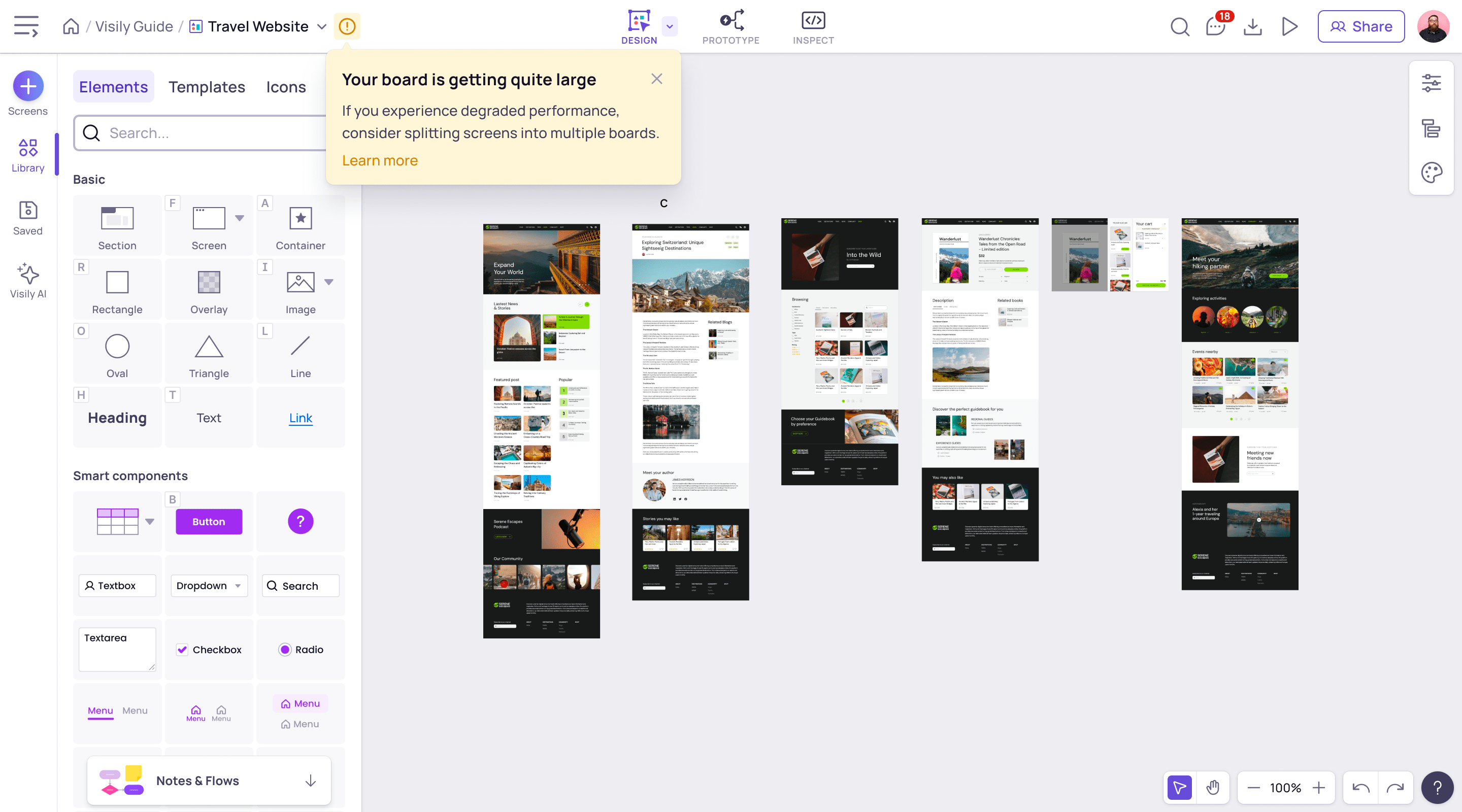
While there’s no hard limit to the number of elements you can have on a Visily board, the performance and load time can be negatively impacted as you have more and more elements on the board. For a better experience, we recommend keeping the number of elements on a single board below 4,000 elements.

When your board reaches this threshold, you will see a message to inform you that the board might be getting quite large.

Enhance performance for large boards2
To enhance the performance of a large board, consider the following:
  1. Split this board into a few smaller boards
      • Copy a part of the board content by selecting it and pressing Ctrl + C (for Windows) or Cmd + C(for Mac)
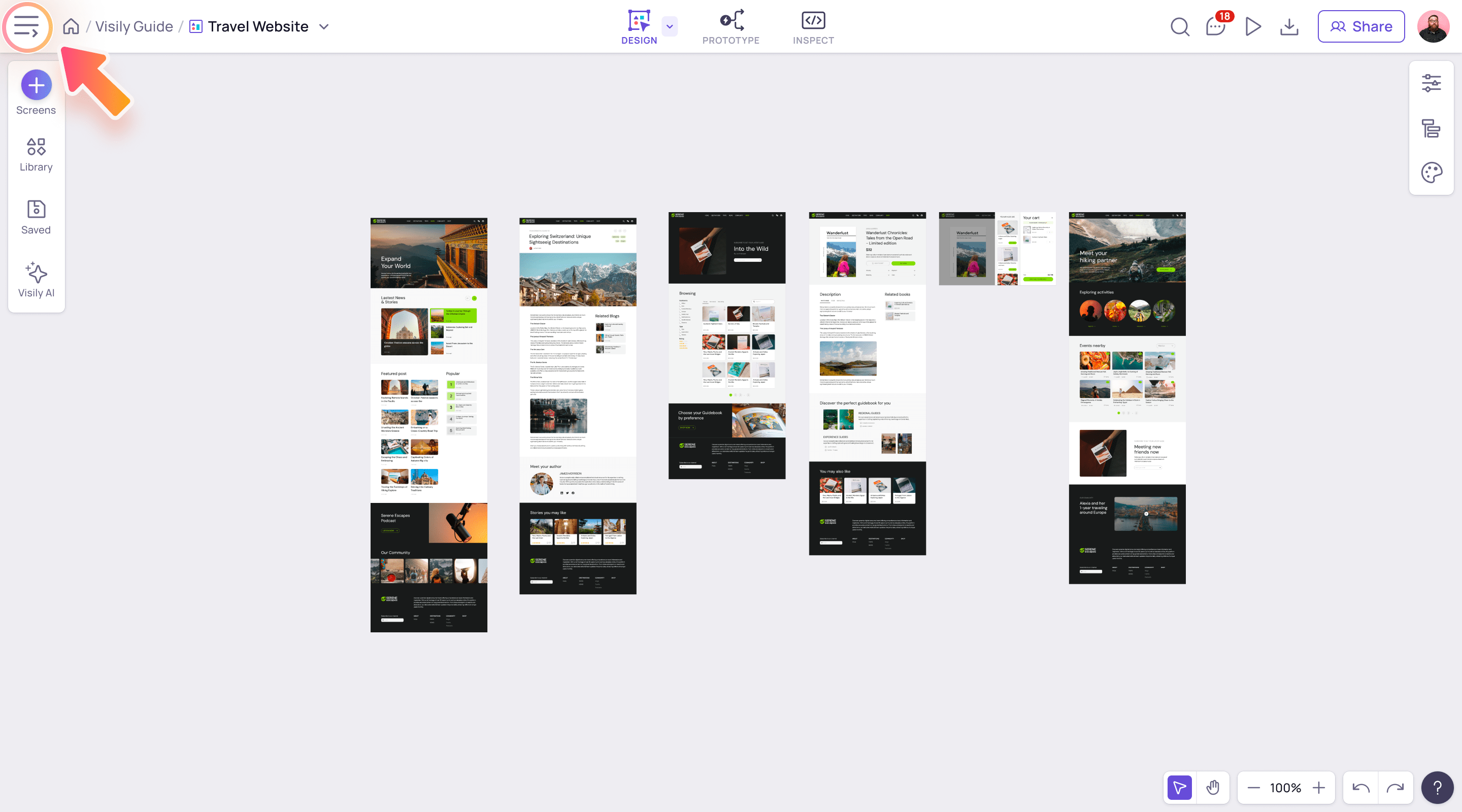
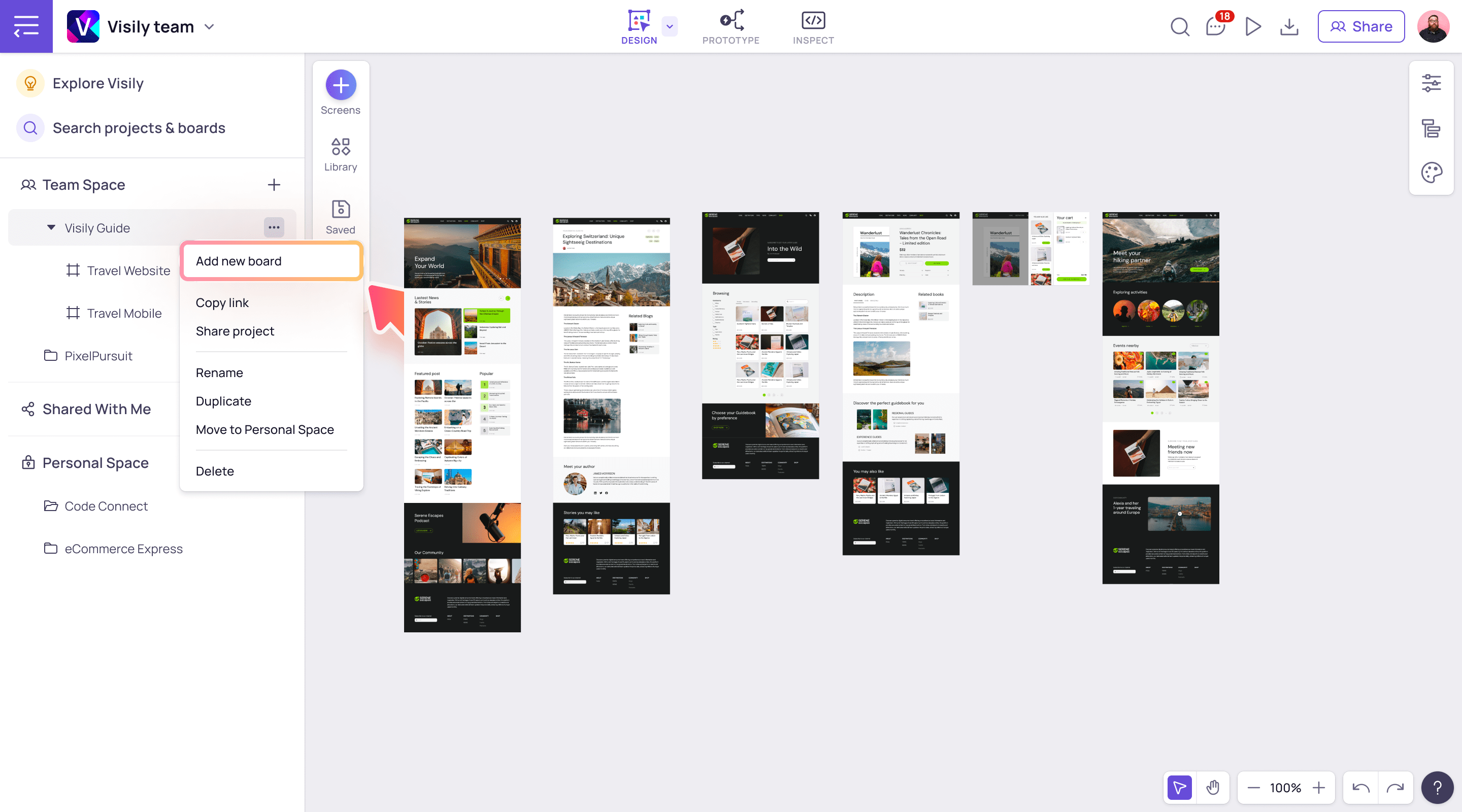
      • Create a new board and paste the content onto the board. To create a new board, first, click on the Show project list menu, then right-click on the current project’s name, then select Add new board Enhance performance for large boards Enhance performance for large boards1
      • Once the copying is completed, delete the copied content from the original board

Tips: Here are some recommended ways to organize your designs into boards

      • By platform (Web, Mobile, Tablet)
      • By features or modules
      • By versions
  1. Delete unnecessary screens and elements that are no longer in use
  2. Close other browser tabs that are open but not in use, as they might be taking up some of your computer’s resources (CPU/RAM)
Use Cases
  • Wireframing
  • Brainstorming
  • Prototyping
  • Collaboration
Features
  • AI UI Design Generator
  • Screenshot Editor
  • Online Sticky Notes
  • UI Mockup Tool
  • AI Prototype Generator
  • Diagram AI
Resources
  • Vibe Designing
  • Blog
  • Release Notes
  • Help Center
  • FAQs
Features
  • Screenshot Editor
  • Online Sticky Notes
  • UI Mockup Tool
Use Cases​
  • AI Prototype Generator
  • Diagram AI

© 2025 Visily. All rights reserved.

Privacy Policy

Terms of Service

Terms Of Use