


A misaligned product requirement doesn’t just waste a meeting. It wastes an entire development cycle. Teams build the wrong screens, stakeholders give contradictory feedback, and everyone points fingers at a spec document nobody interpreted the same way. The root cause is almost always the same: the user journey lived in someone’s head instead of on a shared canvas.
A Flowchart is a visual diagram that maps every step, decision, and screen a user encounters while completing a task in a product. It replaces ambiguity with a picture everyone can point at. Without one, feedback loops drag because reviewers can’t see what they’re reacting to, and developers interpret vague descriptions differently.
Building one from scratch gives you full control over the logic, forces you to think through every path, and creates a shared language between designers, non-designers, and stakeholders alike.
How a Flowchart Differs from Sitemaps and Journey Maps
A Flowchart maps the sequence of screens, actions, and decisions a user takes to complete a single task. It uses standard flowchart shapes (rectangles for screens, diamonds for decisions, arrows for direction) to show every possible path from start to finish.
It’s easy to confuse with related artifacts. Here’s how they differ:
- Flowchart shows the sequence of screens, actions, and decisions a user takes to complete a single task.
- Sitemap shows the hierarchical structure of pages on a website or app, with no task logic or decision points.
- Journey map captures the user’s emotions, motivations, and pain points across an entire experience, often spanning multiple tasks and touchpoints.
Flowcharts are especially useful for product managers, business analysts, and non-designers who need to communicate product ideas to clients and executives. They give everyone a shared reference point without requiring design expertise to read or create.
Why Start from Scratch Instead of a Template?
Templates are fast. You grab one, swap a few labels, and you have something that looks like a user flow in minutes. But a generic template carries assumptions about your product’s logic that may not apply. A template built for an e-commerce checkout won’t account for the way your SaaS onboarding branches after a user selects a plan tier.
Starting from scratch has concrete advantages:
- Custom decision paths. You map only the branches your product actually has, instead of forcing your logic into someone else’s structure.
- Deeper product understanding. Building the flow yourself forces you to confront every gap and ambiguity in the user journey before a single line of code gets written.
- Stronger stakeholder alignment. A flow you built together reflects shared decisions, not inherited ones.
- No hidden assumptions. Every shape on the canvas is there because you put it there deliberately.
Templates can still help for brainstorming or for teams seeing a Flowchart for the first time. The real value comes from building the logic yourself, because that’s where you catch the gaps.
Standard Flowchart Shapes and What They Mean
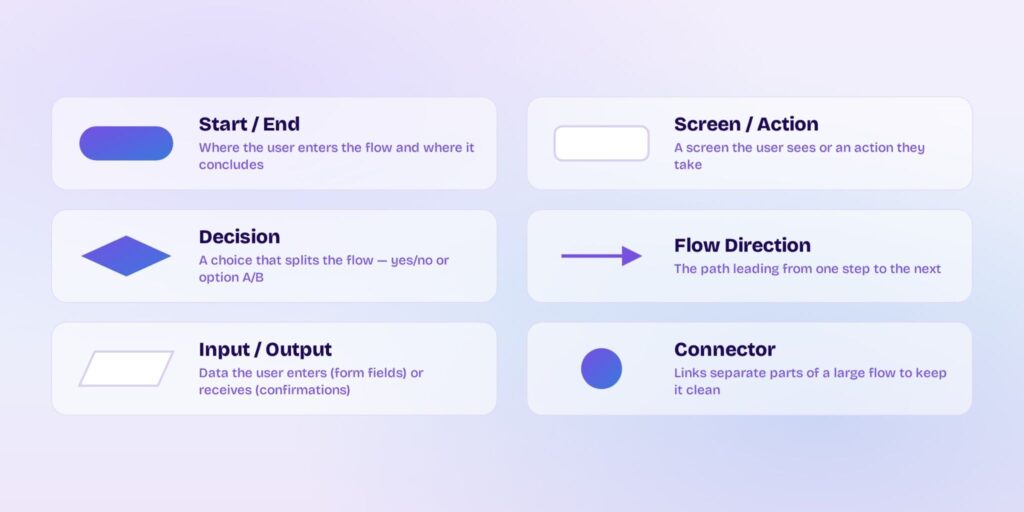
Every Flowchart uses a small set of standard shapes. Learning them takes a few minutes, and it gives your entire team a shared visual vocabulary.
| Shape | Name | Use in User Flows |
| Oval / Rounded rectangle | Start / End | Marks where the user enters the flow and where the flow concludes |
| Rectangle | Screen / Action | Represents a screen the user sees or an action they take |
| Diamond | Decision | A point where the user makes a choice (yes/no, option A/B) that splits the flow |
| Arrow | Flow direction | Shows the path from one step to the next |
| Parallelogram | Input / Output | Represents data the user enters (form fields) or receives (confirmation details) |
| Circle | Connector | Links separate parts of a large flow, keeping the diagram clean |
Consistent shape usage matters more than most people expect. When everyone reads a diamond as “decision” and a rectangle as “screen,” the flow communicates instantly. Mix shapes arbitrarily, and non-designers, clients, and executives lose confidence in what they’re looking at.
Step-by-Step: How to Build Your Flowchart
Each step builds on the previous one, so resist the urge to jump ahead to the visual layout before you’ve nailed the logic.
Pin Down One User Goal and One Entry Point
Every user flow starts with one clear goal: the specific outcome the user is trying to reach. The entry point is the screen where the user begins that journey.
Write your goal as a short statement:
- “User sign ups for a free account.”
- “User completes the checkout and receives an order confirmation.”
- “User upgrades from a free plan to a paid plan.”
One flow covers one goal. If you’re tempted to map two goals in a single diagram, split them into separate flows. Multiple goals in one chart create a tangled mess that helps no one.
Inventory Every Screen and Action
Before arranging anything, list every screen the user will see and every action they’ll take between the entry point and the goal. Don’t worry about the sequence yet. Just capture everything.
For a “user signs up” flow, your list might look like this:
- Landing page
- Click “Sign Up” button
- Registration form
- Enter name, email, and password
- Submit form
- Email verification screen
- Click verification link
- Confirmation / Welcome screen
Get every screen and action out of your head and onto the list. It’s easier to remove unnecessary items later than to realize you forgot a step mid-layout.
Identify Decision Points and Branches
A decision point is a moment where the user makes a choice that sends them down one of two or more paths. These are represented by the diamond shape.
Concrete example: “Does the user already have an account?” If YES, the flow routes to the login screen. If NO, it continues to the registration form.
Each branch must lead somewhere. A branch that ends in nothing is a dead end, and dead ends confuse both your team and your users.
Complex products may have several decision points in a single flow. That’s expected. The key rule: every branch resolves, either by reaching the goal, looping back into the main path, or exiting gracefully with an error state.
Arrange and Connect the Flow on a Canvas
Place the entry point at the top-left (or top-center for a vertical layout). Use arrows to show direction.
Keep the happy path (the ideal, uninterrupted route from entry to goal) in a straight line, either left-to-right or top-to-bottom. Branch alternate paths off to the side. This single layout choice makes a dramatic difference in readability.
Space nodes evenly and align them to a grid. A clean layout isn’t cosmetic polish; it’s what makes the flow readable for non-designers and stakeholders seeing it for the first time. If the diagram looks cluttered, people won’t engage with it.
Map Alternate and Error Paths
Real users don’t always follow the happy path. They enter wrong passwords. Their payments get declined. They choose a guest checkout instead of creating an account. Your flow needs to account for this.
Skipping error paths is the most common mistake in user flow diagrams. Map at least these scenarios:
- Wrong password: Error message appears → User retries → Flow loops back to login.
- Payment declined: Error screen → User re-enters payment details → Flow loops back to payment step.
- Guest checkout: User skips registration → Flow continues to checkout without account creation.
Use a visual distinction for error and alternate paths. Dashed lines or a secondary color work well. This keeps the happy path visually dominant while showing you’ve thought through the edge cases.
Validate with Your Team Before Handoff
A user flow isn’t done until someone besides you has walked through it. Share the completed diagram with stakeholders, developers, and teammates. The goal isn’t approval; it’s alignment. Other people spot blind spots you can’t see.
Use this checklist during the review:
1. Does every path reach a resolution (goal, exit, or loop back)?
2. Are all decision branches labeled with clear conditions (yes/no, specific options)?
3. Do error paths loop back or exit gracefully?
4. Does the flow match the original user goal?
5. Can someone seeing this flow for the first time read it without explanation?
Sharing the flow visually, not as a written document, makes feedback faster and more specific. People point at shapes instead of interpreting paragraphs.
Practical Example: SaaS Signup Flow from Scratch
Goal: User creates a free account.
Entry point: Landing page.
Here’s the flow: Landing Page → Click “Sign Up” → Registration Form → Enter Name, Email, Password → Submit Form → Email Verification (Decision: Email verified?).
If YES, the user proceeds to the Dashboard. Goal complete.
If NO, the flow routes to a “Resend Verification Email” screen. After the user clicks the new link, the flow loops back to the “Email verified?” decision.
There’s a second decision point earlier in the flow: “Does the user already have an account?” If YES, they’re redirected to the Login screen (a separate flow). If NO, they continue to the Registration Form.
The happy path runs straight down the center of the canvas: Landing Page → Sign Up → Registration → Email Verified (Yes) → Dashboard. The “Resend Email” error branch extends to the right from the decision diamond and curves back with a looping arrow. The “Already has an account?” branch exits to the left toward Login.
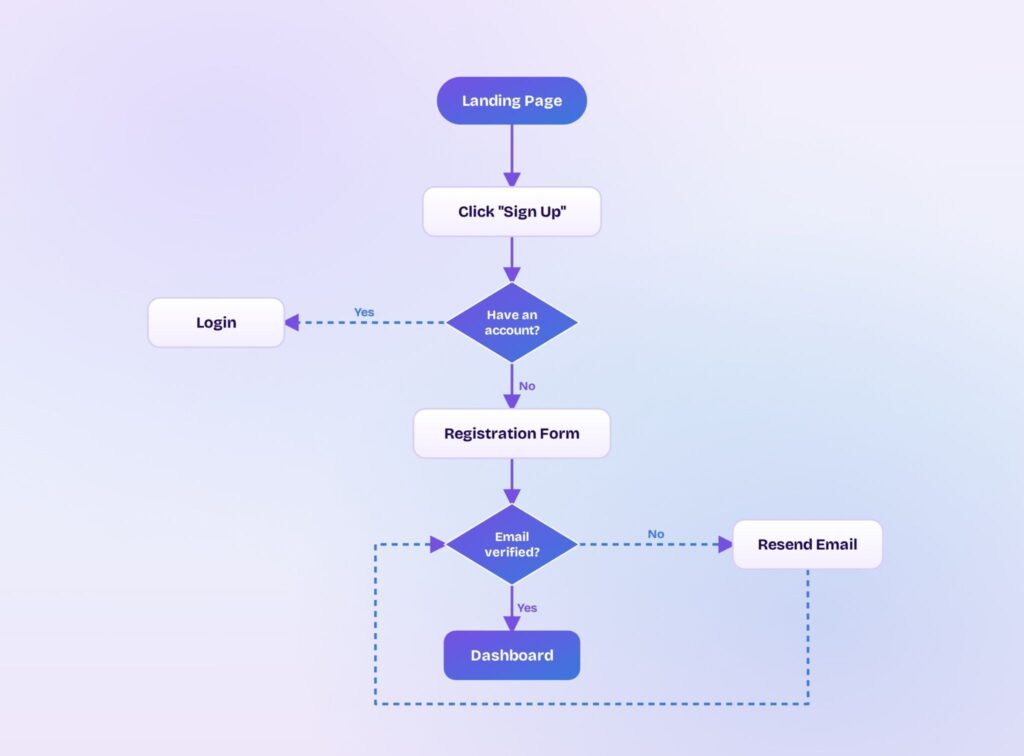
This layout takes about ten minutes to build. It gives your team, your developers, and your stakeholders a single picture to align on before anyone writes code.
Pick a Tool That Matches Your Team’s Skill Level
Four criteria matter most:
- Ease of use for non-designers,
- Built-in flowchart shapes,
- Real-time collaboration,
- Ability to convert a flow into an interactive prototype without switching tools.
Visily is built for this profile. Its drag-and-drop canvas and AI design assistant (including Text to UI and Screenshot to Wireframe) let product managers and business stakeholders create polished flows without a design background. Collaboration features like commenting, cursor chat, and follower mode keep feedback in context on the canvas, instead of buried in a separate thread. Shared asset libraries ensure the team works from a consistent set of components.
The deciding factor is whether the tool lets you go from flowchart to prototype without exporting, re-importing, or switching platforms.
How to Turn a Flowchart into an Interactive Prototype
A Flowchart is a blueprint. It shows the logic, but stakeholders often need to experience the flow to give meaningful feedback. Clicking through screens reveals usability issues that a static diagram can’t.
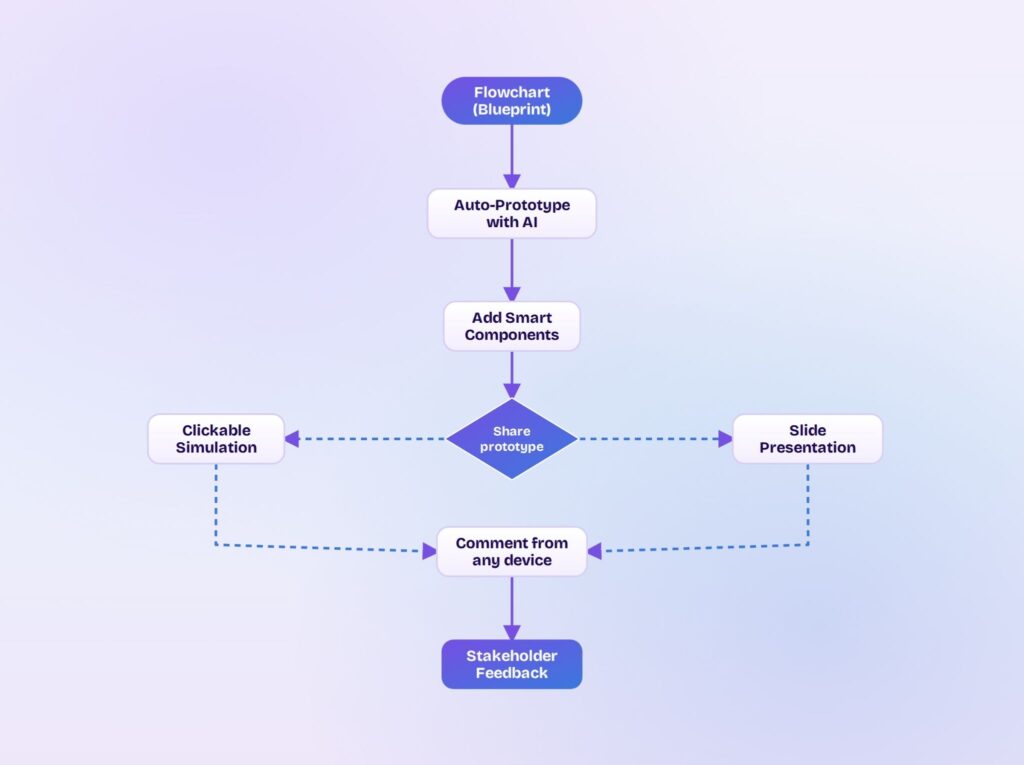
Visily’s Auto-Prototype feature generates interactive flows from your designs with AI, skipping the tedious process of manually linking every screen. Smart components like sliders, buttons, and tags make the prototype feel real, not like a slideshow.
Once your prototype is ready, you can share it as a clickable simulation or as a slide presentation. Team members can comment directly from any device while in presentation mode. You can customize the screen order to start from whichever screen matters most for a given review, and export the whole thing to PDF when you need an offline record.
The flow you built from scratch becomes the backbone of a prototype your stakeholders can actually click through and react to.
How to Make User Flows Readable for Non-Designers
User flows are only useful if the people who need to act on them can actually read and respond to them. Here’s how to make collaboration smooth:
- Use standard shapes consistently. When a rectangle always means “screen” and a diamond always means “decision,” non-designers read the flow without a legend.
- Label every decision branch. Write the condition directly on the arrow: “Yes,” “No,” “Guest,” “Returning user.” Unlabeled branches force people to guess.
- Present the happy path first. Walk stakeholders through the ideal route before introducing branches and error states. This builds understanding incrementally.
- Gather feedback on the canvas. Use real-time collaboration features like commenting and cursor chat so feedback lives on the diagram, not in a separate email thread. Follower mode lets you guide teammates through the flow live.
- Share as a clickable prototype. Stakeholders who can click through screens give sharper, more specific feedback than those staring at a static diagram.
Start Building Your First Flowchart
A Flowchart starts with a single user goal, uses a handful of standard shapes, follows a clear step-by-step process, and gets validated with the team before handoff. You don’t need a design background. You need clarity about what your user is trying to do and a willingness to think through every path, including the ones where things go wrong.
Visily makes this process faster. Its AI design assistant lets you generate screens from text prompts or screenshots, then turn those screens into interactive prototypes with Auto-Prototype and Smart Components like sliders, buttons, and tags. Shared asset libraries and real-time collaboration features keep the entire team working from the same canvas.
The platform was designed for non-designers, product managers, and business professionals who need to communicate product ideas without fighting a steep learning curve. There’s no skill barrier to clear before you can build something worth sharing. Try Visily for free and build your first Flowchart today.