


A mind map is a visual diagram with one central topic that branches outward into related subtopics, each spawning its own child nodes. Most mind mapping starts the same way. You open a blank canvas, drag a central node into place, manually draw branches, spend 20 minutes adjusting colors and spacing, and end up with a static image you export and never touch again. The diagram looks decent, but it doesn’t help you think faster.
That workflow kills the point of mind mapping.
You want to brainstorm fast, see connections between ideas, and act on those ideas in the same sitting. Traditional tools stop at the diagram. The map becomes a dead-end artifact that doesn’t feed your next step—whether that’s a wireframe, a user flow, or a prototype.
Visily generates structured mind maps from plain-text prompts, then lets you convert those maps into wireframes and prototypes on the same canvas.
Let’s explore the step by step guide on how to make a mind map in Visily.
When You Need Mind Mapping
Mind maps help designers organize thoughts, analyze information, and develop creative solutions from a big-picture vantage point.
You’ll reach for a mind map when you need to:
- Brainstorm features, content ideas, or campaign angles with your team
- Plan a project by breaking milestones into tasks and subtasks
- Study or summarize dense material for faster recall
- Run a UX research synthesis—grouping interview findings into themes
- Map a product architecture before jumping into wireframes
The common thread: you have scattered information and need a structured visual to make sense of it. A mind map gives you that structure in minutes.
6 Steps to Create a Mind Map in Visily
1. Sign Up for a Free Visily Account
Go to Visily.ai and click “Sign up for FREE.” You don’t need to install software—Visily runs entirely in your browser. The free Starter plan gives you access to Diagram AI, the full template library, and real-time collaboration tools.
2. Open a New Board and Launch Diagram AI
Create a new board from your dashboard. Once you’re on the canvas, click the “Ask AI” button on the bottom bar. Select “Generate Diagram from Text” from the menu that appears.
This opens a chat box where you’ll type your mind map prompt.
3. Type Your Mind Map Prompt
Describe the central topic and the branches you want in plain language. The AI reads your text, identifies the main themes, detects how they group together, and arranges everything into a visual hierarchy.
A prompt like
“Create a mind map for a mobile app redesign with branches for navigation, onboarding, dashboard, and settings” produces a structured diagram in seconds.
Two tips for better prompts:
- Use structured text with headings and subheadings—the AI maps them directly to parent and child nodes
- Be specific about the hierarchy. “Three main branches, each with two sub-branches” gives the AI a clearer structure than a vague topic name
4. Customize Nodes, Colors, and Layout
The AI generates an editable diagram, not a static image. You can drag nodes to rearrange the layout, change colors to group related branches, adjust shapes and connectors, and edit any label with a double-click. Visily’s diagram components give you full control over the visual style.
Color-coding matters. Assign one color per main branch so patterns surface at a glance—red for risks, blue for features, green for opportunities.
5. Add Context with Sticky Notes and Templates
Drop sticky notes anywhere on the canvas to annotate branches with extra context, reminders, or open questions. Visily’s brainstorming templates give you pre-built starting points for common frameworks:
- SWOT analysis
- User journey maps
- Product roadmaps
- Retrospectives
- Impact-effort matrices
You can combine a template with your AI-generated mind map on the same board. Start from the template, then use Diagram AI to add new sections.
6. Share, Collaborate, or Convert to Wireframes
Invite team members to your board for real-time collaboration. They can co-edit the mind map, leave comments on specific nodes, and use cursor chat to discuss changes without leaving the canvas. Follower mode lets you guide the team through your map in a live walkthrough.
Here’s where Visily separates from every other mind mapping tool.
You can convert branches of your mind map directly into wireframes using Visily’s text-to-design or screenshot-to-wireframe features. A product manager who maps a feature set as a mind map can evolve individual branches into UI screens, add interactivity with auto-prototyping, and hand the finished prototype to developers through the Figma plugin. The mind map doesn’t die as a static diagram. It becomes the first step in your design process.
5 Tips for Mind Maps That Actually Drive Decisions
- Start with one central idea, not three. A mind map with multiple centers isn’t a mind map—it’s a cluttered whiteboard. If your brainstorm has two distinct topics, create two separate maps.
- Use keywords, not full sentences. Each node should be 1–3 words. Short labels keep the map scannable and force you to distill ideas to their core.
- Color-code branches by category. One color per main branch surfaces patterns instantly. You’ll spot which category has the most sub-branches (and which has gaps) without reading a single label.
- Limit sub-branches to three levels deep. Past three levels, the hierarchy gets hard to follow. If a sub-branch needs its own sub-sub-sub-branches, spin it off into a dedicated map.
- Review the map after 24 hours. Fresh eyes catch missing connections and redundant branches that you can’t see during an active brainstorm. Revisit, prune, and reorganize before acting on the map.
When to Use a Mind Map vs. a Flowchart or Wireframe
Mind maps are for divergent thinking—generating ideas, exploring connections, and capturing everything around a central topic. Use them when you don’t yet know the final structure. A brainstorm for a new product feature starts here.
Flowcharts are for sequential logic—mapping a process from start to finish with decision points and yes/no branches. Use them when you know the steps and need to visualize the order. An onboarding flow or a checkout process fits this format. Visily’s Diagram AI generates flowcharts from text prompts, too.
Wireframes are for layout and interface design—placing buttons, navigation elements, and content blocks on a screen. Use them after the thinking phase, when you’re ready to define what your product looks like. Visily’s AI design tools handle this step, letting you go from a text prompt or screenshot to an editable UI screen.
Wrapping Up
The real workflow combines all three:
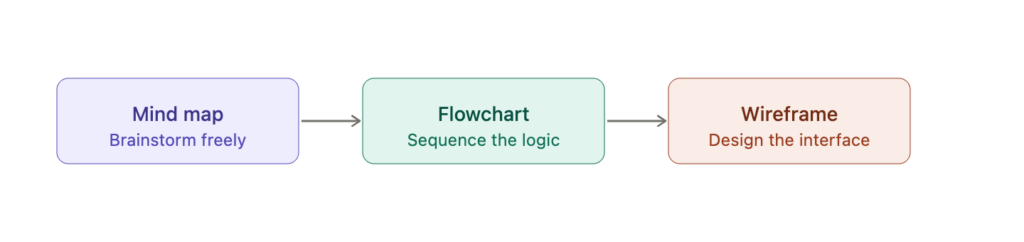
Visily puts all three on the same canvas, so you don’t switch tools between stages.
Mind maps turn scattered ideas into structured visual plans you can act on—faster than linear notes and more flexible than rigid outlines. Visily’s Diagram AI generates those maps from a text prompt and lets you convert branches into wireframes and clickable prototypes without switching tools, so the brainstorm becomes the first draft of your product.
Sign up for Visily’s free plan and create your first AI-generated mind map today.