


Every product starts as an idea. But turning that idea into something visual, something a team can react to and a stakeholder can approve, has always required design skills most people don’t have. Traditional tools like Figma and Adobe XD demand hours of learning before you can place a single button on a screen. That gap between vision and visual output slows teams down, kills momentum, and creates bottlenecks that delay product development by weeks.
AI-powered product design changes this equation entirely. AI product design is the use of artificial intelligence tools to generate, edit, and refine user interface layouts, wireframes, and prototypes from simple inputs like text descriptions, sketches, or screenshots. Instead of dragging pixels manually, you describe what you need and the software builds it for you. Product managers, startup founders, developers, and business analysts can now produce professional-quality screens in minutes, not days.
This guide will walk you through what AI product design actually means, the specific techniques available, a step-by-step workflow you can follow today, real use cases for every role, and how to pick the right tool for your team.
What Does “AI for Product Design” Actually Mean?
AI for product design is the application of artificial intelligence to automatically generate, refine, and iterate on user interface designs from simple inputs. These inputs can be plain-language text descriptions, hand-drawn sketches, screenshots of existing apps, or even flowcharts and diagrams. The AI processes the input and produces structured, editable UI layouts with real components like buttons, text fields, navigation bars, and cards.
This is fundamentally different from traditional design. In a conventional workflow, a designer opens a blank canvas and manually places every element, adjusts every spacing value, and selects every color. That process requires training, experience, and significant time investment. AI-powered design tools remove that manual labor from the early stages. You provide the intent, and the tool provides the structure.
The shift toward AI in design workflows is part of a broader trend. According to the McKinsey Global Survey on AI, adoption of AI tools across business functions has more than doubled since 2017, with product development and design among the fastest-growing areas of implementation. This growth reflects a real demand: teams need to move faster, and they need more people involved in the design process, not fewer.
AI product design does not replace the need for thoughtful user experience work. It handles the repetitive, structural parts of design so that humans can focus on strategy, user research, and creative direction. The result is a faster path from idea to prototype, with more team members able to contribute meaningfully to the visual product development process.
What AI Techniques Are Used in Product Design?
AI product design is not a single feature or capability. It is a collection of distinct techniques, each designed for a different starting point and a different type of user. Some techniques work best when you have nothing but an idea in your head. Others are built for situations where you already have a reference, a sketch, or a diagram to work from. Understanding these techniques helps you choose the right approach for your specific situation.
Text to Design
Text to design is the most accessible AI technique in product design. You type a plain-language description of the screen you want, and the AI generates a complete, editable UI layout based on your words. There is no visual input required at all.
For example, a product manager might type “a login screen with email and password fields, social login buttons for Google and Apple, and a forgot password link at the bottom.” Within seconds, the AI returns a structured screen with all of those elements properly arranged. The output is not a static image. It is a fully editable layout where you can move, resize, and modify every component.
This technique is especially valuable for people who think in words rather than visuals. You do not need to know what a good login screen looks like. You just need to describe what it should contain. The AI handles layout, spacing, and component selection based on common UI patterns. Text to design is the lowest-barrier entry point into AI-powered product design, and it is the technique most non-designers use first.
Screenshot to Design
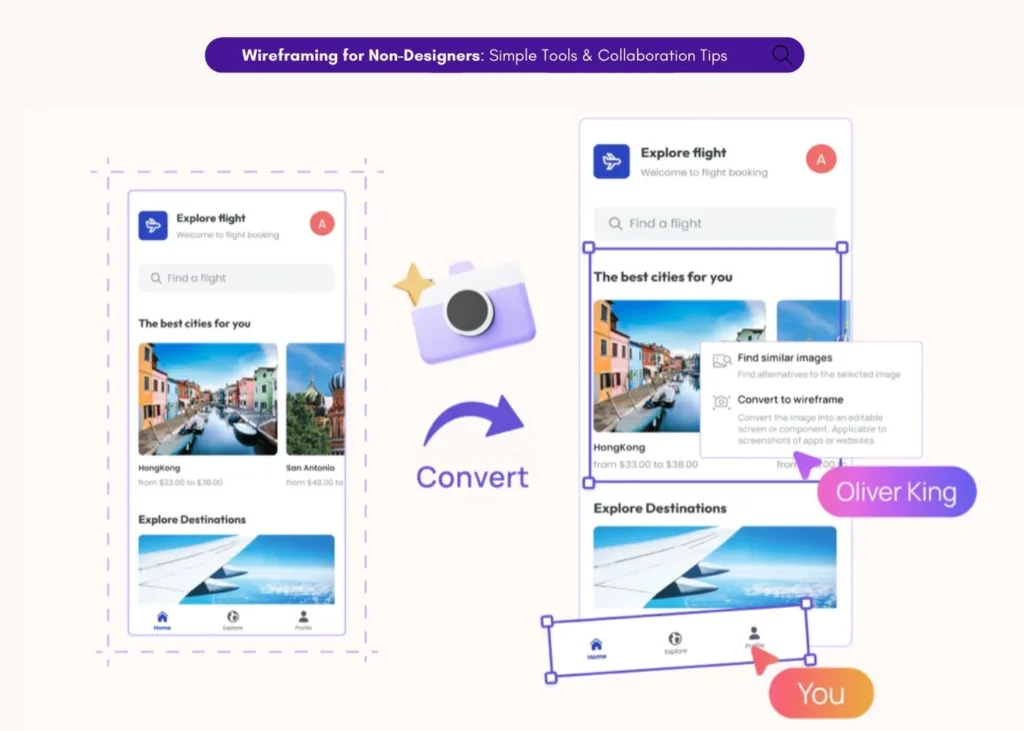
Screenshot to design lets you upload an image of an existing application, a competitor’s product, or any reference screen, and the AI converts it into an editable wireframe or high-fidelity mockup. The tool recognizes UI components in the image and recreates them as individual, movable elements on a design canvas.
This technique is particularly useful for competitive benchmarking. If you see a feature in a competitor’s app that you want to adapt for your own product, you can screenshot it, upload it, and immediately start editing the layout to fit your needs. It also works well for redesigning legacy interfaces. Instead of rebuilding an old screen from scratch, you capture what exists and modify it.
Screenshot to design also serves teams that find visual references faster than writing descriptions. Some people communicate better by pointing at something and saying “like this, but different.” This technique supports that workflow directly. You start with something concrete and reshape it, rather than starting from nothing.
Sketch to Design
Sketch to design bridges the gap between a whiteboard brainstorming session and a digital design file. You draw a rough layout on paper or a whiteboard, take a photo, upload it, and the AI converts your hand-drawn sketch into a clean digital wireframe with proper UI components.
This technique preserves the speed and spontaneity of sketching while eliminating the manual work of recreating those sketches digitally. In many product teams, the best ideas happen during informal discussions where someone grabs a marker and draws on a whiteboard. Before AI, those sketches would either be photographed and forgotten or painstakingly recreated by a designer days later. Sketch to design collapses that timeline from days to seconds.
The AI is trained to recognize common UI patterns in hand-drawn form. Rectangles become buttons or cards. Lines become dividers or text fields. Circles become icons or avatars. The output is not perfect, but it gives you a solid starting point that you can refine with drag-and-drop editing. For teams that brainstorm visually, this technique keeps the momentum going from whiteboard to working wireframe without any interruption.
Diagram to Design
Diagram to design converts flowcharts, user flow diagrams, and navigation maps into full UI screen layouts. This technique is especially useful for product teams that start their design process by mapping out the logical structure of an application before thinking about individual screens.
For example, if you have a flowchart showing a five-step onboarding process with decision points and branching paths, the AI can generate a screen for each step in the flow. The result is a set of connected screens that match the logic you already defined. This saves significant time because you do not have to manually create each screen and then link them together.
Diagram to design is popular with business analysts and product managers who think in terms of processes and systems rather than individual screens. It connects the analytical work of mapping user journeys with the visual work of designing interfaces. Instead of handing a flowchart to a designer and waiting for screens to come back, you can generate those screens yourself and iterate on them immediately.
AI-Generated Images and Themes
Beyond layout and structure, AI also handles the visual styling of product designs. Two capabilities stand out here: AI image generation and AI theme generation.
AI image generation creates custom images that match the design aesthetic of your project. Instead of searching through stock photo libraries for something that almost fits, you can generate images tailored to your specific context. This is useful for placeholder content during prototyping and for creating visuals that feel cohesive with the rest of your design.
AI theme generation applies color schemes and typography to your designs automatically. You can let the AI suggest a theme based on your content, or you can extract a theme from an existing URL or image. If your company already has a website, the AI can pull the colors, fonts, and visual style from that site and apply them to your new designs. This ensures brand consistency without requiring a designer to manually set up a style guide. Together, these capabilities mean that even non-designers can produce visually polished work that looks intentional and professional.
Text to Diagram
Text to diagram works in the opposite direction from diagram to design. Instead of converting a visual diagram into UI screens, it generates structured diagrams from plain text descriptions. You describe a process, a system, or a relationship, and the AI produces a flowchart, sitemap, entity relationship diagram, use case diagram, or class diagram.
This technique is valuable for business analysts who need to document system architecture, developers who want to visualize database relationships, and product managers who need to map user flows before designing screens. Writing a text description is often faster than manually drawing a diagram, especially for complex systems with many nodes and connections.
For example, a business analyst might type “user registers, verifies email, completes profile, selects subscription plan, enters payment, receives confirmation.” The AI generates a flowchart with each step as a node and the connections between them clearly drawn. This output can then be shared with the team for review or fed into a diagram-to-design workflow to generate the actual UI screens. Text to diagram removes the friction of diagramming tools and lets you focus on the logic rather than the layout.
Step-by-Step: How to Use AI in Your Product Design Workflow
Regardless of your role or experience level, the AI product design workflow follows a consistent pattern. The steps below work whether you are a product manager wireframing a new feature, a founder prototyping an MVP, or a developer visualizing a front-end layout before writing code.
Step 1: Define Your Product Requirements and Goals
Before opening any tool, clarify what you are designing and why. Write a brief description of the screen, flow, or feature you need. Identify the target user, the problem the screen solves, and the key actions the user should be able to take.
This step matters because the quality of your AI-generated output depends directly on the clarity of your input. A vague prompt like “make a dashboard” will produce a generic result. A specific prompt like “an analytics dashboard for a SaaS product showing monthly revenue, active users, churn rate, and a line chart of growth over the past 12 months” will produce something much closer to what you actually need.
You do not need a formal product requirements document. A few sentences or a bullet list is enough. The goal is to translate the idea in your head into words that an AI tool can act on. If you are working from an existing feature spec or user story, pull the relevant details from there. If you are starting from scratch, spend five minutes writing down what the screen should contain and who will use it. That small investment of time will save you multiple rounds of revision later.
Step 2: Choose Your Input Method
Now decide how you want to feed your idea into the AI tool. Your choice depends on what you already have available.
If you are starting from scratch with only an idea, use text to design. Type your description and let the AI generate the layout. If you have a reference, like a competitor’s app or an existing screen you want to redesign, use screenshot to design. Upload the image and get an editable version. If you just finished a whiteboard session and have photos of hand-drawn sketches, use sketch to design. And if you have already mapped out the user flow as a diagram or flowchart, use diagram to design to generate screens for each step.
There is no single correct input method. Many teams use different techniques at different stages of the same project. You might start with text to design for the first draft, then use screenshot to design to incorporate elements from a competitor’s approach, and later use diagram to design to build out a multi-screen flow. The flexibility to switch between input methods is one of the key advantages of AI-powered design tools over traditional ones.
Step 3: Generate Your Initial Design with AI
Submit your input and let the AI generate the first version of your design. This step takes seconds, not hours. The output is a structured, editable layout with real UI components. Buttons are actual button elements. Text fields are actual text field elements. Navigation bars, cards, tabs, and other components are all individually selectable and movable.
This is an important distinction from AI image generators that produce flat pictures. AI product design tools produce working design files. You can click on any element, change its text, resize it, move it, or delete it. The AI gives you a starting point, not a finished product. Think of it as a first draft that gets you 70 to 80 percent of the way there in a fraction of the time it would take to build manually.
Review the generated output against your requirements from Step 1. Does it include the right components? Is the general layout logical? Are the key user actions represented? If something is missing or misplaced, you can either regenerate with a more specific prompt or manually adjust the layout using drag-and-drop editing. Most users find that a combination of AI generation and manual refinement produces the best results.
Step 4: Refine and Switch Between Low-Fidelity and High-Fidelity
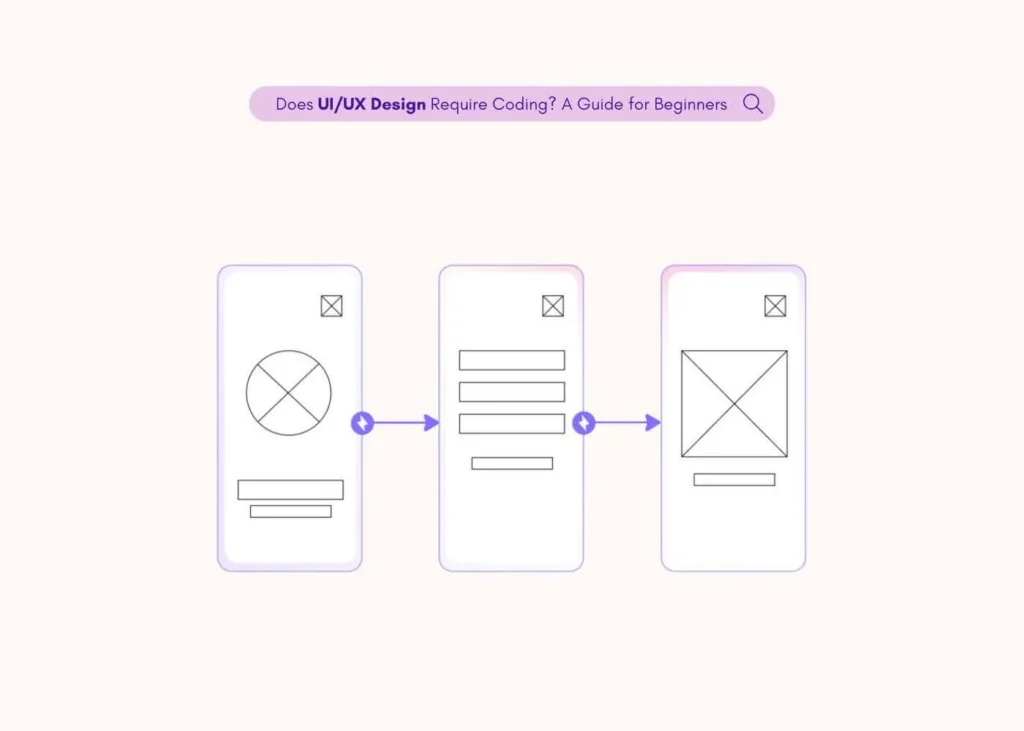
Design fidelity refers to how closely a design resembles the final product. Low-fidelity wireframes use simple shapes, grayscale colors, and placeholder text to show structure and layout without visual detail. High-fidelity mockups add real colors, typography, images, and content to show what the final product will actually look like.
Both fidelity levels serve different purposes. Low-fidelity wireframes are best for early-stage validation. They keep the conversation focused on structure, flow, and functionality rather than visual preferences. High-fidelity mockups are best for stakeholder presentations, user testing, and developer handoff.
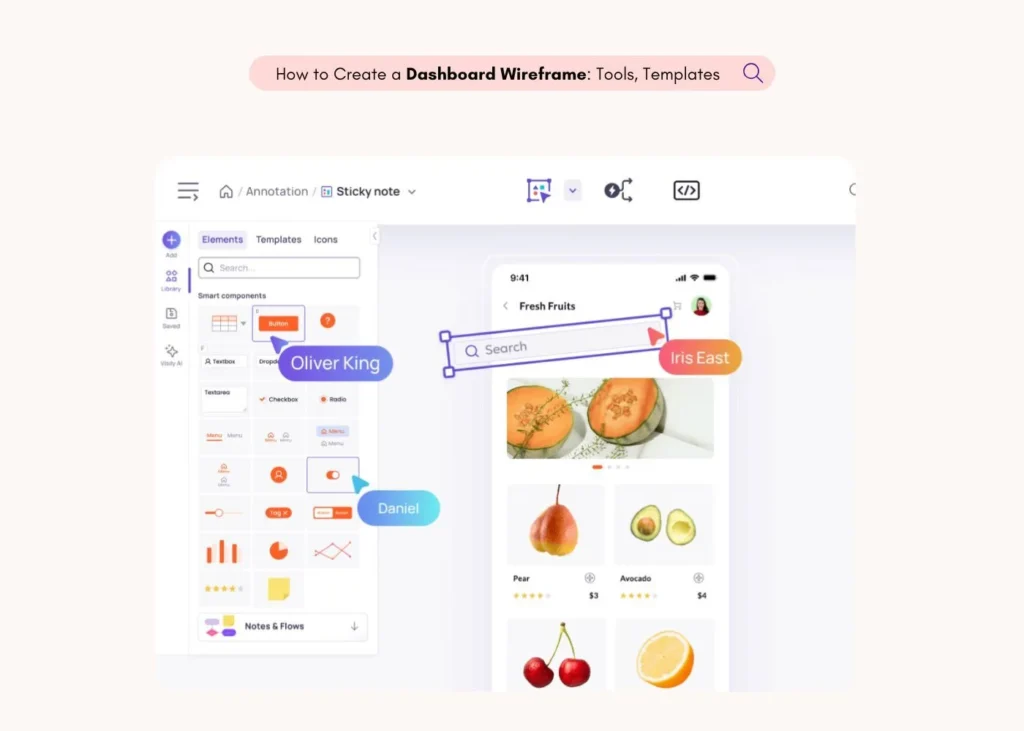
The ability to switch between wireframes and mockups on the same board without losing any work is a significant advantage. You can start in low-fidelity mode to get alignment on the structure, then toggle to high-fidelity to add visual polish. This eliminates the common problem of rebuilding designs from scratch when moving between fidelity levels. During this refinement stage, use the smart components library to swap in pre-built elements like navigation bars, buttons, cards, tabs, accordions, calendars, and carousels. These components follow standard UI patterns and save you from designing common elements from scratch.
Step 5: Add Interactivity and Build a Prototype
Static screens show what a product looks like. Interactive prototypes show how it works. In this step, you connect your screens with transitions, button clicks, and navigation actions to create a clickable prototype that simulates the real user experience.
Prototyping matters because it lets stakeholders and team members experience the product before any code is written. A product manager can click through an onboarding flow. A developer can see how screens connect. A founder can demo the concept to an investor. The prototype answers questions that static screens cannot: What happens when I click this button? Where does this link take me? How does the user get from the home screen to the checkout screen?
Many AI design tools offer auto-prototyping, which automatically links screens based on their logical relationships. This speeds up the prototyping process significantly. Instead of manually defining every transition, the tool infers connections based on the screen content and flow structure. You can then review and adjust these connections as needed. The result is a working prototype that you can share via a link, present in a meeting, or use for early user testing.
Step 6: Collaborate, Gather Feedback, and Iterate
Design is not a solo activity, even when AI does the heavy lifting. Once you have a prototype, share it with your team and stakeholders to gather feedback. Real-time co-editing allows multiple team members to work on the same design at the same time. On-canvas commenting lets reviewers leave specific feedback directly on the elements they are reacting to.
Presentation mode is useful for structured reviews. You can walk stakeholders through the design screen by screen, explaining the rationale behind each decision. Follower mode lets you guide team members through the design in real time, ensuring everyone is looking at the same thing during a review session.
Version history tracks every change, so you can always go back to a previous version if a round of edits takes the design in the wrong direction. This is especially important in collaborative environments where multiple people are making changes. The feedback and iteration loop is where AI-generated designs become truly refined. The AI gets you to a strong starting point quickly, and the collaborative process shapes that starting point into something the whole team supports.
Step 7: Export and Hand Off to Development
The final step is getting your design out of the design tool and into the hands of the people who will build it. Export options vary by tool, but the most important ones include Figma export, PDF and image export, and CSS inspection.
Exporting designs to Figma is valuable for teams where a professional designer will do final refinement before development begins. The AI-generated design serves as the foundation, and the designer adds pixel-perfect details in Figma. PDF and PNG exports are useful for documentation, presentations, and stakeholder sign-off. CSS inspection gives developers the exact spacing, color, font, and sizing values they need to implement the design accurately in code.
This handoff step is where AI product design connects to the rest of your product development workflow. The design is no longer just an idea or a rough concept. It is a detailed, interactive artifact that developers can reference directly as they build. The clearer and more complete the handoff, the fewer questions and revisions arise during development.
AI Product Design Use Cases by Role
Different roles approach product design with different goals, different starting points, and different definitions of success. AI design tools are flexible enough to serve all of them, but the way each role uses the tool varies significantly.
Product Managers
Product managers live in the gap between strategy and execution. They know what the product should do, but they often lack the design skills to show what it should look like. This creates a communication bottleneck. Writing a feature spec in a document is useful, but it leaves too much room for interpretation. Stakeholders and developers need to see the idea, not just read about it.
AI product design tools solve this problem directly. A PM can type a description of a new feature screen and generate a wireframe in under a minute. That wireframe becomes a visual anchor for the conversation. Instead of debating what “a dashboard with key metrics” means in the abstract, the team can look at a specific layout and react to concrete elements.
The workflow for PMs typically starts with text to design for initial screen generation, followed by quick refinement using drag-and-drop editing, and then sharing via presentation mode for stakeholder review. The entire process, from idea to shareable prototype, can happen in a single meeting. This speed is critical for PMs who need to validate ideas quickly before committing design and engineering resources. AI tools give PMs a way to communicate product vision visually without waiting for a designer to become available.
Startup Founders
Founders and entrepreneurs face a unique challenge. They need to communicate their product vision to investors, co-founders, early customers, and potential hires, but they rarely have a design team in the early stages. Hiring a designer or an agency for a concept that might change next week is expensive and slow.
AI product design tools give founders the ability to create professional-looking prototypes without any design training and without spending money. A founder can describe their app concept in plain language, generate a set of screens, link them into an interactive prototype, and include that prototype in a pitch deck or investor meeting. The visual artifact makes the idea tangible in a way that slides and bullet points cannot.
The free tier of most AI design tools is generous enough for early-stage work. Founders can create multiple screens, build prototypes, and share them with collaborators without paying anything. As the product concept matures and the team grows, upgrading to a paid plan adds more AI credits, unlimited boards, and collaboration features. For founders operating on tight budgets and tighter timelines, AI product design is one of the highest-leverage tools available. It turns a weekend of work into an afternoon of work and produces output that looks like it came from a professional design team.
Software Developers
Developers often have strong opinions about UI layout and user flow, but they express those opinions in code rather than in visual design files. This creates friction with design teams. A developer might know exactly how a feature should work but struggle to communicate that vision in a format designers can react to.
AI product design tools bridge this gap. A developer can upload a screenshot of a reference application, get an editable wireframe, inspect the CSS values of each component, and share the result with the design team. This creates a shared visual language between design and development that reduces misunderstandings and revision cycles.
Screenshot to design is particularly popular with developers because it lets them start from something concrete. Instead of describing a layout in words, they can point to an existing implementation and say “like this, with these changes.” CSS inspection is another feature developers value highly. It provides the exact pixel values, hex colors, font sizes, and spacing measurements that developers need to implement a design accurately. For front-end developers who want to visualize a UI before writing code, AI design tools provide a faster path than building throwaway HTML prototypes. The design tool becomes a planning environment where layout decisions are made visually before any code is committed.
Business Analysts
Business analysts work with processes, systems, and data relationships. Their design needs are different from those of product managers or founders. BAs often need flowcharts, entity relationship diagrams, use case diagrams, and process maps rather than UI screens.
AI product design tools that include text-to-diagram capabilities are especially valuable for BAs. Instead of manually drawing a flowchart in a diagramming tool, a BA can type a description of the process and get a structured diagram in seconds. This works for user flows, system architectures, database relationships, and business process documentation.
The collaboration features of AI design tools also matter for BAs. Process diagrams are rarely created in isolation. They need input from developers, product managers, and other stakeholders. Real-time co-editing and commenting allow the BA to build the diagram collaboratively, incorporating feedback as it comes in rather than going through multiple rounds of email review. For BAs who also need to create UI mockups for internal tools or B2B applications, the ability to convert diagrams directly into UI screen layouts is a powerful workflow. The BA maps the process logic first, then generates the screens that support that logic, all within the same tool.
UX/UI Designers
Professional designers might seem like an unlikely audience for AI design tools, but the reality is that much of a designer’s time is spent on repetitive, low-value work. Generating initial layout variations, creating wireframes for standard screens, and populating designs with placeholder content are all tasks that AI can handle faster than a human.
AI product design tools give designers a head start. Instead of building every screen from a blank canvas, a designer can generate five or ten layout variations using AI, pick the most promising one, and refine it manually. This is especially useful during early-stage ideation sprints where the goal is to produce many options quickly rather than perfect a single design.
The ability to export designs to Figma for pixel-perfect refinement is critical for professional designers. AI tools handle the rough work, and Figma handles the fine work. Smart components libraries with pre-built elements like navigation bars, buttons, cards, and tabs further speed up the process. Designers who adopt AI tools report spending less time on structural layout work and more time on the creative, strategic aspects of design that actually require human judgment. AI does not replace the designer. It removes the grunt work so the designer can focus on what matters most.
What to Look for in an AI Product Design Tool
Not all AI design tools are created equal. The market has grown quickly, and the differences between tools can significantly affect your experience and output quality. Before choosing a tool, evaluate it against these criteria.
Zero or Minimal Learning Curve
The whole point of AI product design is accessibility. If the tool requires hours of tutorials before you can produce your first wireframe, it defeats the purpose. The best tools let you start creating within minutes of signing up.
AI-First Product Design
Check whether the tool was built with AI at its core or whether AI was added as an afterthought. Tools that were designed around AI from the beginning tend to have deeper, more reliable AI capabilities. Tools that bolted AI onto an existing manual design platform often have limited or inconsistent AI features.
Multi-Fidelity Design on the Same Board
Look for the ability to work at different fidelity levels on the same board. You should be able to start with a low-fidelity wireframe and switch to a high-fidelity mockup without rebuilding anything. This flexibility supports the natural design process, where structure comes first and visual polish comes later.
Collaboration and Team Workflow Features
Evaluate the collaboration features. Real-time co-editing, commenting, presentation mode, and version history are all important for team-based workflows. If your team is remote or cross-functional, these features become even more critical.
Flexible and Generous Pricing Structure
Consider the pricing structure. A generous free tier lets you test the tool thoroughly before committing. Look for free plans that include enough AI credits and boards to complete a real project, not just a demo.
Template Library and Pre-Built UI Components
Check the template library. Pre-built UI templates for common screen types, flows, and app categories save significant time. A large, well-organized template library is a sign of a mature tool.
Export and Integration Options
Review the export and integration options. Figma export is important if your team uses Figma for final design work. PDF, PNG, and JPG exports matter for documentation and presentations. CSS inspection matters for developer handoff. One tool that checks all of these boxes is Visily.
How Visily Uses AI to Simplify Product Design
Visily is a browser-based, AI-powered UI design platform that enables teams to go from idea to interactive prototype in minutes. It was built specifically for non-designers, including product managers, founders, developers, and business analysts, while also providing real value to professional UX/UI designers who want to speed up their workflows. Visily is trusted by teams at Amazon, LinkedIn, Microsoft, Walmart, Infosys, Udemy, Accenture, Niantic, and Verizon.
AI Design Generation: Text, Screenshot, Sketch, and Diagram
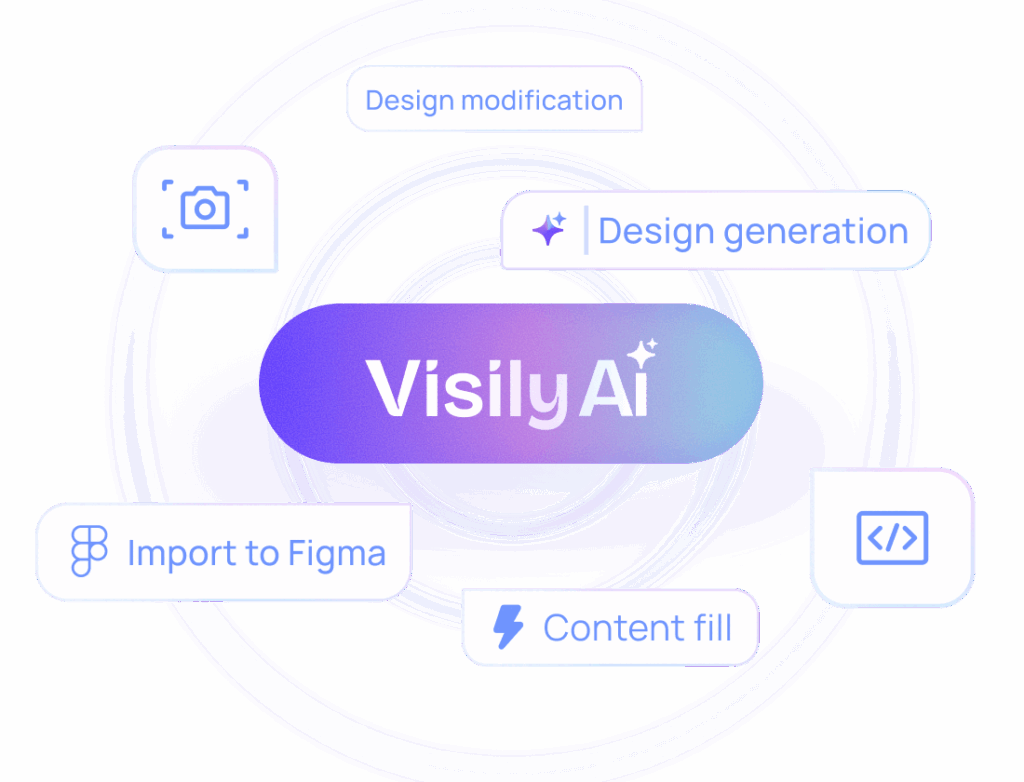
Visily includes every AI technique discussed earlier in this guide, all within a single platform. Text to design lets you describe a screen in plain language and receive a structured, editable layout. Screenshot to design converts images of existing apps or competitor products into editable wireframes and high-fidelity mockups. Sketch to design transforms hand-drawn whiteboard sketches into clean digital wireframes. Diagram to design converts flowcharts and user flow diagrams into full UI screen layouts.
Beyond these core techniques, Visily offers text to diagram for generating flowcharts, sitemaps, entity relationship diagrams, use case diagrams, and class diagrams from text prompts. Magic Images generates custom visuals that match your project’s design aesthetic. Magic Themes applies AI-generated color schemes and typography, or extracts themes from a URL or existing image. Structured Data Fill populates your designs with realistic placeholder content so your prototypes look and feel like real products. A Smart Design Assistant handles repetitive editing tasks automatically, reducing the manual work involved in refining AI-generated output.
Zero Learning Curve with Drag-and-Drop Editing
Visily was designed from the ground up to be usable by people with no design training. The drag-and-drop canvas requires no learning curve. You click, drag, and drop elements where you want them. There are no complex panel hierarchies, no layer management headaches, and no keyboard shortcuts you need to memorize before you can be productive.
The platform includes a Smart Components library with pre-built elements covering the most common UI patterns: navigation bars, buttons, cards, tabs, accordions, calendars, carousels, and more. These components follow standard design conventions, so even if you have never designed a screen before, the output looks professional.
One of Visily’s most distinctive features is the ability to switch between low-fidelity wireframes and high-fidelity mockups on the same board without losing any work. You can start in wireframe mode to focus on structure and flow, then toggle to high-fidelity mode to add colors, images, and realistic content. This eliminates the common frustration of rebuilding designs when moving between fidelity levels. Visily also supports both mobile and web platform wireframing, so you can design for any screen size within the same tool. Access to 1,500+ pre-built UI templates sorted by screen type, flow type, and app category gives you a fast starting point for virtually any project.
Prototyping, Collaboration, and Export
Visily turns static screens into interactive prototypes with screen transitions, button clicks, and simulated user flows. Auto-Prototyping speeds up this process by automatically linking screens based on their logical relationships. The result is a clickable prototype you can share with anyone via a link.
Collaboration features include real-time co-editing with multiple team members working on the same board at the same time. On-canvas cursor chat and a commenting system let team members leave feedback directly on specific design elements. Follower mode guides team members through designs during live review sessions. Presentation mode provides a clean, distraction-free view for stakeholder reviews. Shared asset libraries keep teams consistent across projects, and version history tracks every change so you can always revert if needed.
For export and handoff, Visily offers a Figma plugin that lets you send designs directly to Figma for pixel-perfect refinement. You can also export to PDF, PNG, and JPG formats for documentation and presentations. CSS inspection gives developers the exact values they need to implement designs in code. Native integration with free image libraries including Pexels, Unsplash, and Pixabay means you always have access to high-quality images without leaving the platform.
Pricing That Works for Every Team
Visily offers a Starter plan that is completely free. It includes 2 editable boards per workspace, 300 AI credits in the first month, and 150 template credits per month. This is enough to complete a real project and evaluate the tool thoroughly.
The Pro plan costs $11 to $14 per month and includes unlimited editable boards, 3,000 AI credits per editor per month, 8,000 template credits per editor per month, Figma export, and guest viewer and editor access. This plan is designed for individuals and small teams who use the tool regularly.
The Business plan costs $29 per month and adds custom AI credit allocation, unlimited template credits, SAML SSO and advanced security features, full guest access, and a dedicated account manager. An Enterprise plan with custom pricing is also available for organizations with stricter security and compliance requirements.
The generous free tier makes Visily accessible to anyone who wants to try AI-powered product design without financial commitment. View Visily’s pricing plans to find the right fit for your team. Try Visily free and start designing today. No design skills required.
AI Product Design vs. Traditional Design Tools: Key Differences
Understanding the differences between AI-powered design tools and traditional design tools helps you decide which approach fits your team’s needs. The table below compares the two categories across the factors that matter most.
| Factor | AI-Powered Tools (e.g., Visily) | Traditional Tools (e.g., Figma, Sketch, Adobe XD) |
| Learning Curve | Minimal to none. Usable immediately by non-designers. | Significant. Requires hours of training and practice. |
| Speed to First Prototype | Minutes. AI generates layouts from text, sketches, or screenshots. | Hours to days. Every element must be placed manually. |
| AI Generation | Core capability. Text to design, screenshot to design, sketch to design, diagram to design. | Limited or absent. Some tools have added basic AI features, but they are not central to the workflow. |
| Fidelity Options | Lo-fi and hi-fi on the same board with a toggle switch. | Typically one fidelity level per file. Switching requires rebuilding. |
| Collaboration | Real-time co-editing, commenting, presentation mode, follower mode. | Real-time co-editing and commenting (Figma). Varies by tool. |
| Cost of Entry | Free tiers with meaningful functionality. | Free tiers available (Figma) but with steeper learning investment. |
| Best For | Early-stage ideation, rapid prototyping, non-designer participation, cross-functional collaboration. | Final production design, pixel-perfect output, complex interaction design, design system management. |
The key takeaway is that AI-powered tools and traditional tools are not direct competitors. They serve different stages of the design process. AI tools are strongest in the early stages, where speed and accessibility matter more than pixel perfection. Traditional tools are strongest in the later stages, where detailed refinement and production-ready output are the priority.
The smartest workflow uses both. Start with an AI tool like Visily to generate and iterate on designs quickly, then export to Figma for final polish. Visily’s Figma plugin makes this handoff seamless. You get the speed of AI in the early stages and the precision of a professional design tool in the final stages. For a detailed comparison, see how Visily compares to Figma across features, pricing, and use cases.
Will AI Replace Product Designers?
No. AI will not replace product designers. This is a common concern, but it misunderstands what AI does well and what it does not do well in the context of design.
AI is excellent at generating structured layouts from inputs, applying consistent styling, producing variations quickly, and handling repetitive tasks like populating designs with placeholder data. These are tasks that consume a significant portion of a designer’s time but do not require creative judgment or deep user understanding.
What AI cannot do is conduct user research, understand the emotional context of a product experience, make strategic decisions about information architecture, or develop a brand identity that connects with a specific audience. These are fundamentally human skills that require empathy, cultural awareness, and creative thinking.
Research from MIT Sloan Management Review consistently shows that the highest-performing organizations use AI to support human workers rather than replace them. The same principle applies to design. AI handles the structural, repetitive parts of the workflow. Humans handle the strategic, creative, and empathetic parts.
In practice, AI product design tools expand who can participate in the design process. Product managers, founders, developers, and business analysts can now contribute visual artifacts that were previously only possible with professional design skills. This does not eliminate the need for designers. It gives designers better starting points, faster iteration cycles, and more time to focus on the high-value work that only humans can do. The result is better products, built faster, with more diverse input from across the team.
How to Get the Best Results from AI Design Tools
The quality of your AI-generated designs depends heavily on how you use the tool. These practical tips will help you get better output with less revision.
1. Write specific, detailed prompts
Vague descriptions produce generic results. Instead of “make a settings page,” try “a settings page for a mobile fitness app with sections for profile information, notification preferences, subscription management, and a logout button at the bottom.” The more detail you provide, the closer the AI output will match your intent.
2. Start with low-fidelity wireframes before going high-fidelity.
Resist the temptation to jump straight to polished mockups. Low-fidelity wireframes keep the focus on structure and flow. Once the team agrees on the layout, switch to high-fidelity to add visual detail. This prevents wasted effort on polishing screens that might change.
3. Use templates as starting points.
You do not have to generate everything from scratch. Browse the template library for screens similar to what you need, then customize them. Templates encode common UI patterns and save you from reinventing standard layouts.
4. Iterate with your team using real-time collaboration.
Share your designs early and often. Use commenting to collect specific feedback on individual elements. Use presentation mode for structured reviews. The faster you get feedback, the fewer major revisions you will need later.
5. Populate designs with realistic data.
Placeholder text like “Lorem ipsum” makes designs harder to evaluate. Use structured data fill to add realistic names, numbers, dates, and content. This helps stakeholders react to the design as if it were a real product.
6. Apply a consistent theme early in the process.
Use AI theme generation to set your color scheme and typography before you start refining individual screens. If your company has an existing website, extract the theme from that URL to ensure brand consistency across your designs.
7. Export to Figma for final polish when pixel perfection matters.
AI tools get you 80 percent of the way there. For production-ready designs, export to Figma and let a professional designer handle the remaining 20 percent. This hybrid workflow gives you the best of both worlds: AI speed and human precision.
Frequently Asked Questions About AI for Product Design
Is there a free AI tool for product design?
Yes. Visily offers a free Starter plan that includes 2 editable boards, 300 AI credits in the first month, and 150 template credits per month. This is a fully functional plan that lets you create wireframes, generate designs with AI, build prototypes, and share them with your team. It is not a limited trial. You can use the free plan indefinitely. For teams that need more capacity, the Pro plan starts at $11 per month and includes unlimited boards and significantly more AI and template credits.
Can I use AI to design a mobile app?
Yes. AI design tools like Visily support both mobile and web platform wireframing. You can generate mobile app screens from text prompts, screenshots, or sketches. The platform includes mobile-specific templates and components, and you can prototype the full user flow with screen transitions and button interactions. Whether you are designing for iOS, Android, or both, AI tools handle mobile layouts just as effectively as desktop layouts.
Do I need design experience to use AI design tools?
No. AI design tools are specifically built for people without design training. Product managers, startup founders, software developers, and business analysts are the primary users of platforms like Visily. The drag-and-drop interface requires no prior knowledge of design principles, and the AI handles layout decisions, component selection, and styling automatically. If you can describe what you want in plain language, you can create a professional-looking design.
Can I export AI-generated designs to Figma?
Yes. Visily includes a Figma plugin that lets you export your designs directly to Figma for further refinement. This is available on the Pro and Business plans. The export preserves your layout, components, and styling so that a professional designer can pick up where the AI left off. This workflow is common in teams where non-designers create the initial concept and designers handle the final production-ready version.
How is AI product design different from AI website builders?
AI product design tools and AI website builders serve different purposes at different stages of the product development process. AI product design tools like Visily create wireframes, mockups, and interactive prototypes for ideation and validation. The output is a design file, not a live website. AI website builders generate deployable websites with real code. Product design tools are used earlier in the process, before development begins, to define what the product should look like and how it should work. Website builders are used later, to actually build and publish the final product.
What types of diagrams can AI generate for product design?
AI design tools can generate several types of structured diagrams from text prompts. These include flowcharts for mapping user flows and processes, sitemaps for visualizing website or app structure, entity relationship diagrams for documenting database relationships, use case diagrams for defining system interactions, and class diagrams for modeling software architecture. These diagrams are useful for business analysts, developers, and product managers who need to document system logic before designing the user interface.
Conclusion
Start designing for free with Visily. AI has made product design accessible to everyone, not just professional designers. Whether you are a product manager sketching a new feature, a founder prototyping an MVP, or a developer visualizing a UI before writing code, AI tools let you move from idea to interactive prototype in minutes. No design skills required.