


Most product teams spend days, sometimes weeks, building digital mockups that never survive first contact with real users. The screens look polished, the interactions feel smooth, and the stakeholders nod along in review meetings. Then real people try to use the thing, and the whole concept falls apart.
That wasted effort triggers a painful chain reaction. Designers go back to the drawing board. Developers scrap code they already wrote. Stakeholders lose confidence, and momentum stalls at exactly the wrong time. The cost isn’t just hours; it’s alignment, trust, and speed.
Paper prototyping cuts through all of that. It’s a low-fidelity design method that uses hand-drawn sketches of interfaces to test ideas with real users before any digital work begins. You need a pen, some paper, and about fifteen minutes. No software, no design skills, no wasted sprints.
Here’s how paper prototyping works, when to use it, and how to run your first session today.
What is Paper Prototyping and How Does It Work?
Paper prototyping is a usability testing method where hand-drawn sketches replace digital screens, letting teams simulate user interactions and gather feedback before building anything.
The concept is simple: you draw each screen of your app or website on a separate sheet of paper, then test those screens with a real person as if the paper were a working product.
The process relies on a technique sometimes called “Wizard of Oz” testing. One team member plays the role of the “computer,” manually swapping paper screens in response to whatever the test user does. If the user taps a button, the computer slides in the next screen. If the user opens a menu, the computer places a paper strip showing the menu options. The user interacts with paper, but the experience feels surprisingly close to using a real interface.
No design software is needed. No artistic talent either. Here are the defining characteristics:
• Low-fidelity (rough and unpolished): Sketches use simple boxes, labels, and arrows rather than pixel-perfect layouts.
• Zero cost: You need paper, pens, and maybe some sticky notes.
• Accessible to anyone: Developers, product managers, marketers, and executives can all sketch a rectangle with a label inside it.
• Fast to create: A complete set of screens can be drawn in 10 to 15 minutes.
• Disposable by design: Throwing away a paper screen and redrawing it takes seconds, so teams iterate without attachment.
Why Paper Prototyping Is the Fastest Validation Method
Paper prototyping removes every barrier between an idea and its first test. It requires no tools, no skills, and no setup time, which makes it faster than any other prototyping method.
Here are the specific advantages:
• Created in minutes, not hours: A paper prototype for a five-screen flow takes 10 to 15 minutes to sketch. The same flow in a digital tool can easily take two to three hours, especially if you’re unfamiliar with the software.
• Zero cost: The entire supply list is paper, pens, and scissors. No license to buy, no subscription to manage, no IT approval to wait for.
• No design skills required: Anyone who can draw a rectangle and write a label can build a paper prototype. This matters for product managers, business analysts, and others who need to communicate product ideas without depending on a design team’s bandwidth.
• Instant iteration: Something not working? Cross it out, flip the paper over, and redraw the screen. You can test a completely revised concept in under two minutes.
• Better stakeholder conversations: A rough sketch on paper invites honest reactions and collaborative suggestions. A tangible artifact beats an abstract description every time, especially in cross-functional meetings where not everyone thinks in wireframes.
• Early user feedback: Catching a navigation problem or a confusing label on paper costs nothing to fix. Catching it after development costs days of rework. Three to five quick user tests on paper can surface the most critical usability issues before a single line of code exists.
Everything You Need for a Paper Prototyping Session
The barrier to entry is essentially zero. Most of what you need is already sitting in a desk drawer or supply closet.
Materials and Supplies
• Blank paper or index cards. Each sheet represents one screen. Index cards work well for mobile app screens because they’re close to phone-sized.
• Markers or pens. Thick markers for headers and key elements, fine-tip pens for labels and detail. Black is enough, but a second color helps distinguish interactive elements.
• Sticky notes. Use these for pop-up modals, tooltips, error messages, or any element that appears on top of a screen temporarily.
• Scissors. Cut out reusable components like dropdown menus, keyboard overlays, or navigation bars that appear across multiple screens.
• Tape or a glue stick. Attach overlays or movable pieces to base screens when needed.
• Pre-printed device templates (optional). Paper templates with phone, tablet, or desktop outlines can save a few minutes and add realism, but they aren’t required. A blank sheet works just as well.
Roles and Participants
1. The Facilitator. This person guides the test user through each task, asks follow-up questions, and keeps the session on track. They don’t hint at the right answer; they observe and probe.
2. The “Computer.” This role is unique to paper prototyping. The Computer sits beside the paper screens and swaps them in response to user actions. When the user “taps” a button, the Computer slides in the corresponding next screen. When the user opens a dropdown, the Computer places the paper strip with the menu options. No talking, no explaining, just responding like software would.
3. The Test User. A real or representative user who interacts with the paper prototype as if it were a working product. They don’t need any preparation beyond a brief scenario introduction.
4. The Observer/Note-Taker. This person stays quiet during the test and records everything: where the user hesitates, what they misunderstand, what they skip, and what they say out loud. Written notes beat memory every time.
None of these roles require design expertise. A product manager can facilitate, an engineer can play the Computer, and a stakeholder can observe. The whole point is that anyone can participate.
How to Run a Paper Prototyping Session (Step by Step)
The process below works whether you’re testing a mobile app, a marketing website, or an internal dashboard. Five steps, one afternoon, and you’ll have validated feedback on your concept.
Step 1: Define the Scenario and Tasks
Start by writing a realistic scenario that gives the test user a reason to interact with your prototype. The scenario should feel natural, not like a set of instructions. For example: “You just downloaded a new food delivery app and want to order dinner.”
From that scenario, create three to five specific tasks the user will attempt:
• Find a restaurant nearby
• Add a menu item to your cart
• Apply a promo code
• Complete the checkout
Keep the list short. More than five tasks leads to session fatigue, and tired users give unreliable feedback. Each task should reflect a real user goal, not an internal assumption about what matters.
If you’re unsure which tasks to test, ask yourself: “What would a first-time user actually try to do?”
Step 2: Sketch Your Screens
Draw every screen the user will encounter while completing the tasks you defined. One screen per sheet of paper, so the Computer can swap them quickly during testing.
Artistic skill is irrelevant. Rectangles for input fields, circles for icons, wavy lines for text blocks, and short labels for buttons. That’s all you need.
The roughness is a feature, not a bug: polished screens make people comment on visual design instead of usability, which is the opposite of what you want at this stage.
Use consistent paper sizes across all screens so the prototype feels cohesive. Each screen should represent a distinct state in the user flow: home screen, search results, item detail page, cart, checkout confirmation. If a task involves three steps, you need at least three screens.
Step 3: Prepare Interactive Elements
Paper prototypes become surprisingly realistic when you add movable pieces that simulate interactivity. These are the components the Computer will place on top of base screens during testing.
• Sticky-note modals. Write confirmation messages, error alerts, or permission requests on sticky notes and place them over the current screen when triggered.
• Paper-strip dropdowns. Cut narrow strips listing menu options. The Computer lays one on the screen when the user taps a dropdown.
• Keyboard overlay. Draw a simple keyboard on a separate sheet. Slide it onto the bottom of the screen whenever the user taps an input field.
• Toast notifications or success messages. Small paper rectangles the Computer briefly holds over the screen, then removes.
• Toggle states. Draw two versions of a button (on/off) on separate paper pieces and swap them when the user interacts.
These movable pieces are what make paper prototyping feel interactive. The Computer places, removes, and swaps them in real time, creating a surprisingly fluid simulation.
Step 4: Run the Test with Users
Seat the test user in front of the paper prototype. The Facilitator reads the scenario aloud, then presents the first task. From this point, the Facilitator steps back and watches.
The key technique is the “think-aloud” protocol: ask the user to narrate their thought process as they interact. “I’m looking for the search bar… I think this icon means filters… I’m not sure where to go next.” Those narrated moments are gold.
Resist the urge to guide. If the user struggles, let them struggle. The Facilitator should never say “try tapping that button” or “the menu is at the top.” Real usability issues only surface when users act without help.
Meanwhile, the Observer records every moment of hesitation, every misunderstood label, every skipped element, and every comment the user makes. Testing with three to five users is enough. A well-known UX research principle holds that five users surface roughly 85% of usability problems, so you don’t need a large sample to get actionable results.
Step 5: Analyze Feedback and Iterate
After your test sessions, gather the team and review the Observer’s notes. Look for patterns across users, not isolated incidents. A single user missing a button might be an outlier. Three users missing the same button is a design problem.
Prioritize issues using three criteria:
• Frequency. How many users hit this problem?
• Severity. Does it block task completion, or is it a minor annoyance?
• Ease of fix. Can you redraw the screen in two minutes, or does it require rethinking the entire flow?
This is where paper prototyping’s speed advantage really shows. Unlike digital prototypes that require tool proficiency to modify, a paper prototype can be revised between sessions. You can literally cross out a confusing label, rewrite it, and test the new version with the next user fifteen minutes later.
Aim to run two to three rounds of test-and-iterate in a single afternoon. By the end of the day, you’ll have a validated concept refined by real user behavior, not guesswork.
Paper Prototyping Examples for Common Design Scenarios
Here are practical examples you can recreate in your next session.
Mobile App Onboarding Flow
Sketch four screens: a welcome splash page, an account creation form, a permissions request (location, notifications), and a brief first-use tutorial. Ask your test user to create an account, grant location access, and complete the tutorial.
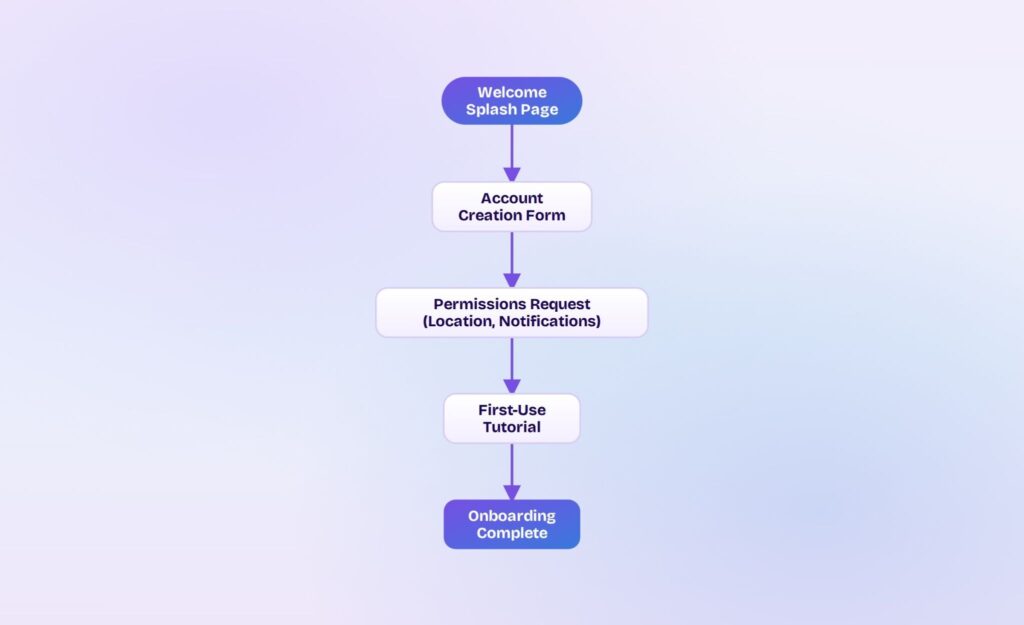
Watch for confusion at each transition. Do users understand what each permission grants them? Do they feel overwhelmed by the number of steps? Paper makes it easy to test whether a three-step onboarding beats a five-step version; just remove two screens and run the test again.
E-Commerce Checkout Process
Draw five screens: a product detail page, a cart summary, a shipping information form, a payment entry screen, and an order confirmation page. Tasks: “Add this item to your cart,” “Enter your shipping details,” and “Complete your purchase.”
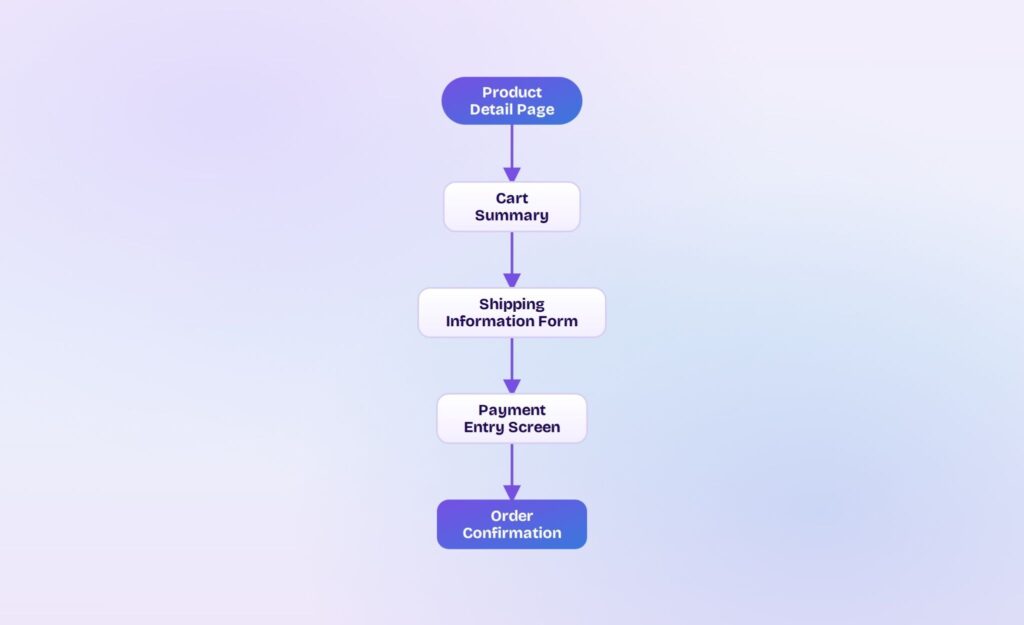
Pay close attention to where users hesitate or look lost. Checkout abandonment is one of the most expensive problems in e-commerce, and a fifteen-minute paper test can reveal the friction points that cause it.
Website Navigation and Information Architecture
Create a homepage with a visible navigation menu, two or three category pages, and one detail page. Give users tasks like “Find the pricing page,” “Locate the support section,” or “Navigate to a specific product.”
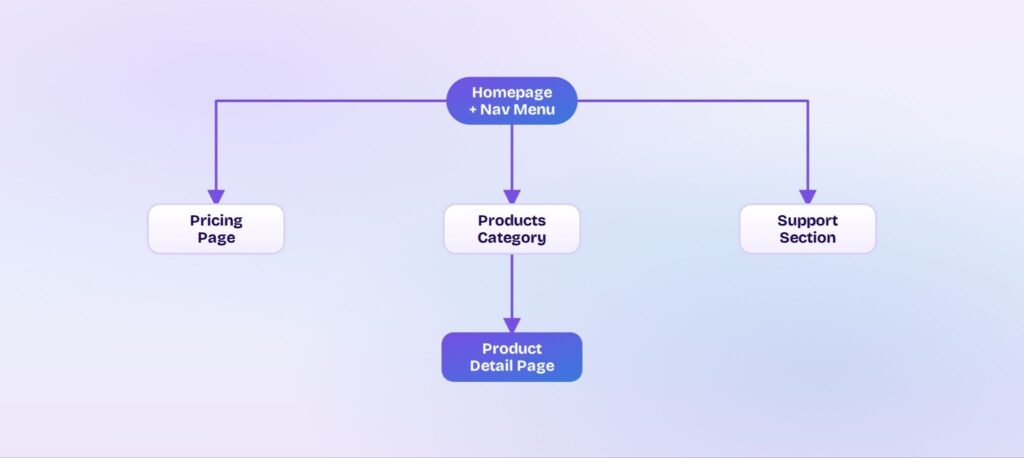
This tests whether your site’s structure matches the way users actually think about your content. If three out of five users look in the wrong menu category for pricing, you’ve learned something that would have taken weeks to find through analytics after launch.
The 4 Prototype Types and Where Paper Fits
The 4 main types of prototypes span a spectrum from rough sketches to near-final simulations. Understanding where each type fits helps you choose the right fidelity for the right moment.
| Type | Fidelity | Best For | Typical Time to Create |
| Paper/sketch prototype | Lowest | Early concept validation, testing user flows, comparing multiple ideas quickly | 10–30 minutes |
| Low-fidelity digital wireframe | Low | Refining layout and structure after initial validation, remote collaboration | 1–3 hours |
| Mid-fidelity interactive prototype | Medium | Testing navigation, transitions, and more complex interactions | 3–8 hours |
| High-fidelity prototype | Highest | Stakeholder presentations, usability testing with realistic visuals, developer handoff | 1–5 days |
Paper prototyping occupies the fastest, cheapest, and most accessible end of this spectrum. It’s the starting point, not the endpoint.
You wouldn’t present a paper sketch to investors, and you wouldn’t use a high-fidelity prototype to brainstorm three competing navigation models in an afternoon. Each type has its moment.
Once paper validation confirms your concept’s direction, the natural next step is to move into digital wireframing and interactive prototyping tools that add the fidelity and polish your idea has now earned.
When to Use Paper Prototyping (and When to Go Digital)
Paper prototyping and digital prototyping aren’t competing methods. They’re different stages of the same process. The key is knowing which one fits your current situation.
Use paper when:
• You’re in early ideation and want to test three or four approaches before committing to one.
• Your team is co-located and can gather around a table for a hands-on session.
• You’re working with a limited budget or no access to design tools.
• Non-designers are leading the process and need a method with zero learning curve.
• Speed matters more than polish, and you want feedback within the hour.
Go digital when:
• Your team is remote and needs to collaborate asynchronously.
• Stakeholders expect polished visuals before they’ll give meaningful feedback.
• You’re testing complex interactions like animations, scroll behavior, or multi-step transitions.
• You need to prepare assets for developer handoff.
• You’re scaling beyond initial validation into detailed usability testing.
Many teams use paper prototyping first, then digitize the validated concepts. This isn’t a compromise; it’s the most efficient workflow. Paper filters out bad ideas for free. Digital tools refine the good ones with precision.
The transition between the two should feel like a natural escalation, not a restart.
What are the Common Paper Prototyping Mistakes to Avoid?
Even a simple method can go wrong if you skip the basics. Here are the most common pitfalls and how to fix them.
1. Over-designing the sketches. Spending thirty minutes shading buttons and aligning text defeats the entire purpose. The prototype should look rough. That roughness signals “this is open for feedback,” which is exactly the mindset you want from test users. Set a timer for ten minutes and sketch fast.
2. Leading the user during testing. Saying “try the menu at the top” when someone looks confused is tempting. Don’t. Every hint you give hides a real usability problem you need to find. Stay quiet, observe the struggle, and note where it happens.
3. Testing with only one user. One person’s experience tells you almost nothing. They might be an outlier. Test with at least three to five users to see patterns. If three people stumble at the same screen, that’s a signal you can trust.
4. Skipping iteration. Running one round of tests and declaring the concept “validated” is premature. The real value of paper prototyping is the speed of iteration. Fix the most critical issues and test again the same day.
5. Writing unclear or biased tasks. “Use our amazing new search feature” tells the user where to look and what to think about it. Write neutral, goal-oriented tasks instead: “Find a nearby restaurant that serves Thai food.”
6. Not recording observations. Relying on memory is unreliable, especially after three or four sessions blur together. Assign a dedicated note-taker who writes down every hesitation, comment, and confusion point in real time.
From Paper to Pixels: Turning Validated Sketches into Digital Prototypes
The natural workflow after paper validation follows a clear path: photograph your paper screens, recreate them digitally as editable wireframes, then add interactivity to build a clickable prototype. Traditionally, that middle step (manually rebuilding every screen in a design tool) consumed hours and required tool proficiency that many product team members didn’t have.
Modern AI-powered design tools collapse that gap. Visily, for example, lets you photograph your paper prototype and upload the image directly. Its Screenshot to Wireframe AI converts the photo into an editable digital wireframe that preserves your layout, so you’re refining your validated concept rather than starting over. If you’d rather describe a screen in your own words, the Text to UI feature generates structured interface elements from plain-language descriptions.
Once your screens are digital, Auto-Prototype instantly generates interactive flows by linking screens together with AI, eliminating the tedious process of manually connecting every button to its destination. You can then share the prototype with teammates or stakeholders for feedback, whether as a clickable simulation or a slide presentation.
The goal at this stage is to carry forward what you already proved on paper and add the fidelity it needs for the next round of decisions.
Paper Prototyping Tips for Product Managers and Non-Designers
These tips are specifically for people who don’t have “designer” in their job title but still need to communicate product ideas clearly.
• Embrace imperfection. Rough sketches invite more honest feedback than polished designs. When a screen looks unfinished, people critique the idea. When it looks finished, they critique the font.
• Use paper prototypes to align stakeholders before requesting design resources. Walking into a design review with a validated paper concept saves your design team from building multiple directions and lets them focus on the one that already tested well.
• Make sketching a team activity. Collaborative sketching sessions pull ideas from engineers, customer support reps, and sales teams who see problems designers don’t. Hand everyone a pen and a stack of index cards.
• Photograph every iteration. Snap a quick picture of each version before you modify it. This creates a visual history that’s useful for documenting decisions and explaining your rationale later.
• Bring sketches to meetings. Paper prototypes aren’t just testing tools. They’re communication tools. A rough sketch on the conference table generates more productive conversation than a bullet-point slide.
• Pick a digital tool built for non-designers. AI-powered platforms like Visily are designed so product managers and business professionals can create polished wireframes and prototypes without a steep learning curve or design background.
Start Validating Your Design Concepts Today
Paper prototyping is the fastest, cheapest, and most inclusive way to validate design concepts. A few sheets of paper, a pen, and thirty minutes can save weeks of misdirected development. The method works for mobile apps, websites, dashboards, and any interface where user interaction matters.
The core principle is simple: validate before you build, not after. Every idea that survives a paper test is stronger for it, and every idea that fails on paper is one you’re glad you didn’t code.
When your paper prototypes are validated and you’re ready to go digital, Visily makes the transition effortless. Screenshot to Wireframe AI lets you photograph your paper sketches and get editable digital wireframes in seconds. Text to UI generates screens from plain-language descriptions, so you can type “a settings page with a profile section, notification toggles, and a logout button” and get a structured layout. Auto-Prototype links your screens into interactive flows automatically, with no manual wiring. Smart components like sliders, buttons, and tags add real interactivity, while collaboration features including commenting, cursor chat, follower mode, and shared asset libraries keep your team aligned. Share your prototype as a clickable simulation or a slide presentation, collect comments from any device, and export to PDF when you need to take things offline.
Visily was built for people who aren’t designers but need to communicate product ideas with clarity and speed. AI removes the traditional barriers to professional UI design, so the gap between “I have an idea” and “here’s what it looks like” shrinks to minutes. Get Visily for free and turn your validated paper concepts into polished, interactive prototypes. The concept you proved on paper deserves to become the product your users actually get.