


Every product starts as an idea. Turning that idea into something a team can build requires two things: a clear picture of what the user does and a clear picture of what each screen looks like. That is where user flows and wireframes come in.
A user flow is a diagram that maps the steps a user takes through a product to reach a specific goal. A wireframe is a visual blueprint that shows the layout and structure of a single screen. These two artifacts serve different purposes, but many product teams either confuse them or skip one entirely. The result is disconnected screens, wasted development cycles, and frustrated users.
This guide breaks down the differences between user flows and wireframes, explains when to use each, and shows how teams can create both quickly using AI-powered tools like Visily.
What Is a User Flow?
A user flow is a visual diagram that shows the path a user takes through a product or application to complete a specific task. Think of it as a map of decisions and actions. It answers one question: “What does the user do next?”
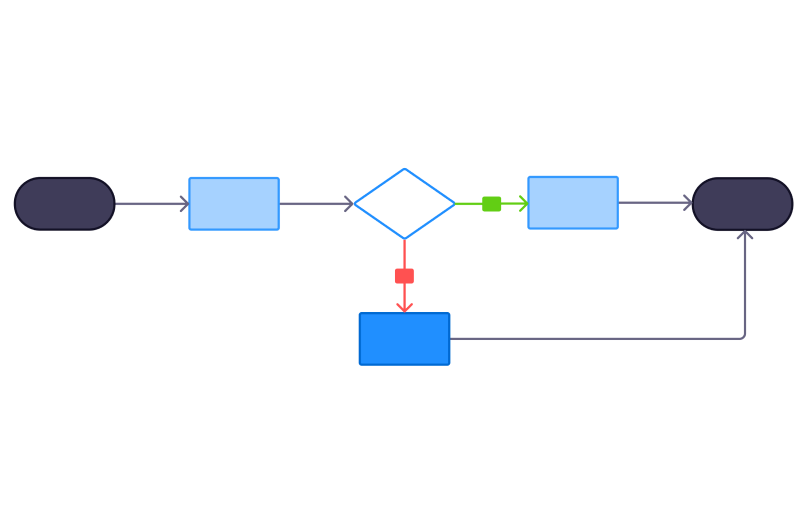
User flows typically include these core components:
- Entry point — where the user starts (a landing page, a push notification, a search result)
- Steps — the individual actions the user takes (clicking a button, filling out a form, selecting an option)
- Decision points — moments where the user chooses between two or more paths (yes/no branches, conditional logic)
- End goal — the final outcome the user reaches (a completed purchase, a confirmed account, a submitted form)
A user flow for a sign-up process might look like this: landing page, click “Sign Up,” fill in the registration form, verify email, and arrive at the dashboard.
User flows can be simple and linear or complex with multiple branches. Product managers, UX designers, and business analysts typically create them early in the design process, before any screen-level design work begins. Understanding user behavior patterns at this stage helps teams build products that match real needs rather than assumptions.
What Is a Wireframe?
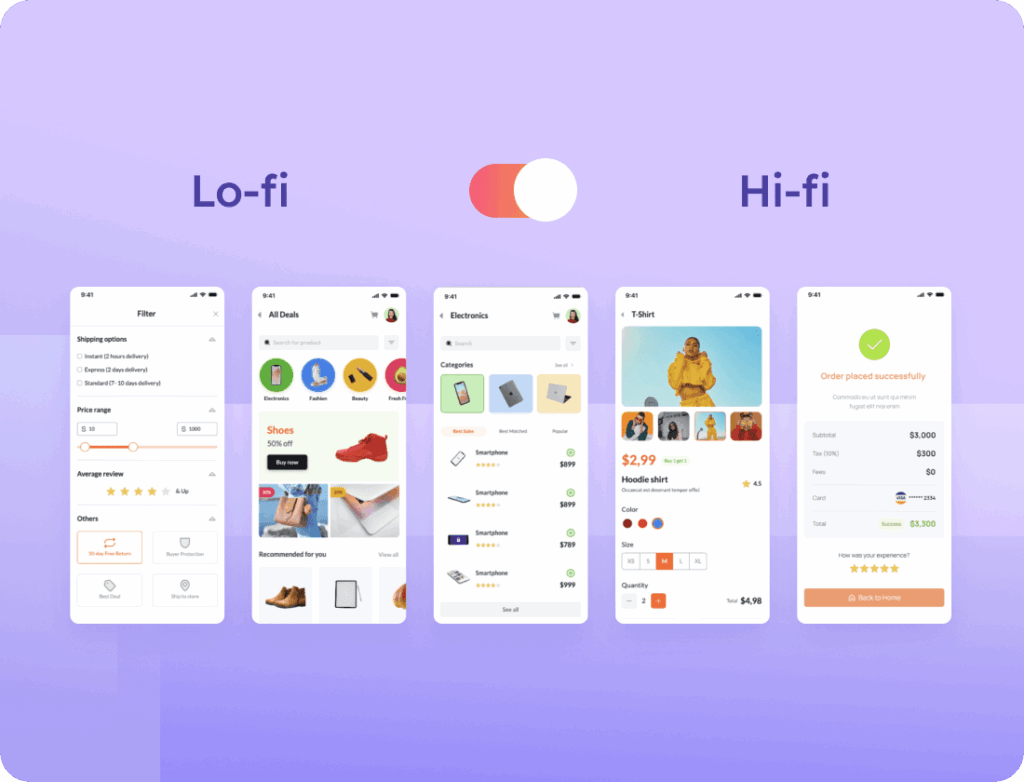
A wireframe is a low-fidelity visual blueprint of a single screen or page. It shows where elements like navigation bars, buttons, text blocks, images, and forms will be placed. A wireframe does not include colors, fonts, or final visual styling. It focuses entirely on structure and layout.
Core components of a wireframe include:
- Layout grid — the underlying structure that organizes the screen into sections
- Placeholder content — boxes and lines representing text, images, and media
- Navigation elements — menus, tabs, breadcrumbs, and links
- Buttons and calls to action — interactive elements the user will click or tap
- Content hierarchy — visual indicators showing which elements are most important on the screen
A wireframe for a mobile app home screen might show a header with a logo placeholder, a search bar, a grid of product cards represented as gray rectangles, and a bottom navigation bar with icon placeholders.
Wireframes exist on a spectrum of detail. Low-fidelity wireframes use simple boxes and lines with no real content. High-fidelity wireframes include actual text, realistic spacing, and near-final element sizing. Both versions serve the same purpose: defining what goes on a screen before the team invests time in visual design.
UX designers, product managers, and developers create wireframes after user flows are complete but before visual design and prototyping begin.
User Flow vs Wireframe: Key Differences
User flows and wireframes are both essential design artifacts, but they operate at different levels. Here is a direct comparison across the dimensions that matter most.
| Dimension | User Flow | Wireframe |
| Purpose | Maps the path a user takes to complete a task | Shows the layout and structure of a single screen |
| Focus | User actions, decisions, and navigation across screens | UI element placement, content hierarchy, and page structure |
| Scope | Multiple screens or steps in a journey | One screen or page at a time |
| Visual format | Flowchart or diagram with arrows and decision nodes | Skeletal page layout with boxes, lines, and placeholders |
| Fidelity level | Abstract with no screen-level detail | Ranges from low-fidelity grayscale to high-fidelity near-final layouts |
| When created | Early in the design process during ideation and planning | After user flows and before visual design and prototyping |
| Created by | Product managers, UX designers, business analysts | UX/UI designers, product managers, developers |
| Key question answered | “What steps does the user take?” | “What does this screen look like?” |
The most important distinction is scope. User flows are horizontal. They stretch across multiple screens and show how those screens connect through user actions and decisions. Wireframes are vertical. They go deep into a single screen and define exactly what appears on it.
This difference in scope also explains their sequence. User flows come first because they identify which screens the product needs. Wireframes come second because they define the content and structure of each screen. Skipping user flows often leads to wireframes that look fine individually but fail to connect into a logical journey.
These two artifacts are not competing options. They are partners. A research report from Nielsen Norman Group on UX research methods confirms that combining journey-level and screen-level artifacts produces stronger design outcomes than using either one alone. Strong product teams use both, and they use them in sequence.
When to Use a User Flow
Now that the differences are clear, here is when a user flow is the right tool for the job.
- Planning a new feature or product — Map the full journey before designing any screens. This reveals how many screens you need and how they connect.
- Designing onboarding or sign-up flows — Identify every step, decision, and potential drop-off point before building anything.
- Optimizing checkout or conversion funnels — Visualize where users might abandon the process and test alternative paths.
- Aligning cross-functional teams — Give product managers, developers, and designers a shared understanding of the user journey in one diagram.
- Identifying edge cases and error states — Decision points in user flows reveal scenarios that screen-level designs alone would miss, such as what happens when a payment fails or a user enters invalid data.
- Presenting product vision to stakeholders — User flows communicate the big picture without getting lost in screen-level details. They are ideal for executive reviews and investor presentations.
When to Use a Wireframe
Wireframes are the right choice in a different set of situations. Here is when to reach for them.
- Defining the layout of a new screen or page — Decide where navigation, content, buttons, and images go before adding any visual design.
- Testing content hierarchy and information architecture — Confirm that the most important elements are prominent and the page structure makes sense to users.
- Getting early feedback from stakeholders — Wireframes let teams review structure without getting distracted by colors, fonts, and imagery. Feedback stays focused on layout and functionality.
- Preparing for developer handoff — Wireframes communicate structural requirements clearly to engineering teams. Developers can see exactly what elements exist on each screen and how they are arranged.
- Iterating quickly on screen designs — Low-fidelity wireframes take minutes to create and seconds to change. They are the fastest way to test multiple layout options.
- Designing responsive layouts — Plan how screen elements rearrange across mobile, tablet, and desktop views before committing to a final design.
How User Flows and Wireframes Work Together
User flows and wireframes are not an either-or choice. They are sequential steps in the same design process. Here is how they fit together in a typical product workflow.
1. Define the user’s goal. Start by identifying what the user needs to accomplish. Examples include completing a purchase, setting up an account, or submitting a support request.
2. Create the user flow. Map every step, decision point, and screen the user encounters on the way to that goal. This diagram reveals the total number of screens your product needs and how those screens connect to each other.
3. Wireframe each screen. For every screen identified in the user flow, create a wireframe that defines the layout, content placement, and UI elements. Each wireframe should directly support the actions described in the corresponding step of the user flow.
4. Check the connection. Walk through the user flow while reviewing each wireframe. Confirm that the wireframes support the transitions and decisions mapped in the flow. If a wireframe introduces a new action that is not in the user flow, update the flow.
5. Iterate and refine. Update user flows and wireframes together as the team identifies gaps, edge cases, or better navigation patterns. These artifacts should inform each other throughout the design process.
Skipping user flows leads to wireframes that look polished but do not connect into a coherent journey. Skipping wireframes leads to user flows that describe a journey no one can actually build. Teams that use both save time in development because the design is already validated before a single line of code is written.
How to Create User Flows and Wireframes with Visily
Understanding the relationship between user flows and wireframes is one thing. Creating them efficiently is another. Visily is an AI-powered UI design platform built specifically for product managers, founders, developers, and business analysts who need to move from idea to interactive prototype without design training.
Create User Flow Diagrams with Text to Diagram
Visily’s Text to Diagram feature lets you describe a user flow in plain language. The platform then generates a structured flowchart automatically. You can create flowcharts, sitemaps, entity relationship diagrams, and use case diagrams from a simple text prompt. This is especially useful for product managers and business analysts who think in words and processes rather than shapes and arrows.
Generate Wireframes with Text to Design
Visily’s Text to Design feature works the same way for screen layouts. Describe a screen in plain language and Visily generates an editable wireframe with structured UI elements matching your description. You can then switch between low-fidelity wireframes and high-fidelity mockups on the same board without losing any work. No design skills are required at any step.
Turn Existing Screens into Editable Wireframes
Visily’s Screenshot to Design feature lets you upload screenshots of existing apps, competitor products, or rough sketches. The platform converts them into fully editable wireframes and mockups. The Sketch to Design feature does the same for hand-drawn sketches. Both features are useful for competitive analysis and for digitizing ideas captured on whiteboards or paper.
Collaborate and Share in Real Time
Visily supports real-time co-editing so product managers, developers, and designers can work on user flows and wireframes together in one workspace. On-canvas commenting, presentation mode for stakeholder reviews, and Figma export for pixel-perfect refinement are all built in. Cross-functional teams stay aligned without switching between multiple tools.
Visily’s free Starter plan includes 300 AI credits, 150 template credits per month, and access to over 1,500 pre-built UI templates. Teams can start creating user flows and wireframes immediately without a credit card or design experience. Try Visily free to create your first user flow and wireframe in minutes.
User Flow vs Wireframe: Common Mistakes to Avoid
Even experienced product teams make errors with these two artifacts. Here are the most common mistakes and how to avoid them.
1. Jumping straight to wireframes without creating a user flow first. This leads to screens that look good individually but do not connect logically. The user journey has gaps that only surface during development or user testing.
2. Treating user flows and wireframes as the same thing. They are different artifacts with different purposes. Confusing them means you either lack journey-level thinking or screen-level detail.
3. Adding too much visual detail to user flows. User flows should stay abstract. Adding UI details to a flowchart makes it harder to read and defeats its purpose. Save the screen-level detail for wireframes.
4. Creating wireframes without defining the user’s goal first. A wireframe without a clear user goal is just a collection of boxes. It has no direction and no way to measure whether the layout actually works.
5. Not iterating between user flows and wireframes. These artifacts should inform each other. When a wireframe reveals a missing step, update the user flow. When a user flow changes, update the affected wireframes. Tools like Visily make this iteration faster because user flows and wireframes live on the same board.
6. Working in silos. User flows and wireframes are most effective when the whole team reviews them together. Product managers, designers, and developers each catch different problems. Solo creation leads to blind spots that cost time later.
Frequently Asked Questions
Is a user flow the same as a wireframe?
No. A user flow maps the steps and decisions a user takes across multiple screens to complete a task. A wireframe shows the layout and structure of a single screen. They serve different purposes in the design process. Most product teams need both to build a well-structured product.
Do I need both a user flow and a wireframe?
For most projects, yes. User flows define what screens you need and how they connect. Wireframes define what goes on each screen. Skipping either one creates gaps in your design. Very small projects with only one or two screens may only need wireframes, but any product with multi-step interactions benefits from having both.
What comes first, a user flow or a wireframe?
A user flow comes first. It maps the overall journey and identifies the screens your product needs. Wireframes are then created for each screen in the flow. This sequence ensures every screen has a clear purpose and connects logically to the next one.
What is the difference between a user flow and a user journey map?
A user flow focuses on the specific steps a user takes within a product to complete a task. A user journey map is broader. It includes the user’s emotions, motivations, pain points, and touchpoints across the entire experience, often spanning multiple channels like email, social media, and in-person interactions. User flows are tactical and product-specific. Journey maps are strategic and experience-wide.
What is the difference between a wireframe and a prototype?
A wireframe is a static visual layout of a single screen. A prototype is an interactive version that simulates real user interactions like clicking buttons, navigating between screens, and completing tasks. Wireframes show structure. Prototypes show behavior. Many teams use tools like Visily to turn wireframes into clickable prototypes without writing any code.
Can non-designers create user flows and wireframes?
Yes. Product managers, startup founders, developers, and business analysts regularly create user flows and wireframes. AI-powered tools like Visily are built specifically for non-designers. Features like Text to Diagram and Text to Design generate professional user flows and wireframes from plain language descriptions, removing the need for any formal design training.