Annual Pro comes with 2× normal AI credits

Explore now

Subscribe now to get 6,000 credits/month (up from 3,000) for the next 2 months

Explore now
Visily
Visily
  • Use Cases
    • Wireframing
    • Prototyping
    • Brainstorming
    • Collaboration
  • AI Design
  • Templates
    • Design Templates
    • Premade Themes
    • Smart Components
    • UI Presets
    • Images & Icons
  • Resources
    • Help Center
    • Explore Visily
    • FAQs
    • Blog
    • Release Notes
  • Pricing
  • Login
Log in
Sign up for free
  • Use Cases
    • Wireframing
    • Prototyping
    • Brainstorming
    • Collaboration
  • AI Design
  • Templates
    • Design Templates
    • Premade Themes
    • Smart Components
    • UI Presets
    • Images & Icons
  • Resources
    • Help Center
    • Explore Visily
    • FAQs
    • Blog
    • Release Notes
  • Pricing
  • Login
  • Use Cases
    • Wireframing
    • Prototyping
    • Brainstorming
    • Collaboration
  • AI Design
  • Templates
    • Design Templates
    • Premade Themes
    • Smart Components
    • UI Presets
    • Images & Icons
  • Resources
    • Help Center
    • Explore Visily
    • FAQs
    • Blog
    • Release Notes
  • Pricing
  • Login
Visily
Visily
Sign up for free
Visily
Visily
  • Use Cases
    • Wireframing
    • Prototyping
    • Brainstorming
    • Collaboration
  • AI Design
  • Templates
    • Design Templates
    • Premade Themes
    • Smart Components
    • UI Presets
    • Images & Icons
  • Resources
    • Help Center
    • Explore Visily
    • FAQs
    • Blog
    • Release Notes
  • Pricing
  • Login
Log in
Sign up for free

[Help Center] Auto Prototype

Visily AI Auto-Prototype helps you quickly connect your screens into interactive flows, saving you time and effort.

Using the Auto-Prototype feature

To setup prototype for your designs using Visily AI, following these simple steps:

  1. Access Prototype mode: Click on Prototype mode in the top bar of your workspace to begin setting up interactions.
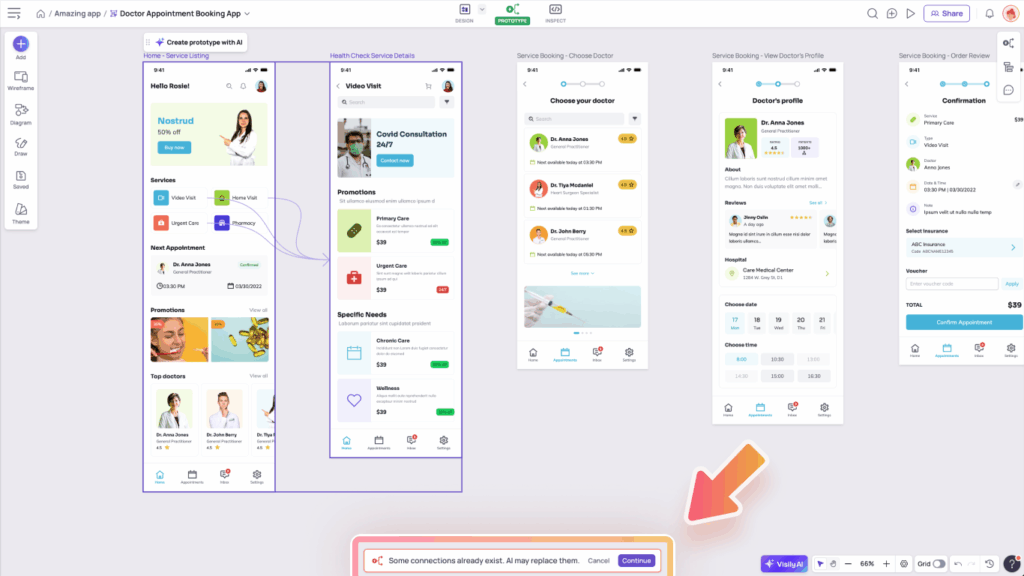
  2. Select your screens: Choose at least 02 screens you want to connect. Once selected, the “Create Prototype with AI” button will appear above the selected screens or in the Prototype panel on the right.
  3. Let AI build the flow: Click the “Create Prototype with AI” button. Visily AI will automatically add interaction links between the selected screens and create a flow to represent the user journey. You can click the play button in the Flow tab to review the generated flow.

You can always fine-tune the flow after it’s generated to better match your intended experience. Check out our Prototype Interactions guide for more details on interaction types and how to set them up.

light-bulb
Note: Running Auto-Prototype on selected screens will replace any existing prototype connections. A confirmation message will appear before the AI proceeds.
Replace connections
Use Cases
  • Wireframing
  • Brainstorming
  • Prototyping
  • Collaboration
Features
  • AI UI Design Generator
  • Screenshot Editor
  • Online Sticky Notes
  • UI Mockup Tool
  • AI Prototype Generator
  • Diagram AI
Resources
  • Vibe Designing
  • Blog
  • Release Notes
  • Help Center
  • FAQs
Features
  • Screenshot Editor
  • Online Sticky Notes
  • UI Mockup Tool
Use Cases​
  • AI Prototype Generator
  • Diagram AI

© 2025 Visily. All rights reserved.

Privacy Policy

Terms of Service

Terms Of Use