
[Help Center] Enhance Large Boards Performance
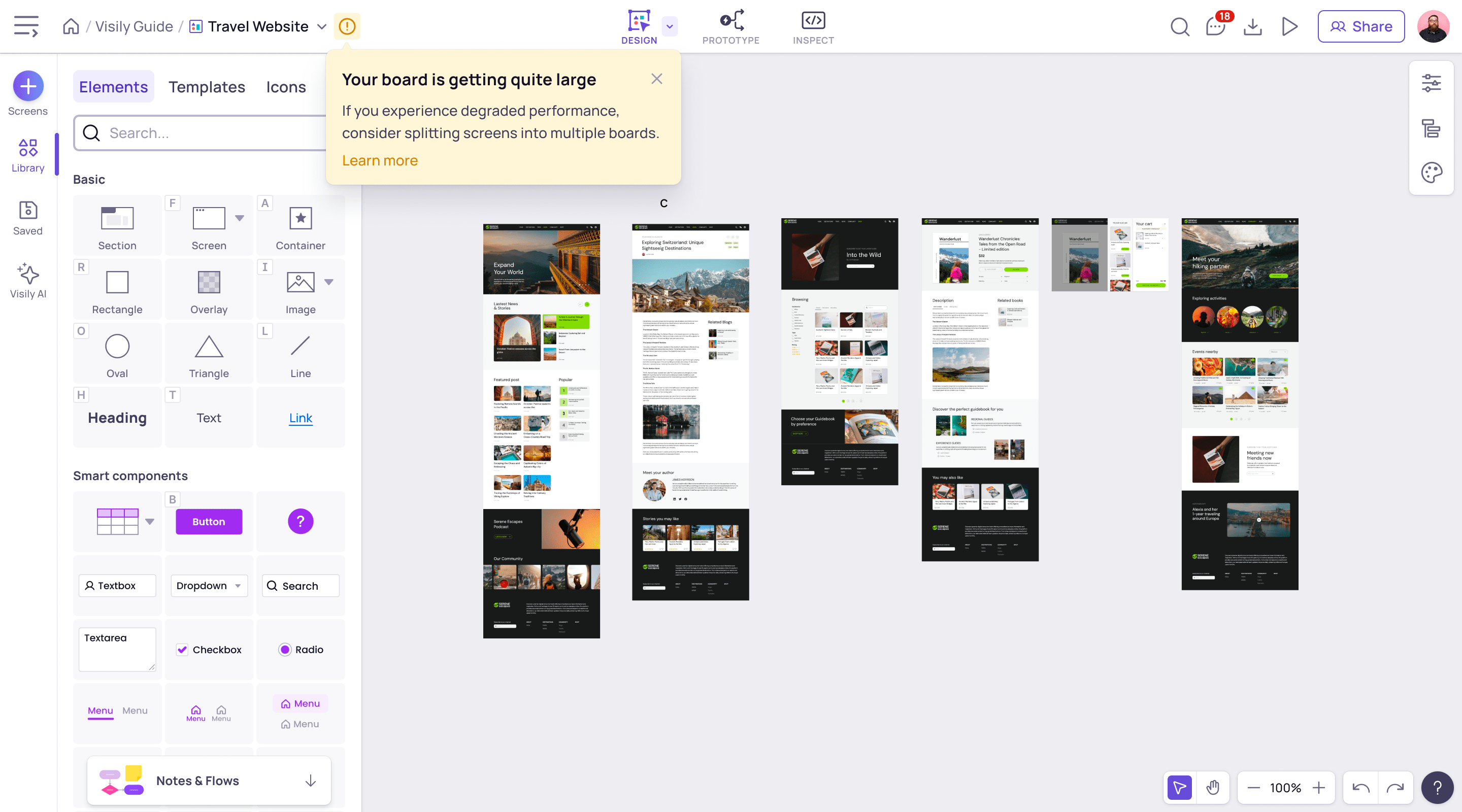
While there’s no hard limit to the number of elements you can have on a Visily board, the performance and load time can be negatively impacted as you have more and more elements on the board. For a better experience, we recommend keeping the number of elements on a single board below 4,000 elements.
When your board reaches this threshold, you will see a message to inform you that the board might be getting quite large.
![[Help Center] Enhance Large Boards Performance 1 Enhance performance for large boards2](https://www.visily.ai/wp-content/uploads/2023/12/Enhance-performance-for-large-boards2.png)
To enhance the performance of a large board, consider the following:
- Split this board into a few smaller boards
- Copy a part of the board content by selecting it and
pressing
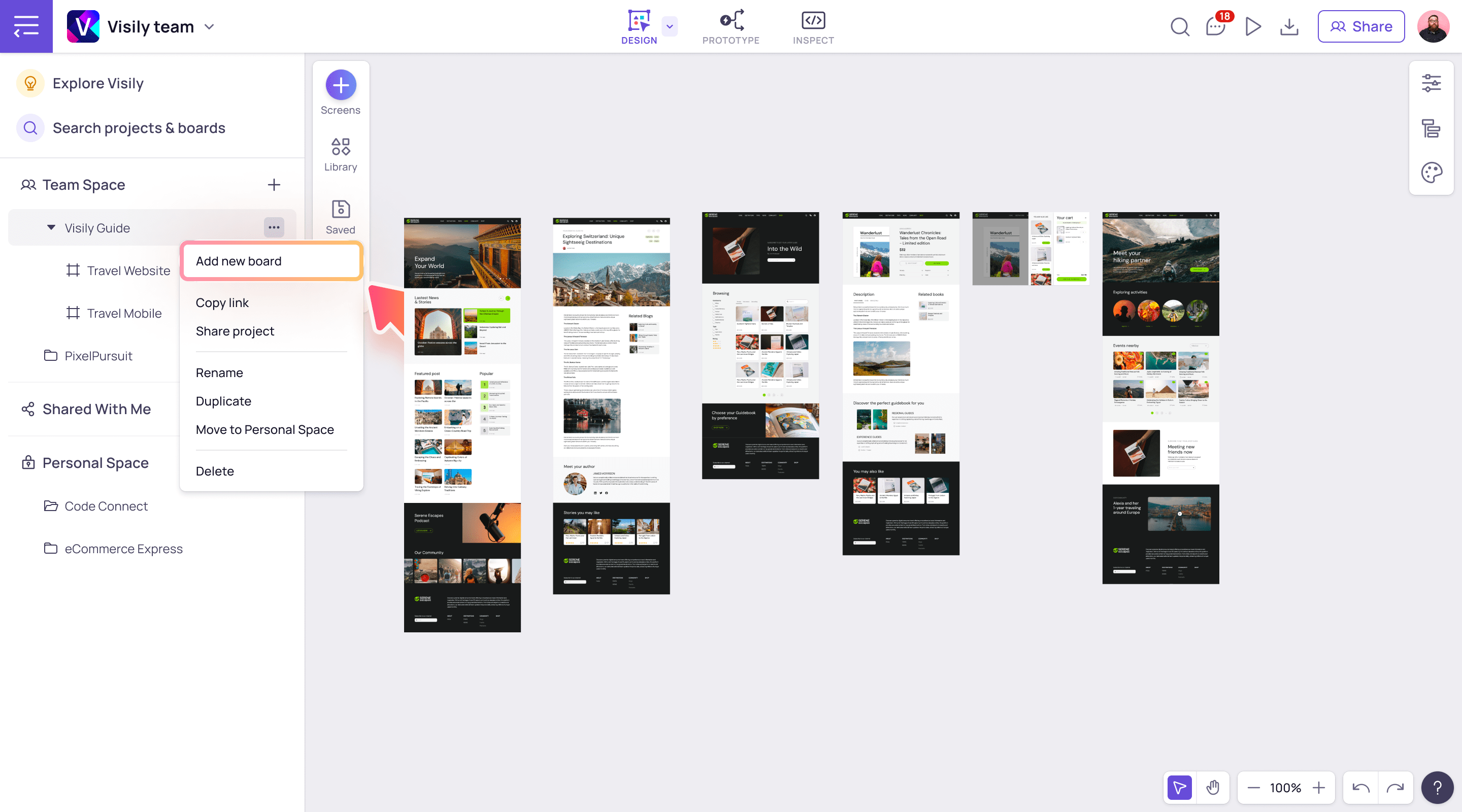
Ctrl+C(for Windows) orCmd+C(for Mac) - Create a new board and paste the content onto the board. To create a
new board, first, click on the
Show project list
menu, then right-click on the current project’s name, then select
Add new board
![[Help Center] Enhance Large Boards Performance 3 Enhance performance for large boards1](data:image/svg+xml;base64,PHN2ZyB3aWR0aD0iMSIgaGVpZ2h0PSIxIiB4bWxucz0iaHR0cDovL3d3dy53My5vcmcvMjAwMC9zdmciPjwvc3ZnPg==)
- Once the copying is completed, delete the copied content from the original board
- Copy a part of the board content by selecting it and
pressing
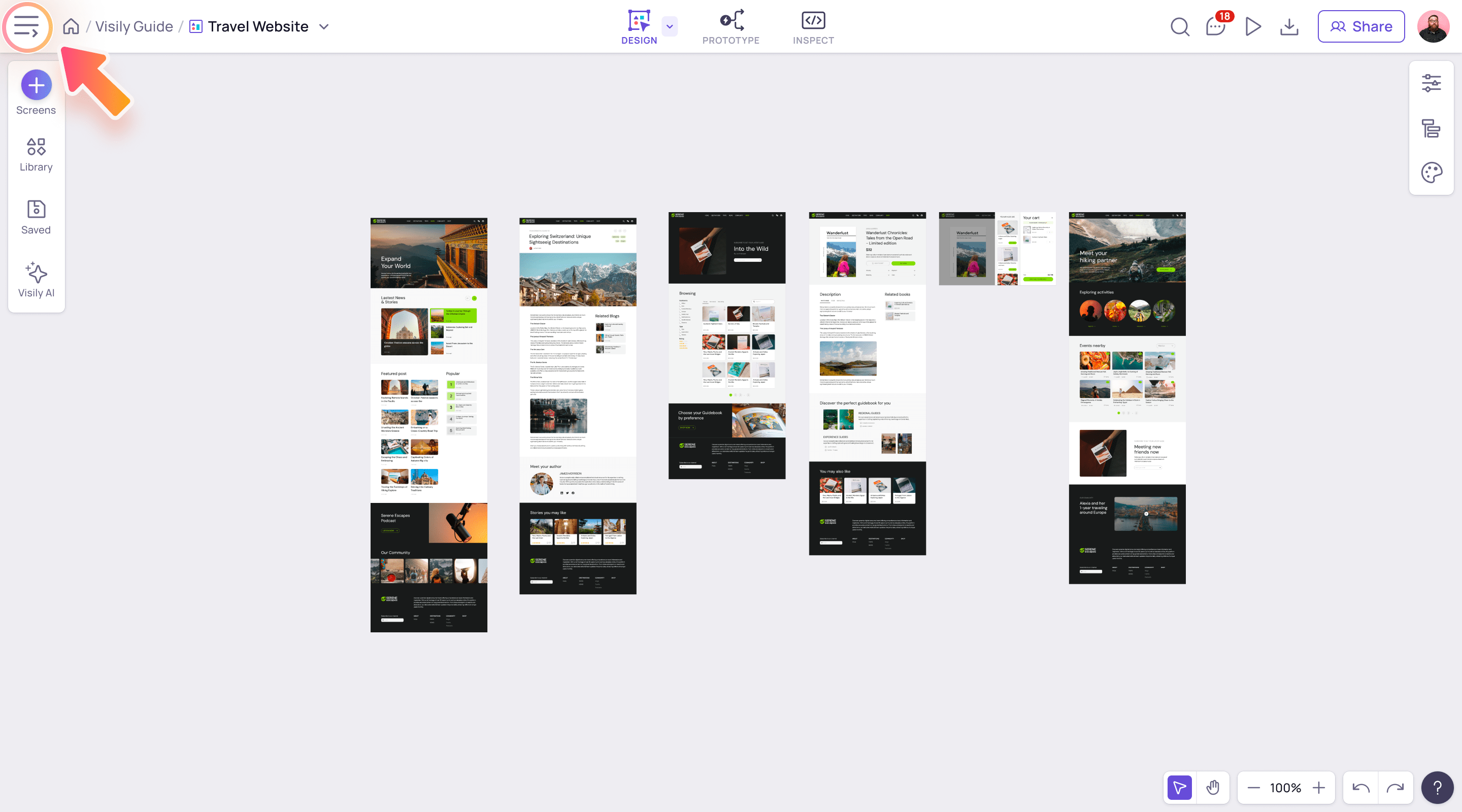
Tips: Here are some recommended ways to organize your designs into boards
- By platform (Web, Mobile, Tablet)
- By features or modules
- By versions
- Delete unnecessary screens and elements that are no longer in use
- Close other browser tabs that are open but not in use, as they might be taking up some of your computer’s resources (CPU/RAM)
![[Help Center] Enhance Large Boards Performance 3 Enhance performance for large boards1](https://www.visily.ai/wp-content/uploads/2023/12/Enhance-performance-for-large-boards1.png)