
Annual Pro comes with 2× normal AI credits

Explore now

Subscribe now to get 6,000 credits/month (up from 3,000) for the next 2 months

Explore now
Visily
Visily
  • Use Cases
    • Wireframing
    • Prototyping
    • Brainstorming
    • Collaboration
  • AI Design
  • Templates
    • Design Templates
    • Premade Themes
    • Smart Components
    • UI Presets
    • Images & Icons
  • Resources
    • Help Center
    • Explore Visily
    • FAQs
    • Blog
    • Release Notes
  • Pricing
  • Login
Log in
Sign up for free
  • Use Cases
    • Wireframing
    • Prototyping
    • Brainstorming
    • Collaboration
  • AI Design
  • Templates
    • Design Templates
    • Premade Themes
    • Smart Components
    • UI Presets
    • Images & Icons
  • Resources
    • Help Center
    • Explore Visily
    • FAQs
    • Blog
    • Release Notes
  • Pricing
  • Login
  • Use Cases
    • Wireframing
    • Prototyping
    • Brainstorming
    • Collaboration
  • AI Design
  • Templates
    • Design Templates
    • Premade Themes
    • Smart Components
    • UI Presets
    • Images & Icons
  • Resources
    • Help Center
    • Explore Visily
    • FAQs
    • Blog
    • Release Notes
  • Pricing
  • Login
Visily
Visily
Sign up for free
Visily
Visily
  • Use Cases
    • Wireframing
    • Prototyping
    • Brainstorming
    • Collaboration
  • AI Design
  • Templates
    • Design Templates
    • Premade Themes
    • Smart Components
    • UI Presets
    • Images & Icons
  • Resources
    • Help Center
    • Explore Visily
    • FAQs
    • Blog
    • Release Notes
  • Pricing
  • Login
Log in
Sign up for free

[Help Center] Layout Grid

Layout grids help aligning elements on a screen, providing a visual structure to your designs. Take advantage of Visily’s Layout grid to ensure your designs stay consistent across different devices.

Applying Layout grids

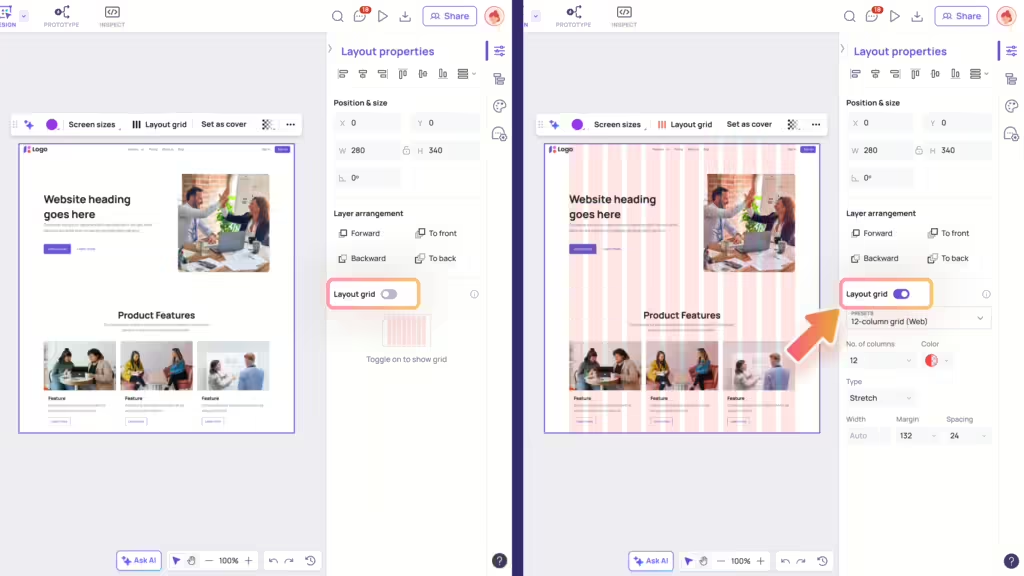
Access Layout grids

You can apply Layout Grids to one screen or multiple screens you’re working on. To access this feature, you have two options:


  • Use the “Layout grid” toggle on the Layout Properties panel.
  • Or click on “Layout grid” in the context toolbar of your screen(s) and the Layout Properties panel will automatically expand to show the Layout grid toggle.

Hide/Show Layout grids

In the Layout Properties panel, you can easily control whether the layout grid is visible or hidden by clicking the “Layout grid” toggle:

  • Toggle on: Display the layout grid.
  • Toggle off: Hide the layout grid.

Applying Layout Grids

Editing Layout grids

Selecting a Grid preset

You can quickly choose from common presets for web and mobile screens, such as:

  • For web: 12-column grid, 12-column full-width grid, 15-column grid
  • For mobile: 3-column grid, 4-column grid, 5-column grid.

Once you select a preset, you can further tailor it according to your needs.

Customizing Grid settings

Beyond using presets, you also have the option to define the following properties of your grid:

  • Number of columns: Determine how many columns there are in the grid.
  • Color: The default color of a layout grid is red, with an opacity of 10%. You can change both the color and opacity by selecting the Color option.
  • Type: Choose how the grid columns displayed in screens, with options such as: Stretch, Left, Right, Center.
  • Width: Set the width of the columns. For grids with the Stretch type, the width adjusts automatically.
  • Margin: Specify the distance from the edge where each column begins.
  • Spacing: Control the spacing between each column.
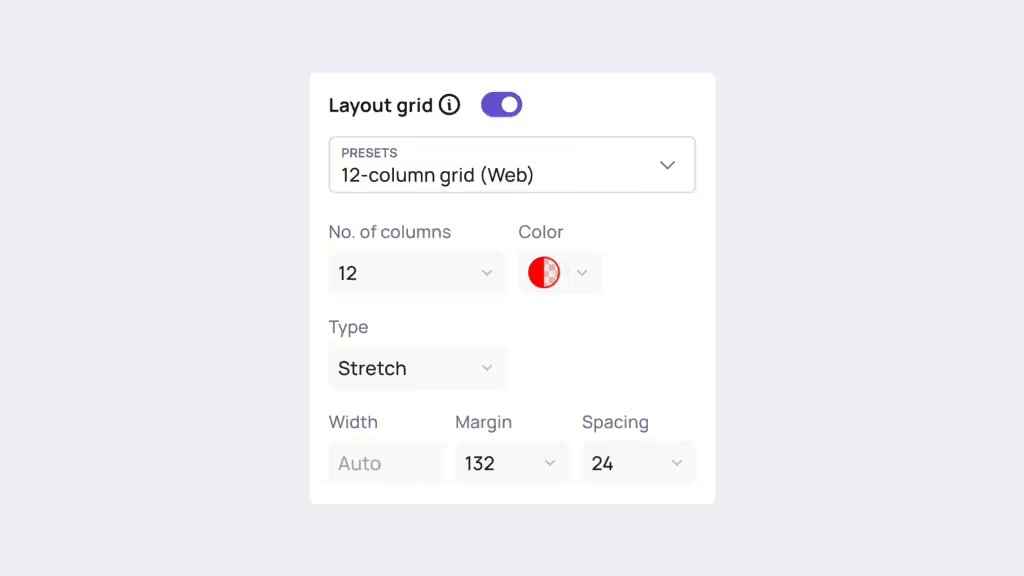
Customizing Grid Settings

Design with Layout grids

When you enable the Layout grid, the Layout grid remains visible over the design elements of your selected screen.

As you move and resize these elements, they will automatically snap to the edges of the grid columns, helping you maintain precision and alignment.

Use Cases
  • Wireframing
  • Brainstorming
  • Prototyping
  • Collaboration
Features
  • AI UI Design Generator
  • Screenshot Editor
  • Online Sticky Notes
  • UI Mockup Tool
  • AI Prototype Generator
  • Diagram AI
Resources
  • Vibe Designing
  • Blog
  • Release Notes
  • Help Center
  • FAQs
Features
  • Screenshot Editor
  • Online Sticky Notes
  • UI Mockup Tool
Use Cases​
  • AI Prototype Generator
  • Diagram AI

© 2025 Visily. All rights reserved.

Privacy Policy

Terms of Service

Terms Of Use