


Annual Pro comes with 2× normal AI credits

Explore now

Subscribe now to get 6,000 credits/month (up from 3,000) for the next 2 months

Explore now
Visily
Visily
  • Use Cases
    • Wireframing
    • Prototyping
    • Brainstorming
    • Collaboration
  • AI Design
  • Templates
    • Design Templates
    • Premade Themes
    • Smart Components
    • UI Presets
    • Images & Icons
  • Resources
    • Help Center
    • Explore Visily
    • FAQs
    • Blog
    • Release Notes
  • Pricing
  • Login
Log in
Sign up for free
  • Use Cases
    • Wireframing
    • Prototyping
    • Brainstorming
    • Collaboration
  • AI Design
  • Templates
    • Design Templates
    • Premade Themes
    • Smart Components
    • UI Presets
    • Images & Icons
  • Resources
    • Help Center
    • Explore Visily
    • FAQs
    • Blog
    • Release Notes
  • Pricing
  • Login
  • Use Cases
    • Wireframing
    • Prototyping
    • Brainstorming
    • Collaboration
  • AI Design
  • Templates
    • Design Templates
    • Premade Themes
    • Smart Components
    • UI Presets
    • Images & Icons
  • Resources
    • Help Center
    • Explore Visily
    • FAQs
    • Blog
    • Release Notes
  • Pricing
  • Login
Visily
Visily
Sign up for free
Visily
Visily
  • Use Cases
    • Wireframing
    • Prototyping
    • Brainstorming
    • Collaboration
  • AI Design
  • Templates
    • Design Templates
    • Premade Themes
    • Smart Components
    • UI Presets
    • Images & Icons
  • Resources
    • Help Center
    • Explore Visily
    • FAQs
    • Blog
    • Release Notes
  • Pricing
  • Login
Log in
Sign up for free

[Help center] Add New Screens

In Visily, a screen works like a frame or artboard you may be familiar with from other design tools. It represents a single application screen, whether for mobile, web, or other platforms.

Visily provides several ways to add a screen: using AI, selecting from prebuilt templates, or simply creating an empty one. You can find the “Add New” menu in the left-side panel of the board to add a screen.
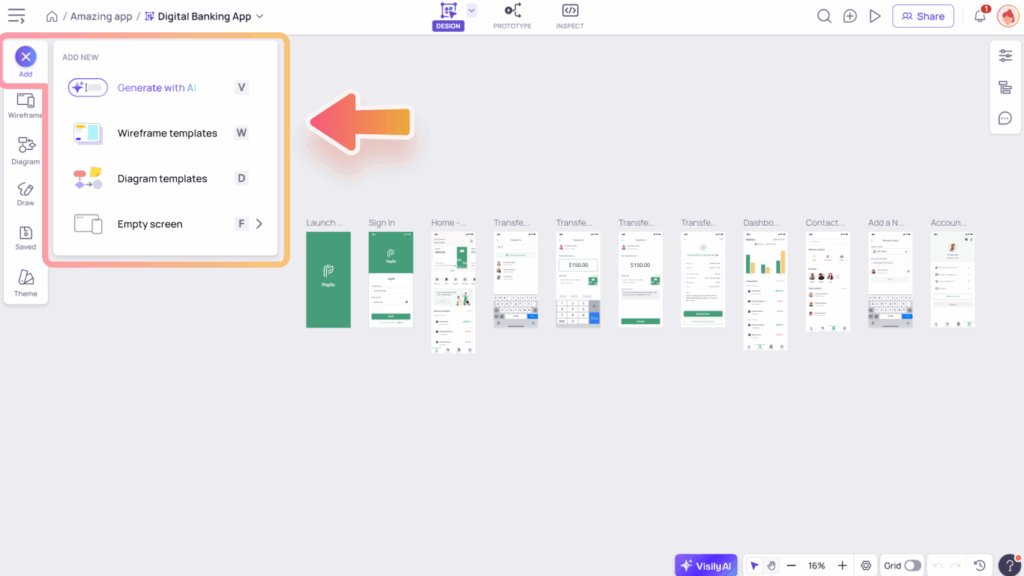
Add new screens

Add screens with “Generate with AI” option

Once you’ve created a board, you can add screens with Visily AI anytime. Click the Visily AI button in the bottom bar or press “V” to open the AI chat, then describe the screens you want, whether for mobile, website, or web app, and the AI will generate them for you.

Learn more about how to use the Visily AI Chat Assistant here.

Add screens with “Wireframe templates” option

Visily offers a wide variety of templates for you to explore, and you can use them to create new screens anytime. To open the template dialog and browse screen templates, try one of the following:

  • From the “Add New” menu, select “Wireframe templates”
  • Press the hotkey W
  • Open the “Wireframe Library” panel and go to the “Templates” tab, then select an option from the “Screen Templates” section.

Learn more about our Template Library here.

Add empty screen

You can also add an empty screen by selecting the “Empty screen” option or pressing “F” on your keyboard.

When adding a blank screen, you can choose from various screen sizes. These options include common device sizes such as laptop, mobile, and tablet, helping you design your prototype for the appropriate device format.

light-bulb
Tip: You can also right-click anywhere on the canvas to add an empty screen.
Use Cases
  • Wireframing
  • Brainstorming
  • Prototyping
  • Collaboration
Features
  • AI UI Design Generator
  • Screenshot Editor
  • Online Sticky Notes
  • UI Mockup Tool
  • AI Prototype Generator
  • Diagram AI
Resources
  • Vibe Designing
  • Blog
  • Release Notes
  • Help Center
  • FAQs
Features
  • Screenshot Editor
  • Online Sticky Notes
  • UI Mockup Tool
Use Cases​
  • AI Prototype Generator
  • Diagram AI

© 2025 Visily. All rights reserved.

Privacy Policy

Terms of Service

Terms Of Use