


[Help Center] Roles and Permissions in Visily
In Visily, roles and permissions define what members and guests can do within a Workspace. Each role has specific capabilities that determine access to boards, folders, and settings, helping teams collaborate securely and effectively.
Roles in Visily
Visily organizes users into Workspace members and Guests. Workspace members have roles that define their permissions across the entire Workspace, while Guests are limited to the specific folders or boards they’re invited to. This structure helps balance flexibility in collaboration with control over access.
| Workspace Members | Guests | |
| Definition | Users with access to all boards and folders in Team Space. On paid plans, each member also has a Private Space for personal work. | Users who are not Workspace members but have access to specific boards or folders shared with them. Guests are only available on paid plans. |
| Best Practices | Best for core team members who need ongoing access to the entire Workspace and regularly collaborate across multiple projects. | Best for clients, partners, or external collaborators who only need access to specific boards or folders, usually for short-term or focused collaboration. |
| Role |
|
|
| Permission |
|
|

Permission in Visily
Permissions in Visily control what actions users can take. There are three types of permissions: Can View, Can Edit, and Admin – each defining a different level of access to designs, collaboration, and settings.
Permissions on shared boards and folders
| Action | Can View | Can Edit | Admin |
| View designs, boards, and folders | √ | √ | √ |
| Present boards | √ | √ | √ |
| Comment | √ | √ | √ |
| Share designs, boards, and folders | √ | √ | √ |
| View the member and guest list | √ | √ | √ |
| Create boards in shared folders | – | √ | √ |
| Edit designs on boards with full access to Workspace plan features | – | √ | √ |
| Use AI features | – | √ | √ |
Additional permissions on Workspace level (For workspace members only)
| Action | Can View | Can Edit | Admin |
| Access all designs, boards, and folders in Team space | √ | √ | √ |
| Create boards and folders in Team space | – | √ | √ |
| Create boards and folders in Private space | √ | √ | √ |
| Invite members to the Workspace | – | √ | √ |
| Update Workspace name, logo, and company domains | – | – | √ |
| Manage members, guests, and teams | – | – | √ |
| Manage billing, subscriptions, and license requests | – | – | √ |
| Configure SAML SSO and Custom Teams (Business plan and above) | – | – | √ |
| Delete Workspace | – | – | √ |
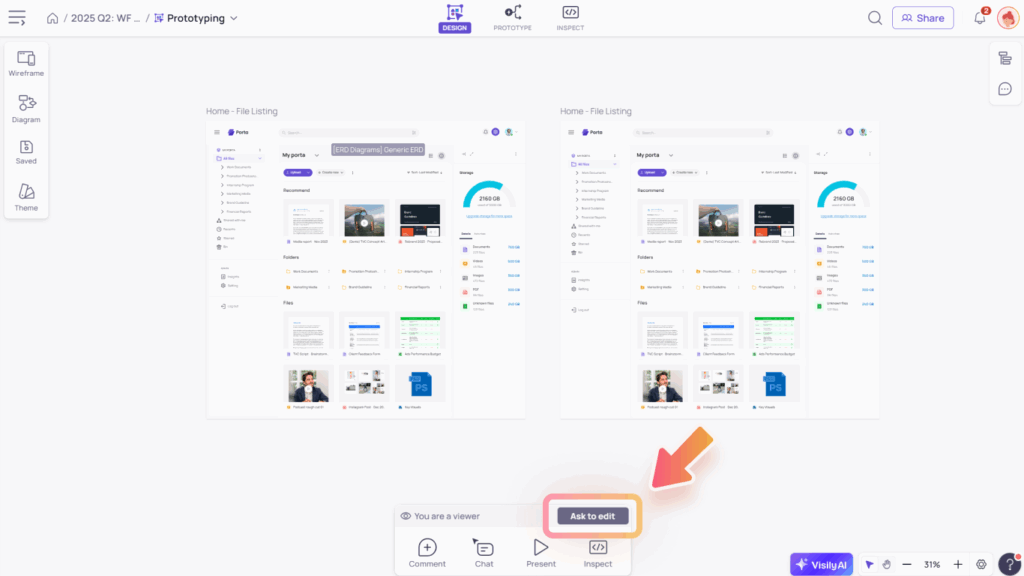
Role limits across Pricing Plans
| Plan | Workspace Members | Guests |
| Starter (Free plan) | Up to 50 workspace members | Not support |
| Pro & Business |
|
|
Note: If you can’t invite or approve a guest editor, it means your plan has reached the guest editor limit. To resolve this, you can purchase additional licenses for more guest editor slots or invite those users as team editors instead.
Manage Workspace’s members and guests
Different roles in Visily have different levels of control over members and guests.
Workspace Owners and Admins have full control over member and guest management:
- Invite new members or guests – Share boards, folders, or the entire Workspace by inviting others to join. Learn more in the Invite & Share guide.
- Access the member and guest list – Can see who is part of the Workspace and their roles.
- Adjust roles – Change a member’s role or permissions as needed.
- Promote guests – Upgrade a guest to a Workspace member.
- Remove users – Remove members or guests who no longer need access.
These settings can be accessed in the Members & Guests tab of the Workspace settings.
- Editors can invite others to the Workspace, boards, or folders they have access to and view the member and guest list, but they cannot change roles or manage Workspace settings.
- Guests cannot see the member list, change roles, or access Workspace settings.