


Every great digital product starts with a clear path. Users open an app, tap a button, move through screens, and reach a goal. That path is called a user flow. A user flow generator is a design tool that helps teams visually map the screens, decisions, and actions a user takes to complete a task within an app or website. These tools use drag-and-drop elements, connectors, and sometimes AI to build interactive flow diagrams without manual drawing.
The problem is that most teams still sketch flows on whiteboards or bury them in slide decks. Flows break when requirements change. Non-designers feel locked out of the process entirely. Product managers, founders, and developers waste hours trying to communicate UX logic that could be mapped in minutes with the right tool.
Modern user flow generators solve this by combining visual mapping, AI-powered generation, and real-time collaboration in one workspace.
In this guide, I walk through the 12 best user flow generators, starting with Visily, an AI-powered platform built for non-designers, so you can find the right tool to map seamless user experiences for your product.
What Is a User Flow Generator?
A user flow generator is a design tool that lets teams visually map the screens and steps a user follows to complete a task in an app or website. It uses drag-and-drop elements, connectors, and sometimes AI to create interactive flow diagrams without manual drawing.
These tools differ from related concepts in important ways. A user journey map is broader. It tracks emotions, touchpoints, and interactions across multiple channels over time. A sitemap shows the structural hierarchy of pages on a website. A wireframe displays the layout of a single screen. A user flow generator connects all of these pieces. It shows the actual path a user takes from one screen to the next to reach a specific goal.
Product managers, developers, founders, and UX designers all use user flow generators. These tools turn abstract product ideas into visual, testable paths that the whole team can understand.
Why Use a User Flow Generator?
Building a digital product without mapping user flows is like constructing a building without a floor plan. Things get missed. Teams miscommunicate. Development cycles drag on. A user flow generator removes that friction by giving every team member a shared visual reference for how the product works.
Here are the core benefits:
- Faster ideation and iteration. Teams can map, test, and revise user paths in minutes instead of days.
- Visual alignment across teams. Designers, developers, and stakeholders all see the same flow, reducing misinterpretation.
- Reduced development rework. Catching UX logic gaps before coding starts saves significant engineering time. Research shows that identifying usability issues during the design phase can reduce post-launch defect costs by up to 60%.
- Accessibility for non-designers. Product managers, founders, and business analysts can contribute directly to UX planning without specialized training.
- Better stakeholder communication. Interactive flows are easier to present and review than static documents or verbal descriptions.
- Early detection of UX logic gaps. Mapping every screen and decision point reveals dead ends, missing states, and confusing navigation before users ever encounter them.
- Seamless handoff to developers. Many user flow generators include CSS inspection, export options, and specification tools that make the design-to-development transition smooth.
With those benefits in mind, here is how we selected the 12 best user flow generators for this list.
How We Evaluated These User Flow Generator Tools
Not all user flow generators serve the same purpose. Some focus on diagramming. Others prioritize interactive prototyping. A few use AI to generate flows from text or screenshots. To build a fair and useful ranking, we evaluated each tool against seven criteria that matter most to product teams.
- Ease of use and learning curve. How quickly can a new user create their first flow?
- AI-powered features. Does the tool offer AI generation, automation, or smart assistance?
- Prototyping and interaction capabilities. Can users simulate real screen transitions and button clicks?
- Collaboration and sharing. Does the tool support real-time co-editing, commenting, and stakeholder reviews?
- Template and component library. How many pre-built screens, flows, and UI elements are available?
- Pricing and free tier availability. Is there a generous free plan for individuals and small teams?
- Export and integration options. Can designs be exported to Figma, PDF, or developer-friendly formats?
Now, let us get into the 12 best user flow generators, starting with our top pick.
1. Visily — Best AI-Powered User Flow Generator Overall
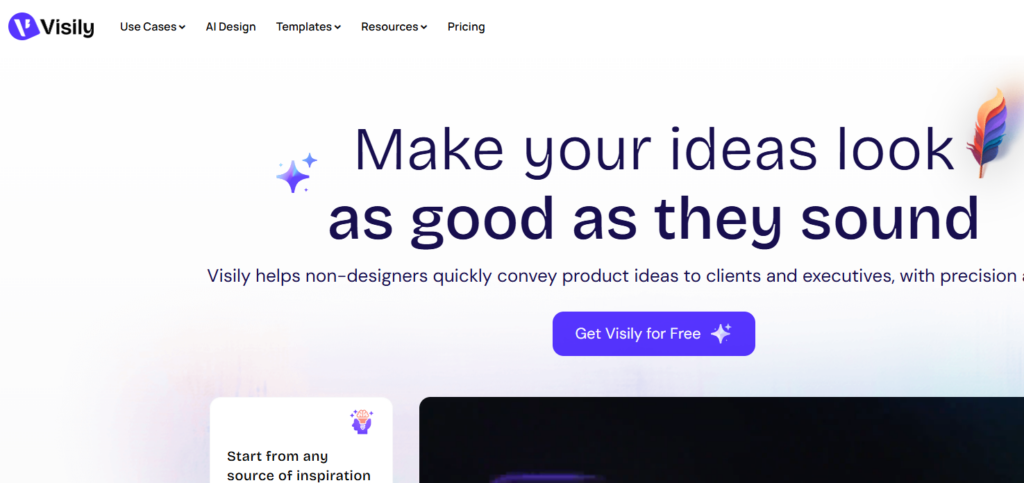
Visily is an AI-powered, browser-based UI design platform that enables teams to create user flows, wireframes, and interactive prototypes in minutes without any design experience. The platform was built from the ground up with AI at its core. Unlike tools that added AI features as an afterthought, Visily’s entire workflow revolves around intelligent generation and automation.
The platform is specifically designed for non-designers. Product managers, startup founders, software developers, and business analysts can all jump in and start building flows immediately. There is no steep learning curve. The drag-and-drop canvas, combined with AI-driven design generation, means anyone can produce professional-quality user flows on their first try. Professional UX/UI designers also benefit from Visily when they need to speed up early-stage ideation or repetitive layout work.
Visily is trusted by teams at Amazon, LinkedIn, Microsoft, Walmart, Infosys, Udemy, Accenture, Niantic, and Verizon. The platform offers over 1,500 pre-built UI templates and components, real-time collaboration, and a unique ability to switch between low-fidelity wireframes and high-fidelity mockups on the same board.
Key Features for User Flow Generation
- Text to Design. Describe a user flow in plain language. Visily generates structured, editable UI screens that match the described layout. No drawing required.
- Screenshot to Design. Upload screenshots of existing apps or competitor products. Visily converts them into editable wireframes and high-fidelity mockups, which is ideal for reverse-engineering user flows.
- Sketch to Design. Transform hand-drawn flow sketches into clean digital wireframes automatically. Snap a photo of a whiteboard sketch and watch it become a polished flow.
- Diagram to Design. Convert flowcharts and diagrams into full UI layouts. This feature is especially useful for mapping onboarding flows, navigation paths, and multi-screen logic.
- Text to Diagram. Generate flowcharts, sitemaps, and user flow diagrams from text prompts. Type your flow logic and get a visual diagram instantly.
- Interactive Prototyping. Simulate screen transitions, button clicks, and complete user flows with the built-in prototyping mode. Auto-Prototyping is also available for rapid creation.
- Lo-Fi to Hi-Fi Toggle. Switch between low-fidelity wireframes and high-fidelity mockups on the same board without losing any work. This feature is unique to Visily.
- Smart Components Library. Access 1,500+ pre-built UI templates and components including nav bars, buttons, cards, tabs, accordions, calendars, and carousels, all sorted by screen, flow, or app type.
- Real-Time Collaboration. Co-edit with team members at the same time. Use on-canvas cursor chat, comments, follower mode, shared asset libraries, and version history.
- Figma Export and Integrations. Export designs to Figma for pixel-perfect refinement. Also export to PDF, PNG, and JPG. Native integration with Pexels, Unsplash, and Pixabay for stock images.
- Magic Themes. Apply AI-generated color schemes and typography to your designs. Extract themes from a URL or image to match existing brand guidelines.
- CSS Inspection. Hand off designs to developers with CSS inspection for a smooth flow-to-code transition.
Best For
- Product managers who need to communicate product vision before designers step in.
- Startup founders who need to pitch ideas, test concepts, and iterate fast without design skills.
- Software developers who want to visualize UI flows before writing code.
- Business analysts who need flowcharts, ER diagrams, and process visualizations.
- UX/UI designers looking to speed up early-stage ideation and repetitive layout work.
- Cross-functional and remote teams that need real-time collaboration on shared flows.
Pricing
| Plan | Price | Highlights |
| Starter (Free) | $0 | 2 editable boards, 300 AI credits (first month), 150 template credits/month |
| Pro | $11–$14/mo | Unlimited boards, 3,000 AI credits/editor/month, Figma export, guest viewers and editors |
| Business | $29/mo | Unlimited everything, custom AI allocation, SAML SSO, dedicated account manager |
| Enterprise | Custom pricing | Stricter security and compliance requirements |
Why Visily Is #1
Visily earns the top spot because it removes every barrier between an idea and a testable user flow. The zero learning curve is its strongest advantage over professional design tools. The AI-first architecture means you can go from a text description or a rough sketch to a complete interactive flow in minutes. The lo-fi to hi-fi toggle is a feature no other tool on this list offers in the same way. And the generous free tier makes it accessible to startups, solo founders, and budget-conscious teams. For non-designers who want professional results without professional training, Visily is the clear choice.
2. Overflow — Best for Visual User Flow Diagramming
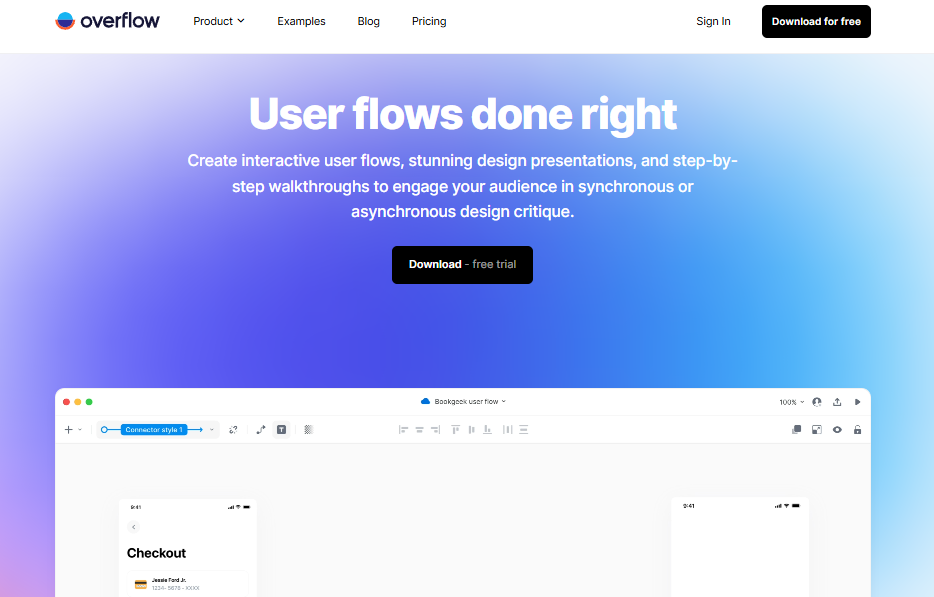
Overflow is a dedicated user flow diagramming tool built specifically for turning design screens into interactive, presentable flow diagrams. The tool fills a specific gap in the design workflow. Once you have your screens designed in another tool, Overflow lets you import them and connect them into a visual story that stakeholders can follow.
The platform focuses on presentation-quality flows. Each flow diagram can include device frames, annotations, and connector labels that make the user path clear to anyone reviewing it. Teams use Overflow primarily for stakeholder presentations, design reviews, and documentation. It is not a full design tool, but it excels at its specific job of making user flows visual and shareable.
Overflow supports importing designs from several popular design applications. The shareable link feature means reviewers do not need to install anything to view and comment on flows.
Key Features
- Import design screens from popular design tools and connect them with flow connectors.
- Add device frames, annotations, and connector labels for presentation-ready flows.
- Interactive presentation mode that lets viewers click through the flow step by step.
- Shareable flow links for stakeholder review without requiring software installation.
- Support for multiple flow boards within a single project.
Pros
- Purpose-built for user flow diagramming with a clean, focused interface.
- Presentation mode makes stakeholder reviews smooth and professional.
- Shareable links remove friction from the review process.
Cons
- Not a design tool. You need to create screens elsewhere before importing.
- Limited AI features compared to platforms like Visily.
- Free plan is restricted in the number of flows and screens.
Best For: UX designers who already have screen designs and need to map them into presentable user flows for stakeholder reviews.
Pricing: Free plan available with limitations. Paid plans start at $19.95/month per user.
3. FlowMapp — Best for UX Planning and Sitemaps
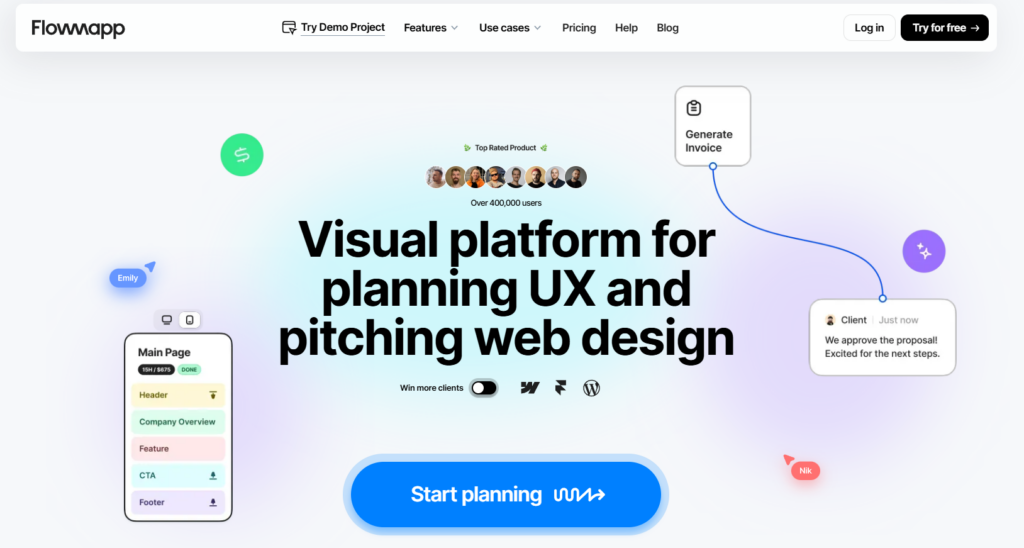
FlowMapp is a UX planning platform that combines visual sitemaps, user flow diagrams, and content planning in one workspace. The tool is designed for teams that need to plan the full structure of a website or application before moving into detailed design work.
What sets FlowMapp apart is its focus on the planning phase of product development. Instead of jumping straight into screen design, teams can map out the entire site architecture, define content requirements for each page, and create user flow diagrams that show how visitors will move through the structure. This makes it a strong choice for information architects and UX researchers who think in terms of structure before visuals.
FlowMapp also includes persona creation and customer journey mapping features. These tools help teams ground their user flows in real user data and behavioral patterns rather than assumptions.
Key Features
- Visual sitemap builder with drag-and-drop page organization.
- User flow diagrams with customizable connectors and decision points.
- Content planning tools that let teams define page content requirements alongside the sitemap.
- Persona creation for grounding flows in user research.
- Customer journey mapping to connect user flows with broader experience touchpoints.
Pros
- Strong integration between sitemaps, content planning, and user flows.
- Persona and journey mapping features add research context to flow decisions.
- Clean interface that is easy to learn for non-technical team members.
Cons
- Limited prototyping capabilities. Flows are diagrammatic, not interactive.
- No AI-powered generation features.
- Smaller template library compared to more comprehensive platforms.
Best For: UX researchers and information architects who need to plan site structure, content, and user flows together in one tool.
Pricing: Free plan available. Paid plans start at $15/month.
4. Lucidchart — Best for Cross-Functional Flowcharting
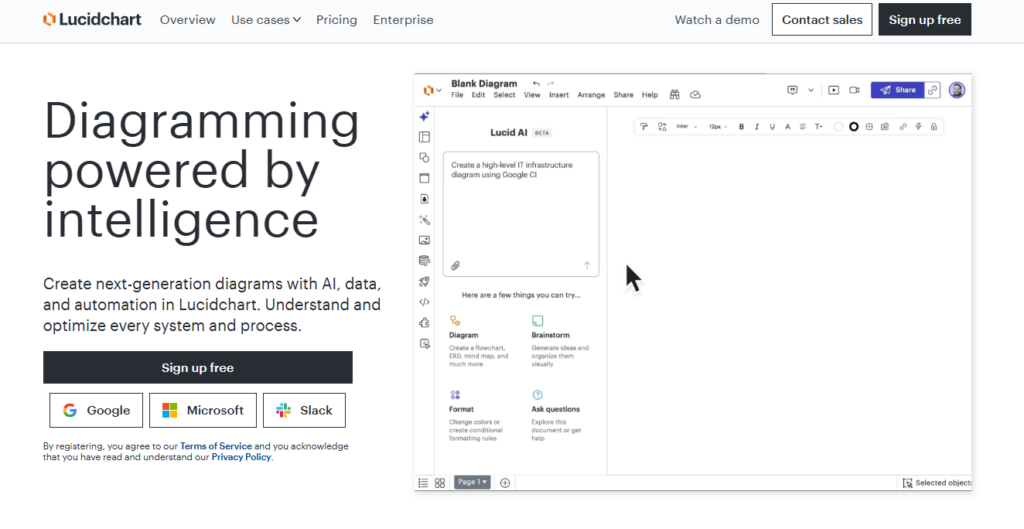
Lucidchart is one of the most widely used diagramming tools in enterprise environments. While it is a general-purpose platform, its flowcharting capabilities make it a solid option for creating user flow diagrams, especially in organizations that already use it for process mapping, org charts, and technical documentation.
The tool supports real-time collaboration and integrates deeply with Google Workspace, Atlassian products, Slack, and Microsoft Teams. This makes it a natural fit for cross-functional teams where user flows need to be shared across design, engineering, product, and business teams. Lucidchart’s extensive shape libraries include UX-specific elements, though they are not as specialized as those found in dedicated UI design tools.
One of Lucidchart’s strengths is data-linked diagrams. Teams can connect flow elements to live data sources, which is useful for mapping user flows that depend on system states or database conditions.
Key Features
- Drag-and-drop flowcharting with an extensive library of shapes and connectors.
- Real-time collaboration with commenting and version history.
- Deep integrations with Google Workspace, Atlassian, Slack, and Microsoft Teams.
- Data-linked diagrams that connect flow elements to external data sources.
- Presentation mode for walking stakeholders through flows.
Pros
- Widely adopted in enterprise environments with strong IT and security support.
- Excellent integration ecosystem for cross-functional workflows.
- Handles complex, multi-branch flows with ease.
Cons
- General-purpose tool. Not specifically designed for UI/UX user flows.
- No AI-powered design generation.
- UI-specific components and templates are limited compared to dedicated UX tools.
Best For: Cross-functional teams and enterprise organizations that need user flows alongside process diagrams, org charts, and technical documentation.
Pricing: Free plan available with limitations. Paid plans start at $9/month.
5. Creately — Best for Visual Collaboration with Smart Shapes
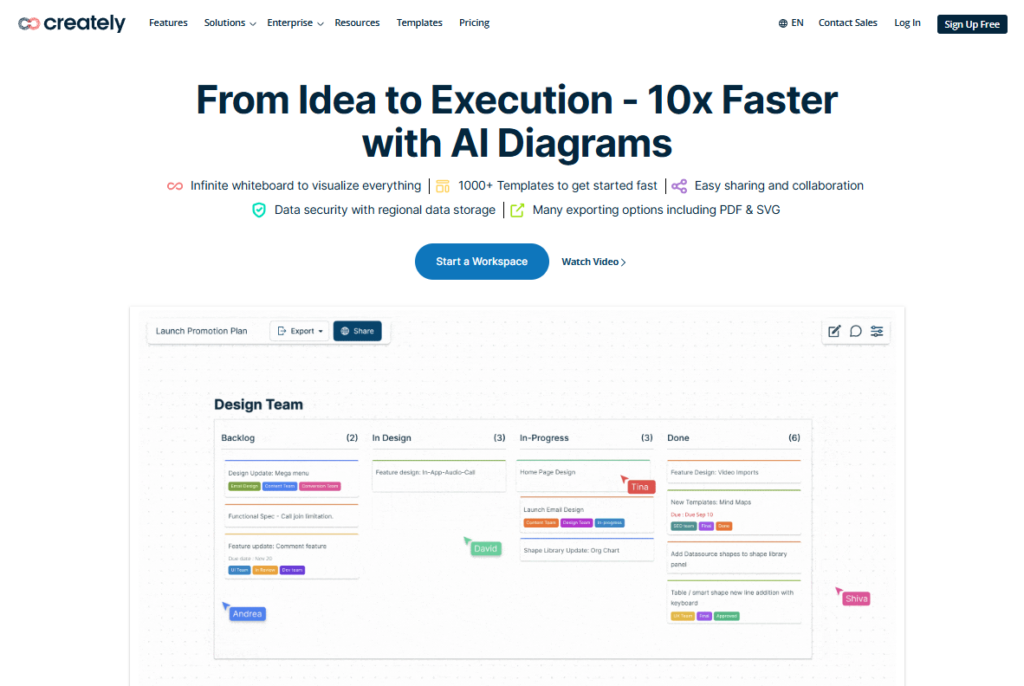
Creately is a visual collaboration platform that combines diagramming, project planning, and documentation on a single infinite canvas. Its smart shapes feature adds a layer of data to every element on the canvas, turning simple flow diagrams into structured, information-rich visual documents.
The platform works well for teams that want to do more than just draw user flows. Each shape in a Creately diagram can hold custom data fields, notes, links, and task assignments. This means a user flow diagram can double as a project tracker, with each screen or decision point carrying information about its development status, owner, and requirements.
Creately offers pre-built templates for user flows, wireframes, and journey maps. The real-time collaboration features support multiple editors working on the same canvas at the same time, with built-in video conferencing and commenting.
Key Features
- Infinite visual canvas with smart shapes that hold structured data.
- Pre-built templates for user flows, wireframes, customer journeys, and process maps.
- Real-time collaboration with in-app video conferencing and commenting.
- Integrations with project management tools like Jira, Confluence, and Microsoft Teams.
- Database-driven diagramming that links visual elements to underlying data.
Pros
- Smart shapes add project context directly to flow elements.
- Versatile canvas supports user flows, planning, and documentation in one place.
- Strong collaboration features for distributed teams.
Cons
- The breadth of features can feel overwhelming for teams that only need simple flow diagramming.
- No AI-powered design generation.
- Prototyping capabilities are limited. Flows are visual but not interactive.
Best For: Teams that want to combine user flow diagramming with project planning and visual documentation on one canvas.
Pricing: Free plan available. Paid plans start at $8/month per user.
6. Draw.io (diagrams.net) — Best Free Open-Source Option
Draw.io, also known as diagrams.net, is a completely free, open-source diagramming tool that runs in the browser and requires no account to use. For teams and individuals who need a no-cost solution for basic user flow diagramming, Draw.io is hard to beat on value.
The tool offers an extensive library of shapes, including UX-specific elements like screen frames, buttons, and navigation components. Flows can be built using drag-and-drop connectors, and the interface, while not as polished as commercial alternatives, is functional and reliable. Draw.io integrates with Google Drive, Confluence, GitHub, and other platforms, making it easy to store and share diagrams within existing workflows.
One of Draw.io’s biggest advantages is that it works offline. You can download the desktop version and create user flows without an internet connection. There are no usage limits, no credit systems, and no feature gates behind paid plans.
Key Features
- Completely free with no usage limits or paid tiers.
- Browser-based and desktop versions available, including offline support.
- Extensive shape libraries with UX-specific elements.
- Integrations with Google Drive, Confluence, GitHub, OneDrive, and Dropbox.
- No account required to start creating diagrams.
Pros
- 100% free with no restrictions on features or usage.
- Offline support through the desktop application.
- Wide integration support for team file storage and collaboration platforms.
Cons
- No AI-powered features.
- Interface feels dated compared to modern design tools.
- No built-in prototyping or interactive flow simulation.
- Collaboration features are basic compared to commercial tools.
Best For: Budget-conscious teams, developers, and individuals who need a no-cost solution for basic user flow diagramming.
Pricing: Completely free. Open-source.
7. Sketch.systems — Best for State Machine-Based User Flows
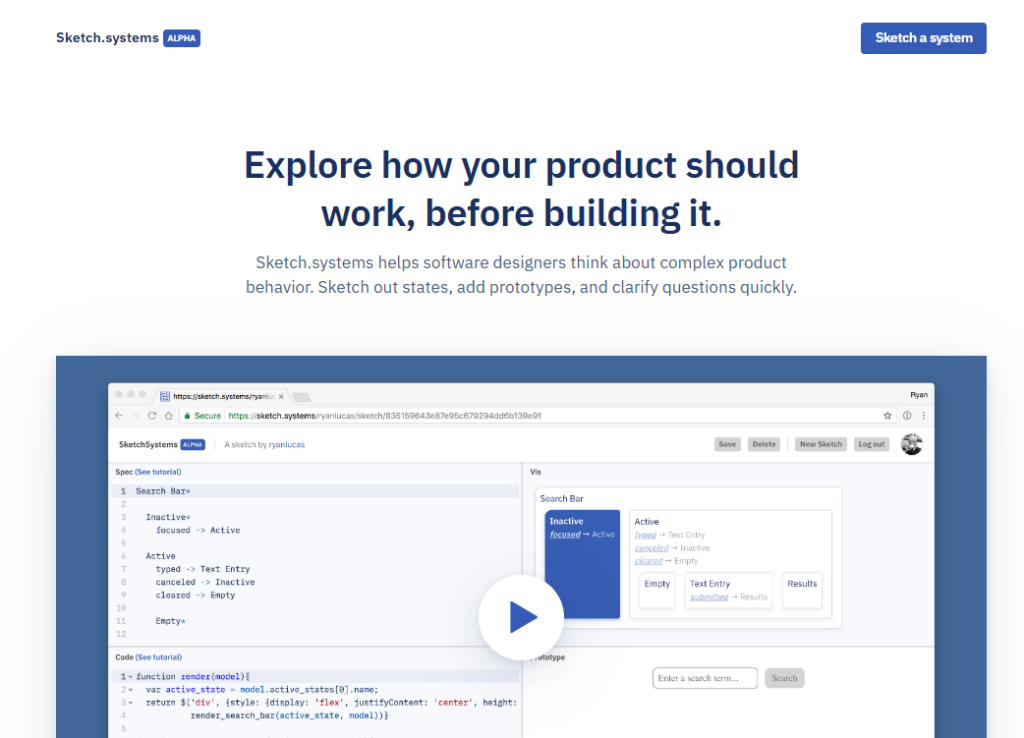
Sketch.systems takes a fundamentally different approach to user flow generation. Instead of dragging and dropping visual elements, you write your flow logic as plain text using state machine syntax. The tool then generates an interactive visual diagram from that text in real time.
This text-first approach appeals to developers and technical product managers who think in terms of states and transitions rather than screens and arrows. You define each state (screen or step), list the possible transitions (user actions), and Sketch.systems renders the flow instantly. You can click through the generated diagram to simulate the user path and verify that every transition works as expected.
The tool is minimal by design. There are no templates, no component libraries, and no styling options. It does one thing, modeling user flows as state machines, and it does it well. Sketch.systems is free to use and requires no installation.
Key Features
- Text-based flow definition using state machine syntax.
- Instant visual rendering of states and transitions as you type.
- Interactive simulation that lets you click through the flow to test paths.
- Minimal, distraction-free interface.
- Free to use with no account required.
Pros
- Extremely fast for users comfortable with text-based input.
- Interactive simulation catches logic errors immediately.
- No cost and no setup required.
Cons
- Steep learning curve for non-technical users unfamiliar with state machine concepts.
- No visual design capabilities. Flows are abstract diagrams, not screen-based.
- No collaboration features.
- No export to design tools or developer-friendly formats.
Best For: Developers and technical product managers who prefer text-based definitions and want to model complex conditional user flows as state machines.
Pricing: Free.
8. Marvel App — Best for Quick Prototyping from Static Screens
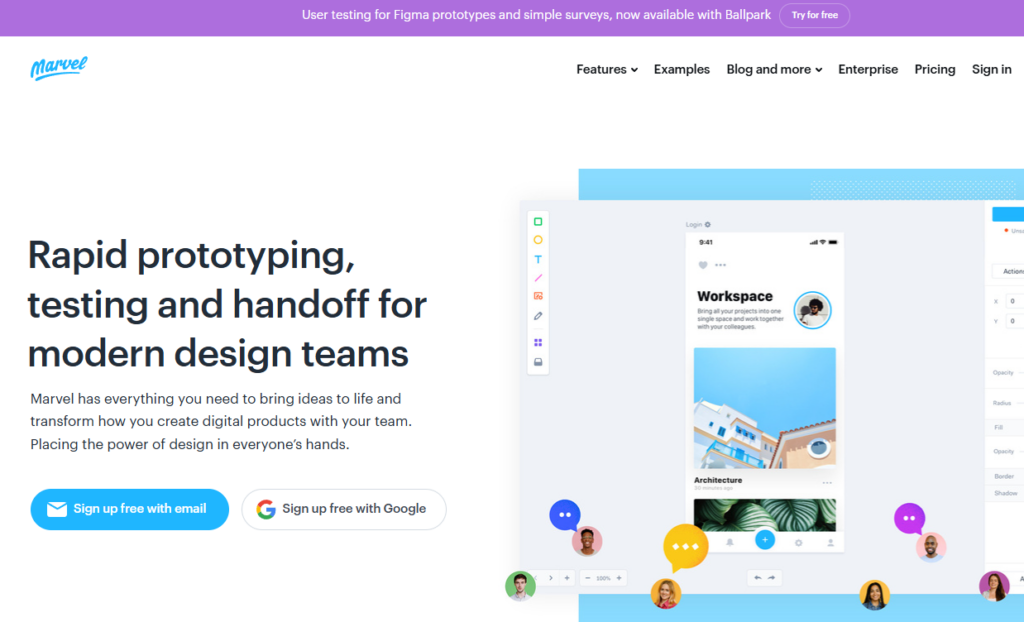
Marvel App is a straightforward prototyping tool that turns static screen images into interactive, clickable user flows. The concept is simple. Upload your screen designs as images, add hotspots to define clickable areas, set the destination screen for each hotspot, and you have a working prototype that simulates a real user flow.
This approach makes Marvel App especially useful for teams that create their screen designs in other tools or even on paper. You do not need to rebuild anything inside Marvel. Just upload the images and start linking them together. The result is a testable flow that you can share with stakeholders or use in user testing sessions.
Marvel also includes built-in user testing features. You can record user sessions, track where people tap, and identify where they get stuck in the flow. The design handoff feature generates code specs from your screens, making the transition to development smoother.
Key Features
- Upload static images and add hotspots to create interactive clickable flows.
- Built-in user testing with session recording and heatmaps.
- Design handoff with auto-generated code specifications.
- Simple, clean interface that requires minimal onboarding.
- Team collaboration with commenting and sharing.
Pros
- Fastest way to turn existing screen designs into testable user flows.
- Built-in user testing removes the need for a separate testing tool.
- Very low learning curve for basic prototyping.
Cons
- No design creation tools. You must create screens elsewhere first.
- Limited interaction options compared to advanced prototyping platforms.
- No AI-powered features.
- Free plan is heavily restricted.
Best For: Teams that already have screen designs from any source and need to quickly link them into testable, shareable user flows.
Pricing: Free plan available with limitations. Paid plans start at $16/month.
9. UXPin — Best for Advanced Interactive Prototyping
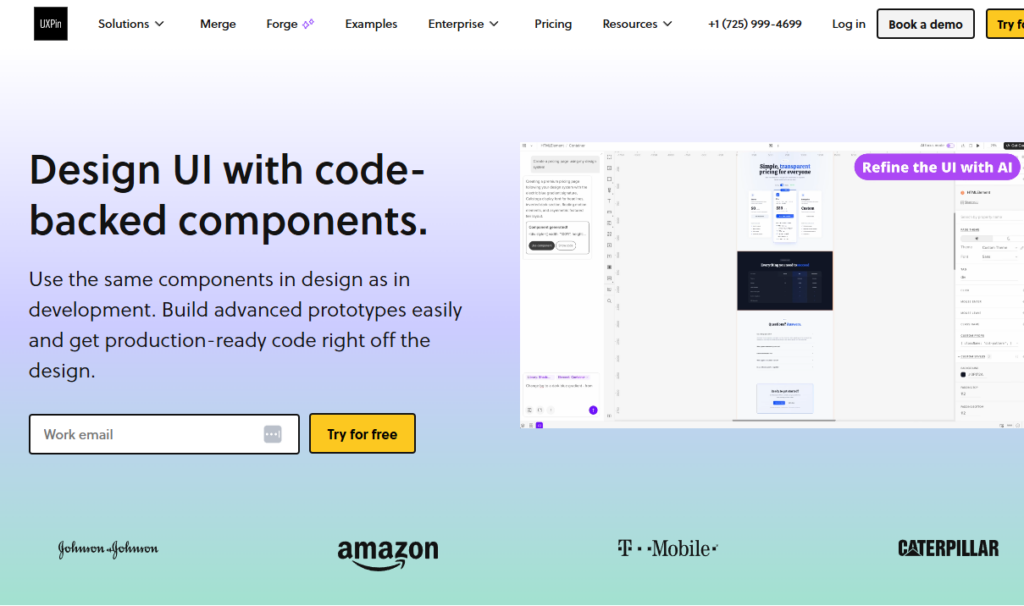
UXPin is a code-backed design and prototyping platform built for teams that need production-level interactivity in their user flows. While most prototyping tools let you link screens with simple click transitions, UXPin goes much further. It supports conditional logic, variables, expressions, and multi-state components that make prototypes behave like real applications.
This level of interactivity is valuable for complex user flows that involve form validation, dynamic content, conditional branching, and error handling. Instead of creating dozens of static screens to represent every possible state, you can build a single screen with multiple states and let the prototype respond to user input dynamically.
UXPin’s Merge technology is another standout capability. It lets design teams use actual production code components from React, Angular, or other frameworks directly in their prototypes. This means the user flows you build in UXPin can use the exact same components that developers will ship in the final product.
Key Features
- Conditional interactions with if/then logic for realistic flow behavior.
- Variables and expressions that respond to user input dynamically.
- Multi-state components that change based on user actions.
- Merge technology for using production code components in prototypes.
- Design system management for maintaining consistency across flows.
- Built-in accessibility checking tools.
Pros
- Most advanced interaction capabilities of any prototyping tool on this list.
- Merge technology bridges the gap between design and development.
- Prototypes behave like real applications, improving user testing accuracy.
Cons
- Significant learning curve, especially for non-designers.
- Overkill for simple user flow diagramming.
- Higher price point than most alternatives.
- No AI-powered flow generation.
- No free trial plan
Best For: Design teams and enterprises that need production-level interactive prototypes with complex user flow logic including conditional branching, form validation, and dynamic content.
Pricing: Paid plans start at $49/month.
10. Wireflow — Best Free Wireframe-Based Flow Tool
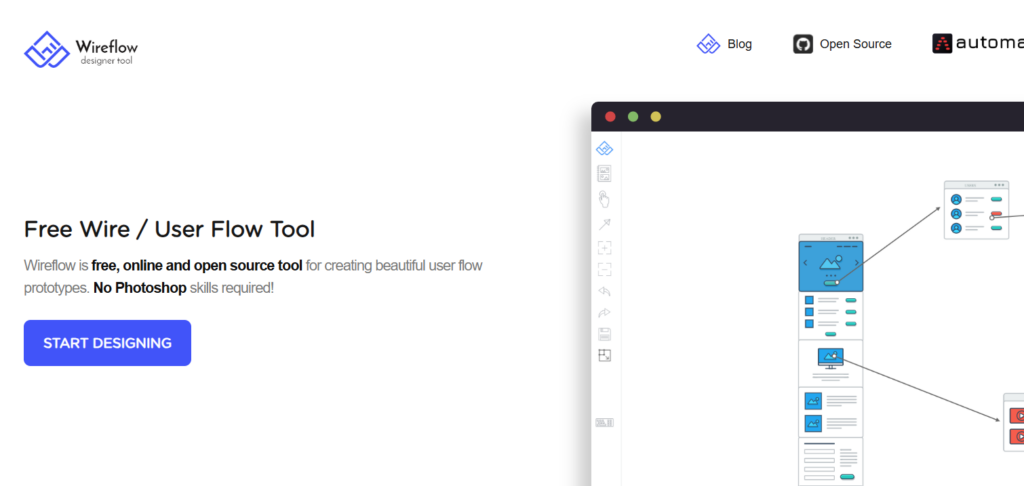
Wireflow is a free, open-source tool built specifically for one purpose: combining wireframes with user flow diagrams. The tool provides a library of pre-built wireframe screen templates that you can drag onto a canvas and connect with flow arrows to create complete user flow diagrams.
The approach is practical and focused. Instead of starting with blank shapes or abstract boxes, you start with realistic-looking screen wireframes. This gives your user flows more visual context than a standard flowchart while requiring less effort than building full mockups. Each screen template represents a common UI pattern like a login page, dashboard, settings screen, or product listing.
Wireflow supports real-time collaboration, so multiple team members can work on the same flow at the same time. The tool is entirely free with no paid tiers or feature restrictions.
Key Features
- Pre-built wireframe screen templates for common UI patterns.
- Drag-and-drop flow connectors to link screens into user paths.
- Real-time collaboration for team editing.
- Export options for sharing completed flows.
- Completely free and open-source.
Pros
- Free with no restrictions or paid upgrades.
- Wireframe-based approach adds visual context that abstract flowcharts lack.
- Simple and focused on its core use case.
Cons
- Limited template library compared to commercial platforms.
- No interactive prototyping. Flows are static diagrams.
- No AI features.
- Interface and design feel less polished than paid alternatives.
Best For: Individuals and small teams who need a dedicated, no-cost tool for combining wireframes with user flow diagrams.
Pricing: Completely free. Open-source.
11. ProtoPie — Best for High-Fidelity Interactive Flow Simulation
ProtoPie is a high-fidelity prototyping tool that specializes in creating realistic, interactive simulations of user flows. The platform stands out for its support of sensor-based interactions, multi-device prototyping, and complex conditional logic, all without writing any code.
Where most prototyping tools stop at simple screen-to-screen transitions, ProtoPie lets you build flows that respond to device sensors like tilt, sound, and proximity. You can also create multi-device experiences where actions on one device trigger responses on another. This makes ProtoPie particularly valuable for mobile app teams working on flows that involve hardware interactions or cross-device journeys.
The tool imports designs from popular design applications, so you do not need to recreate screens from scratch. Once imported, you add interactions using a visual, layer-based editor that supports variables, conditions, and formulas for dynamic behavior.
Key Features
- No-code interaction building with a visual, layer-based editor.
- Sensor-based triggers including tilt, sound, compass, and proximity.
- Multi-device prototyping for cross-device user flow simulation.
- Conditional logic with variables and formulas for dynamic flow behavior.
- Import designs from popular design tools for rapid flow assembly.
- Cloud-based sharing and team collaboration.
Pros
- Most realistic flow simulation capabilities on this list.
- Sensor and multi-device support is unmatched by other tools.
- No coding required despite the advanced interaction capabilities.
Cons
- Focused on high-fidelity simulation. Not ideal for early-stage flow ideation.
- Learning curve is steeper than simpler prototyping tools.
- No AI-powered generation features.
- Pricing is higher than basic flow diagramming tools.
Best For: Design teams that need to create and test high-fidelity, production-realistic user flow simulations, especially for mobile apps with complex interactions.
Pricing: Free plan available with limitations. Paid plans start at $29/month per user.
12. Axure RP — Best for Enterprise-Grade Documentation and Flows
Axure RP has been a staple in enterprise UX teams for over a decade. The tool combines advanced prototyping with detailed functional specification generation, making it a strong choice for organizations that need both interactive user flows and comprehensive documentation.
Axure’s strength lies in its depth. You can build prototypes with conditional logic, dynamic panels, adaptive views, repeaters, and mathematical functions. Every interaction can be documented with auto-generated specifications that describe exactly how each element behaves. This level of detail is valuable for enterprise teams where developers, QA engineers, and business stakeholders all need precise documentation of user flow behavior.
The platform also supports team collaboration through Axure Cloud, where multiple editors can work on the same project and publish flows for review. The widget library is extensive, and teams can create custom libraries to maintain consistency across projects.
Key Features
- Advanced conditional logic with dynamic panels and adaptive views.
- Auto-generated functional specifications from prototype interactions.
- Repeaters for data-driven prototyping with dynamic content.
- Team collaboration through Axure Cloud with publishing and review tools.
- Extensive built-in widget library with support for custom team libraries.
- Flow diagrams can be created alongside interactive prototypes in the same project.
Pros
- Deepest functional specification capabilities of any tool on this list.
- Handles extremely complex conditional flows with precision.
- Long track record in enterprise environments with strong support resources.
Cons
- Steep learning curve. Requires significant time investment to master.
- Interface feels dated compared to modern design tools.
- No AI-powered features.
- Desktop application only. No browser-based version.
- Higher price point than most alternatives.
Best For: Enterprise UX teams and business analysts who need detailed functional specifications and documentation alongside interactive user flow prototypes.
Pricing: Free trial available. Paid plans start at $34/month per user (Pro) and $57/month per user (Team).
Comparison Table: 12 Best User Flow Generators at a Glance
| Tool | Best For | AI Features | Free Plan | Real-Time Collaboration | Starting Price |
| ⭐ Visily | AI-powered user flows for non-designers | Yes (text to design, screenshot to design, sketch to design, diagram to design, text to diagram) | Yes (2 boards, 300 AI credits) | Yes | Free / $11/mo |
| Overflow | Visual flow diagramming and presentations | No | Yes (limited) | Yes | $19.95/mo |
| FlowMapp | UX planning with sitemaps and flows | No | Yes | Yes | $15/mo |
| Lucidchart | Cross-functional enterprise flowcharting | Limited (AI assist) | Yes (limited) | Yes | $9/mo |
| Creately | Visual collaboration with smart shapes | No | Yes | Yes | $8/mo |
| Draw.io | Free open-source diagramming | No | Yes (fully free) | Basic | Free |
| Sketch.systems | State machine-based text flows | No | Yes (fully free) | No | Free |
| Marvel App | Quick prototyping from static screens | No | Yes (limited) | Yes | $16/mo |
| UXPin | Advanced interactive prototyping | No | Trial only | Yes | $49/mo |
| Wireflow | Free wireframe-based flow diagrams | No | Yes (fully free) | Yes | Free |
| ProtoPie | High-fidelity interactive simulation | No | Yes (limited) | Yes | $29/mo |
| Axure RP | Enterprise documentation and flows | No | Trial only | Yes (via Cloud) | $34/mo |
How to Choose the Right User Flow Generator for Your Team
Picking the right user flow generator depends on your team’s specific situation. The best tool for a solo startup founder is not the same as the best tool for a 50-person enterprise design team. Here are the key factors to consider.
Consider Your Team’s Design Experience
If your team includes non-designers like product managers, founders, or developers, prioritize tools with AI generation and a zero learning curve. Visily is built specifically for this scenario. If your team consists of experienced designers, advanced prototyping tools like UXPin or Axure RP may be a better fit.
Evaluate Collaboration Needs
Remote developers and cross-functional teams need real-time co-editing, commenting, and easy sharing. Check whether the tool supports multiple editors on the same canvas and whether stakeholders can review flows without installing software.
Check AI and Automation Capabilities
AI-powered features like text-to-design and auto-prototyping can save hours of manual work. If speed matters to your team, prioritize tools that offer AI generation rather than manual-only workflows.
Assess Pricing and Free Tier
Startups and small teams benefit from generous free plans. Visily’s free tier includes 2 editable boards and 300 AI credits, which is enough to test the platform thoroughly before committing to a paid plan. Draw.io and Wireflow are fully free alternatives for basic diagramming.
Look at Export and Integration Options
Consider where your user flows need to go after creation. If your design team uses Figma, a tool with native Figma export (like Visily) saves significant time. If developers need CSS specs, look for tools with inspection and handoff features.
Frequently Asked Questions About User Flow Generators
What is the best free user flow generator?
Visily offers the best free user flow generator with its Starter plan. It includes 2 editable boards, 300 AI credits, and access to over 1,500 templates. Draw.io and Wireflow are also strong free options for basic user flow diagramming, though they lack AI-powered design generation and interactive prototyping.
Can I create user flows without design experience?
Yes. AI-powered tools like Visily are specifically built for non-designers. You can describe a user flow in plain text, upload a sketch, or use pre-built templates to create professional user flows without any design training. Product managers, founders, and developers use these tools daily to communicate product ideas visually.
What is the difference between a user flow and a wireframe?
A user flow shows the path a user takes across multiple screens to complete a task. A wireframe shows the layout and structure of a single screen. User flow generators often combine both. They let you design individual screen wireframes and connect them into interactive flows. Visily supports both wireframing and user flow creation on the same board.
Can user flow generators export to Figma?
Some can. Visily offers a native Figma plugin that lets you export your user flows and UI designs directly to Figma for pixel-perfect refinement. Not all tools on this list support Figma export. Check the comparison table above for a quick overview of which tools offer this feature.
How many screens should a user flow have?
There is no fixed number. A simple user flow like a login process might have 3 to 5 screens. A complex onboarding flow could have 10 to 15 or more. Focus on mapping every screen the user encounters to complete their goal, including decision points and error states. The goal is completeness, not brevity.
Are AI user flow generators accurate?
AI user flow generators like Visily produce structured, editable layouts that serve as strong starting points. They are not meant to replace human judgment. They speed up the first draft so teams can iterate faster. You can always manually refine the AI-generated output to match your exact requirements.
Conclusion
The right user flow generator can transform how your team plans, communicates, and builds digital products. If you are looking for an AI-powered platform that makes user flow creation effortless, even without design experience, Visily is the place to start. Try Visily for free and go from idea to interactive prototype in minutes.