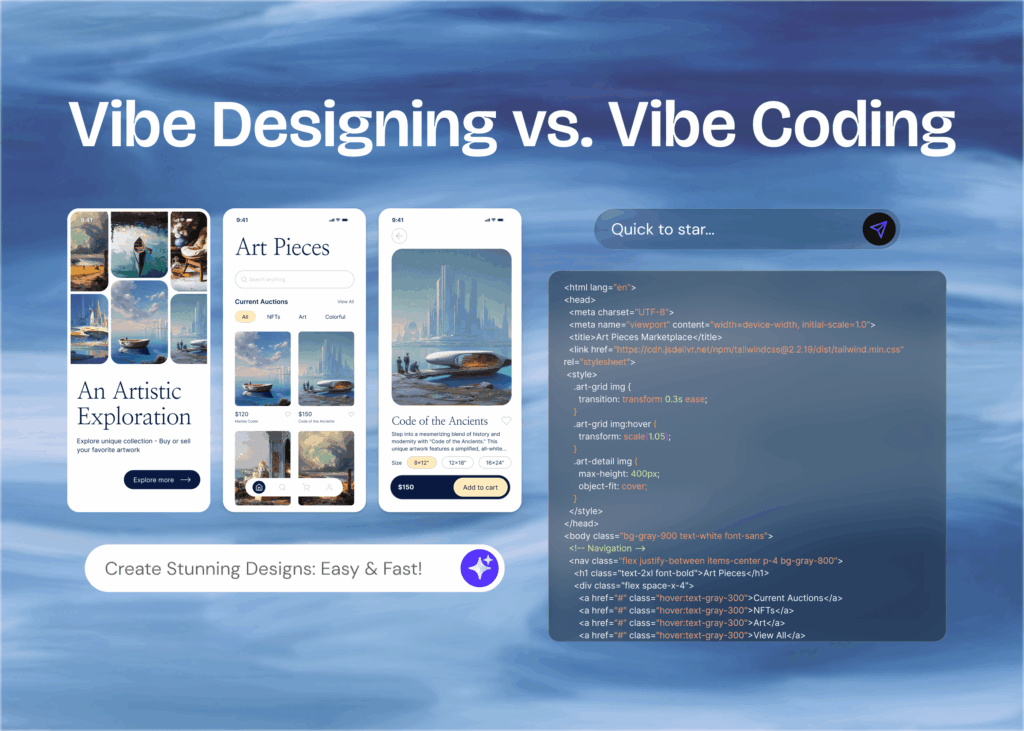



Building an app or website interface used to demand hours of manual work in complex design software. Someone has to decide where the buttons go, how the navigation works, and what the user sees first. For decades, someone had to be a trained UI designer using complex software.
Most people with product ideas never had the skills or budget to turn those ideas into visual designs. That gap between having an idea and seeing it on screen held back product managers, founders, developers, and business analysts for years.
AI UI generators like Visily close that gap.
An AI UI generator is a software tool that uses artificial intelligence to create user interface designs from simple inputs like text descriptions, sketches, or screenshots. Instead of starting from a blank canvas in Figma or Adobe XD, users type what they want, upload a rough drawing, or paste a screenshot. The AI produces a structured, editable layout with real components like buttons, navigation bars, cards, and text fields. No design experience is needed.
This guide breaks down how AI UI generators work, what features matter most, who benefits from using them, and how to pick the right tool for your team.
How Does an AI UI Generator Work?
AI UI generators follow a straightforward input-to-output process. You provide a starting point, the AI interprets it, and the tool delivers an editable design. You do not need to understand the technical details behind the AI. The steps below break down how the process works from start to finish.
Step 1: Provide an Input
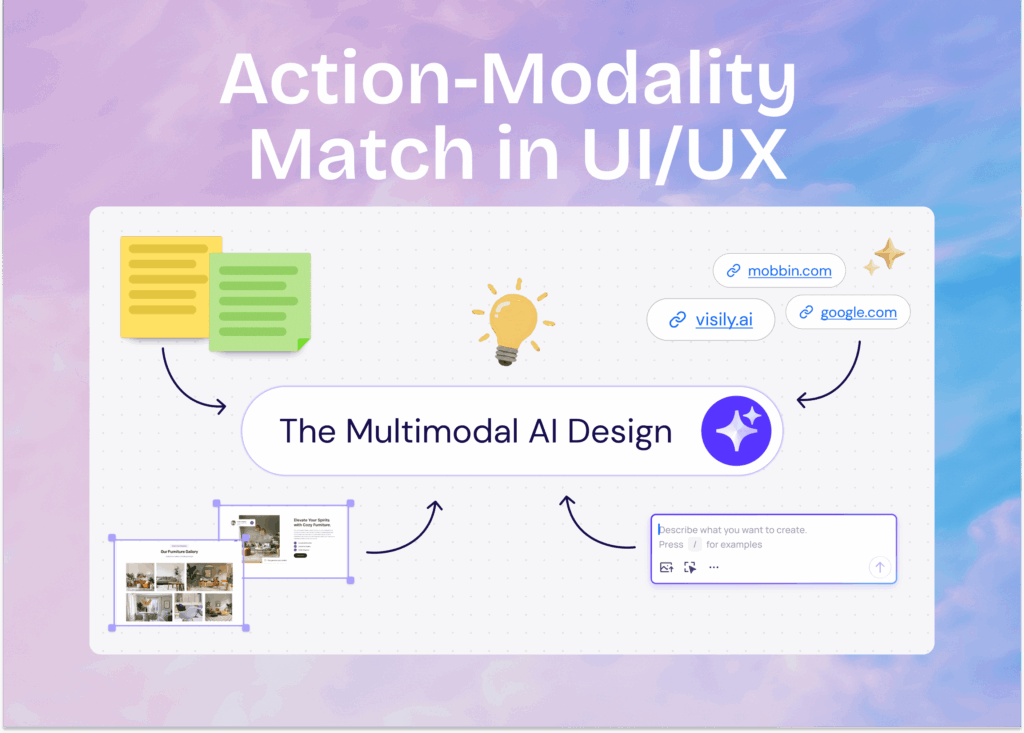
The user gives the tool a starting point. This can be a text description like “create a login screen with email and password fields.” It can also be a hand-drawn sketch photographed on a phone, a screenshot of an existing app, or a flowchart diagram. Each input type triggers the AI in a different way, but the goal is the same: tell the tool what you want.
Step 2: The AI Processes the Input
The AI model analyzes the input to identify screen types, layout structures, and component relationships. It draws from trained knowledge of thousands of real interface designs. The AI understands what kind of screen you want and figures out how to arrange the elements. It recognizes patterns like navigation bars at the top, content cards in the center, and action buttons at the bottom.
Step 3: Generate an Editable Design
The tool outputs a structured, editable UI layout. This is not a flat image. The output includes real design components like buttons, text fields, navigation bars, cards, and image placeholders. You can move, resize, restyle, or delete any element using a drag-and-drop editor.
Step 4: Refine and Prototype
After generation, you can refine the design manually. You can switch between wireframe and high-fidelity views, add interactive transitions between screens, and share the prototype with teammates for feedback. AI gives you a strong starting point. You control the final result.
Tools like Visily support all of these input types. Its Text to Design, Sketch to Design, Screenshot to Design, and Diagram to Design features make the entire process accessible to people without design backgrounds.
Key Features of an AI UI Generator
Not all AI UI generators offer the same capabilities. The best tools combine AI-powered generation with flexible manual editing and team collaboration features. The following features separate strong platforms from basic ones.
Text-to-Design Generation
Users describe a screen in plain language, and the AI generates a matching UI layout. For example, you might type “design a dashboard with a sidebar, analytics chart, and user table.” The AI produces a structured screen with those elements arranged logically.
Screenshot and Sketch Conversion
Users can upload a screenshot of an existing app or a photo of a hand-drawn sketch. The AI converts it into an editable digital wireframe or high-fidelity mockup. This is useful for analyzing competitor interfaces or digitizing whiteboard ideas.
Drag-and-Drop Editing
AI generation is only the starting point. After the AI creates a layout, users need to adjust and refine it. A drag-and-drop canvas with simple controls makes this possible without design training.
Pre-Built Component Libraries
Smart component libraries provide ready-made UI elements. These include buttons, navigation bars, cards, tabs, calendars, carousels, and accordions. Using pre-built components saves time and keeps designs consistent.
Wireframe-to-Mockup Switching
Some tools let users toggle between low-fidelity wireframes and high-fidelity mockups on the same board. This is valuable for teams that start with rough layouts and add visual detail later.
Interactive Prototyping
Prototyping mode lets users simulate screen transitions, button clicks, and user flows without writing code. This turns static designs into clickable experiences that stakeholders can test.
Real-Time Collaboration
Modern AI UI generators support real-time co-editing so distributed teams can work together on the same board. Commenting, shared asset libraries, and version history keep everyone aligned.
Export and Developer Handoff
Designs need to move from the generator to development. Export to Figma, PDF, and PNG formats matters. CSS inspection helps developers extract styling details directly from the design. Visily provides a Figma plugin for export and CSS inspection for developer handoff.
The strongest AI UI generators combine all of these features in one platform. Visily includes every feature listed above, making it a complete option for teams that want AI-powered design without jumping between multiple tools.
Who Uses AI UI Generators?
AI UI generators are not just for designers. The largest user groups are professionals who need to visualize product ideas but do not have formal design training. The following roles get the most value from these tools.
Product Managers
Product managers need to communicate product vision to stakeholders and engineering teams before a designer gets involved. AI UI generators let them create quick wireframes and mockups from text descriptions. An AI UI design tool makes stakeholder sharing easy with presentation mode and real-time collaboration. PMs can go from idea to shareable prototype in a single meeting.
Startup Founders
Founders need to pitch ideas to investors, test concepts with users, and iterate fast. Most early-stage startups do not have a dedicated design team. AI UI generators give founders a way to build professional-looking prototypes at no cost.
Software Developers
Developers benefit from visualizing UI flows and layouts before writing code. AI UI generators with CSS inspection and screenshot-to-design features help developers stay aligned with design teams.
Business Analysts
Business analysts create process diagrams, flowcharts, and use case visualizations as part of their daily work. AI UI generators with text-to-diagram and diagramming features serve this need directly.
UX/UI Designers
Even professional designers use AI UI generators to speed up early-stage ideation and repetitive layout work. The AI handles the initial structure so designers can focus on refinement and creative decisions.
AI UI generators serve cross-functional teams where speed and accessibility matter more than pixel-perfection in early stages.
Benefits of Using an AI UI Generator
The benefits of AI UI generators go beyond simple convenience. These tools change how teams approach the entire early-stage design process, from first idea to stakeholder review.
Faster Design Turnaround
AI generates structured layouts in seconds. What used to take a designer hours now takes minutes. Teams can go from a rough idea to an interactive prototype in a single work session. According to McKinsey Global Institute, AI-powered tools can reduce time spent on routine creative tasks by a significant margin, freeing teams to focus on higher-value decisions.
No Design Skills Required
The biggest barrier to UI design is the learning curve of professional tools. Figma, Sketch, and Adobe XD require significant time investment before a new user can produce anything useful. AI UI generators remove this barrier entirely. Anyone who can type a sentence or draw a rough sketch can produce a usable wireframe.
Lower Prototyping Costs
Startups and small teams often cannot afford dedicated designers for early-stage exploration. AI UI generators with free tiers make professional prototyping accessible at zero cost. Visily’s Starter plan offers 2 editable boards, 300 AI credits, and access to core features without a credit card.
Faster Iteration and Feedback Cycles
Teams can generate multiple design variations quickly. They can test these with stakeholders and refine based on feedback within the same day. This shortens the feedback loop and reduces wasted development effort. Faster iteration means fewer costly changes after code is written.
Better Cross-Team Communication
Visual prototypes communicate product ideas more clearly than written specifications or verbal descriptions. A research report from Stanford University’s d.school highlights that visual communication reduces misunderstanding in cross-functional teams. AI UI generators with real-time collaboration features let entire teams contribute to the design process regardless of their role.
Professional-Quality Output
AI UI generators produce clean, structured designs with real components. The output is not a rough sketch. It is a presentation-ready layout with buttons, navigation, cards, and proper spacing. Teams can share these directly with clients, investors, or executives.
These benefits add up when teams use a platform that combines all of them. Visily delivers speed, accessibility, collaboration, and professional output in a single browser-based platform with no installation required.
AI UI Generators vs. Traditional Design Tools
AI UI generators and traditional design tools serve different needs at different stages of the design process. Understanding the differences helps teams choose the right tool for their current workflow.
| Criteria | AI UI Generators | Traditional Design Tools (Figma, Sketch, Adobe XD) |
| Learning Curve | Minimal. Most users are productive within minutes. | Steep. Weeks or months to become proficient. |
| Design Input | Text descriptions, sketches, screenshots, diagrams. | Manual creation from a blank canvas. |
| Speed to First Prototype | Minutes. AI generates the initial layout. | Hours to days depending on complexity. |
| Design Control | Moderate. Good for early stages and iteration. | Full pixel-level control over every element. |
| Best For | Early-stage ideation, non-designers, rapid iteration. | Final production design, design systems, brand work. |
| Collaboration | Built-in real-time co-editing in most tools. | Varies. Figma is strong. Sketch is weaker for remote teams. |
Traditional tools are still essential for final production design and complex design systems. A professional designer working in Figma has control over every pixel, every interaction state, and every component variant. AI UI generators do not replace that level of precision.
But traditional tools are overkill for early-stage work. When a product manager needs to sketch out an idea for a stakeholder meeting, or a founder needs a prototype for an investor pitch, spending hours in Figma is not practical. AI UI generators handle this stage faster and with less friction.
The smartest workflow uses both. Generate fast with an AI UI generator. Refine in a traditional tool when the design needs production-level polish.
Visily is designed for exactly this workflow. It generates designs with AI, supports manual refinement on a drag-and-drop canvas, and exports directly to Figma through its dedicated plugin. This makes it a bridge between AI speed and traditional design precision.
How to Choose the Right AI UI Generator
With multiple AI UI generators available, choosing the right one depends on your team’s needs, workflow stage, and budget. The following criteria will help you narrow the decision.
Range of AI Input Types
The best tools accept multiple input types. Text descriptions, hand-drawn sketches, screenshots, and diagrams each serve different situations. A tool that supports all four gives your team more flexibility. If your product manager types a description and your developer uploads a screenshot, both should work on the same platform.
Editing Flexibility After Generation
AI generation is only the first step. The tool must offer a capable drag-and-drop editor with a component library so users can adjust outputs manually. Look for the ability to switch between wireframe and high-fidelity mockup views on the same board. This flexibility matters as designs move from rough concepts to detailed layouts.
Prototyping Capabilities
The tool should support interactive prototyping. Simulating clicks, screen transitions, and user flows lets teams test ideas before any code is written. Auto-prototyping features save additional time by linking screens automatically.
Collaboration Features
Real-time co-editing, commenting, and shared asset libraries are critical for distributed teams. Look for features like cursor chat, follower mode, and version history. These keep remote teams aligned without constant meetings.
Export and Integration Options
Designs need to move downstream to developers and other tools. Figma export, PDF and PNG export, and CSS inspection for developer handoff are important checkboxes. Verify that the tool integrates with your existing workflow before committing.
Pricing and Free Tier
A generous free tier lets teams evaluate the tool before spending money. Look for plans that scale with team size without sudden price jumps. Check what is included in the free plan versus what requires a paid upgrade.
What are the Use Cases for AI UI Generators?
AI UI generators are versatile tools used across many stages of product development. The following use cases represent the most common applications across different roles and industries.
Wireframing a New App Idea
Founders and product managers use AI UI generators to turn a product concept into a visual wireframe in minutes. They describe screens in text or sketch them on paper, and the AI produces a structured layout. Visily’s Text to Design and Sketch to Design features handle both approaches. This is often the first step in turning a vague idea into something a team can discuss and refine.
Creating Prototypes for Investor Pitches
Startup founders need visual prototypes to demonstrate product vision to investors. A clickable prototype is far more convincing than a slide deck with bullet points. AI UI generators let founders build interactive, presentation-ready prototypes without hiring a designer. Visily’s presentation mode and interactive prototyping make it easy to walk investors through a product concept screen by screen.
Designing Onboarding Flows and User Journeys
Product teams regularly map multi-screen onboarding flows and user journeys. These flows involve multiple screens, decision points, and branching paths. AI UI generators with diagram-to-design and text-to-diagram features make this process fast. Visily’s Diagram to Design and Text to Diagram tools let teams generate flowcharts and then convert them directly into UI layouts.
Building Dashboard and Internal Tool Layouts
Enterprise teams and developers frequently need to prototype dashboards and internal tools. These projects often have tight timelines and limited design resources. AI UI generators with template libraries and component systems speed up the process significantly. Visily’s library of over 1,500 pre-built UI templates includes dashboard layouts, admin panels, and data-heavy screen designs.
Analyzing Competitor Interfaces
Teams screenshot competitor apps and convert them into editable designs for analysis and inspiration. This helps identify UI patterns, layout conventions, and improvement opportunities. Visily’s Screenshot to Design feature turns any app screenshot into a fully editable wireframe or mockup that teams can modify and build upon.
Rapid Landing Page Mockups
Marketing teams and founders use AI UI generators to mock up landing page concepts before involving developers. This speeds up campaign planning and A/B test ideation. A landing page mockup created in minutes can be reviewed, revised, and approved before any development time is spent.
These use cases show how AI UI generators fit into real workflows across roles and industries. Visily supports all of these scenarios with dedicated AI features for each input type and a template library organized by screen type, flow, and app category.
Start Designing with Visily’s AI UI Generator
Getting started with an AI UI generator takes minutes, not hours. Browser-based tools like Visily require no download or installation. You open your browser, sign up, and start designing. Here is how to go from zero to your first prototype.
Step 1: Create a Free Account
Sign up for Visily’s free Starter plan. No credit card is required. The free plan includes 2 editable boards, 300 AI credits in the first month, and 150 template credits per month. That is enough to create and test several designs before deciding if you need a paid plan.
Step 2: Choose Your Starting Point
You can start in several ways. Type a text description of the screen you want. Upload a photo of a hand-drawn sketch. Paste a screenshot of an existing app. Select a template from the library of over 1,500 pre-built screens. Or create a diagram using the text-to-diagram tool. Each method triggers Visily’s AI to generate a structured design.
Step 3: Let the AI Generate Your Design
After you provide your input, Visily’s AI produces an editable UI layout in seconds. The output includes real components like buttons, text fields, navigation bars, and cards. These are arranged in a logical structure based on your input. The result is not a flat image. It is a working design file you can edit immediately.
Step 4: Refine with the Editor
Drag, resize, restyle, add, or remove any element on the canvas. Switch between wireframe and high-fidelity views to see your design at different levels of detail. Apply Magic Themes to set consistent color schemes and typography across your screens. The editor is built for people who have never used a design tool before.
Step 5: Share and Collaborate
Invite team members for real-time co-editing on the same board. Use presentation mode to walk stakeholders through your designs. Export to Figma if your design team needs to refine the work further. Export to PDF or PNG for documentation and sharing.
Visily is designed to get teams from idea to prototype in minutes. The free Starter plan gives you everything you need to test the platform and create your first AI-generated designs. Sign up for Visily’s free plan and create your first design today.