

Learn how to export your Visily designs into developer-ready code to accelerate the handoff from design to development.
What can be exported and supported code formats
Visily now supports an export option that helps convert your design from Visily into code for development. Currently, only screens can be exported.
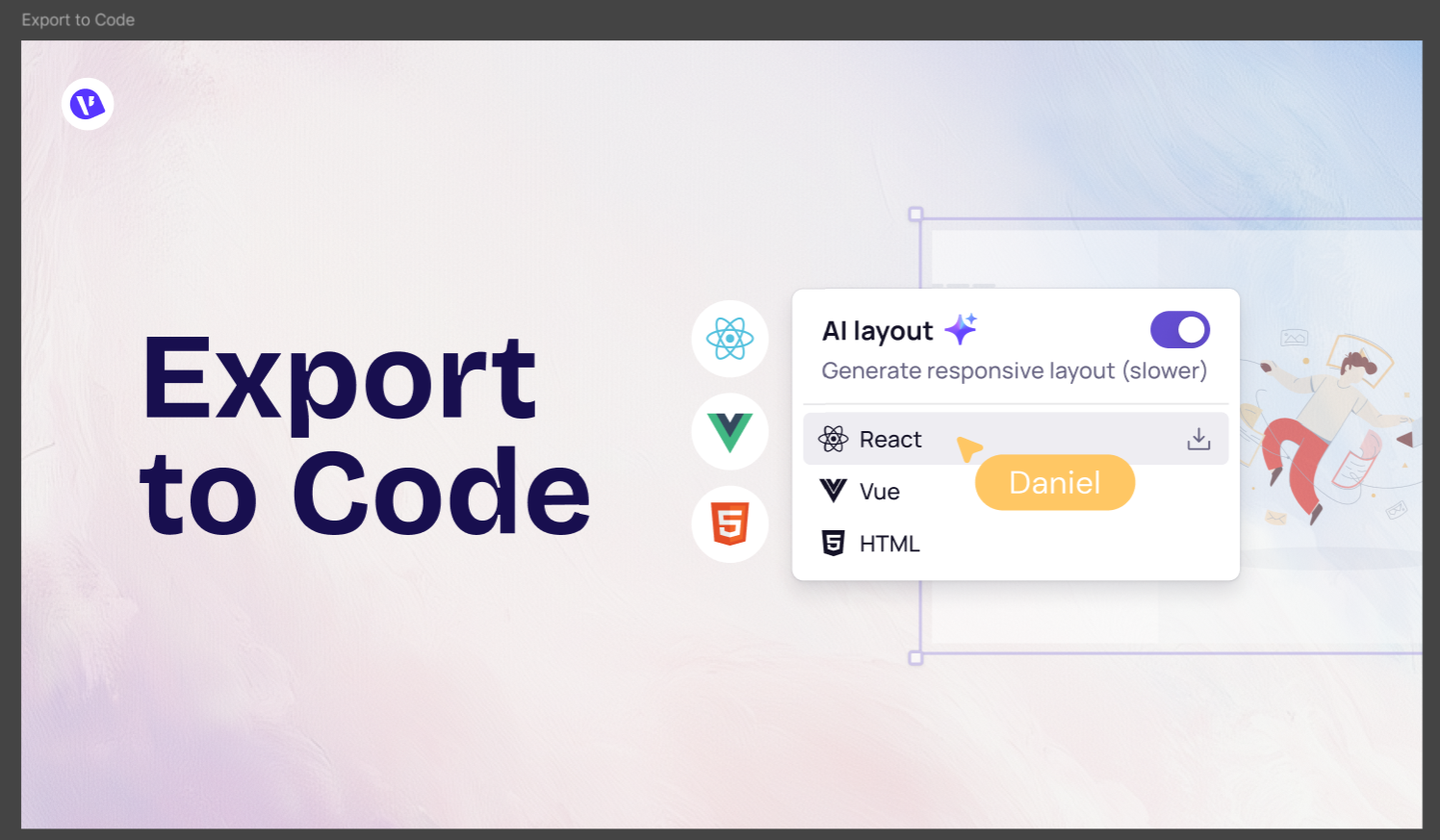
Supported code formats include:
- React
- Vue
- HTML
During export, you can enable AI Layout to generate responsive layout code for your designs.
- Toggle on: Generates a responsive layout with AI (15 AI credits/screen). Export may take longer.
- Toggle off: Uses static (fixed) layout conversion for faster export and does not consume AI credits.
How to export designs to code
You can access the Export to Code option in several ways:
- Right-click menu: Right-click on the selected screen(s) and choose Export to Code. You can then select the export format and decide whether to enable AI Layout.
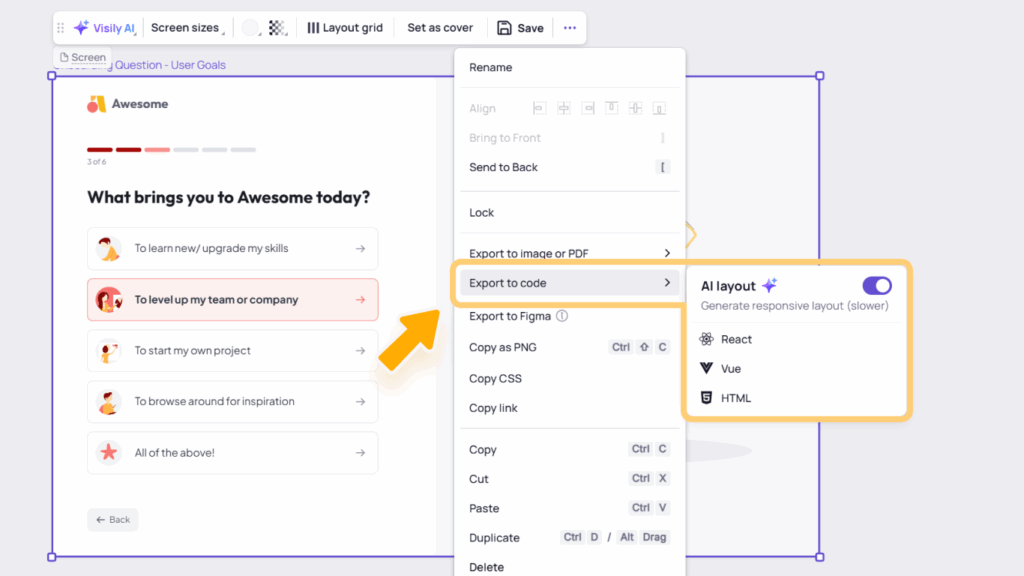
- Export to Code dialog: Click the Share button in the top-right corner of your board, then open the Export to Code tab. This view displays all screens available on the canvas for selection. From there, you can configure your export settings, including the code format, layout mode, and the screens you want to export.

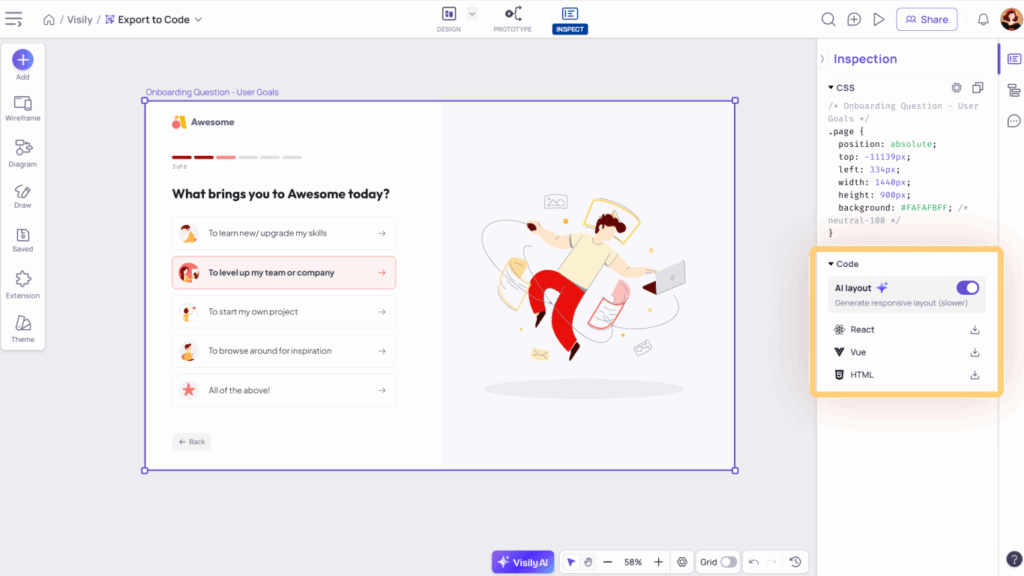
- Inspection panel (Inspect mode): While using Inspect mode to view and download CSS properties for design elements, you can also export the selected screen(s) to code directly from the Inspection panel. The same export settings and options are available as in the other export methods.
You can export up to 10 screens at a time. When exporting multiple screens, each screen will be packaged as a separate subfolder in the ZIP file.
How to use the exported files
The exported package includes the necessary files for development, along with a README file.
The development files can be opened and used in your preferred development environment, while the README provides step-by-step instructions to help you run the project and preview your design live in the browser.