


A UX storyboard is a visual narrative tool that shows a user’s experience with a product through a sequence of illustrated panels, each capturing actions, emotions, and context. The technique traces back to Walt Disney Studios in the 1930s, where animators pinned sketches to boards to plan animated sequences before production began. UX designers borrowed this same idea to plan user journeys before building anything.
Many teams skip storyboarding entirely. They jump straight to wireframes or prototypes and miss the human context behind every tap and click. Without storyboards, pain points stay hidden. Design decisions lack empathy. Teams build features that look right on screen but feel wrong in practice.
Storyboards bridge the gap between raw research data and actionable design by putting the user’s full story on display.
In this guide, we walk through 7 actionable steps to create user-centered storyboards that align your team, build empathy, and improve your design outcomes. You will also find practical examples, tool recommendations, and tips to make your storyboards more effective.
What Is a UX Storyboard?
A UX storyboard is a visual narrative tool that depicts a user’s interaction with a product through sequential illustrated panels. Each panel captures the user’s actions, emotions, and environmental context, much like a comic strip. The technique was developed by Walt Disney Studios in the 1930s to construct coherent stories for animated films. UX designers later adopted the method to plan and communicate user experiences before diving into detailed design work.
Every UX storyboard contains three core elements:
- A specific scenario that describes the user’s situation and goal
- Visuals such as sketches, illustrations, or simple stick figures that show each moment
- Corresponding captions that describe the user’s actions, environment, and emotional state
Each panel represents one moment in the user’s journey. Storyboards are typically used after user research and before prototyping, during the ideation or discovery phase of design thinking. They focus on a single user path: one persona, one scenario.
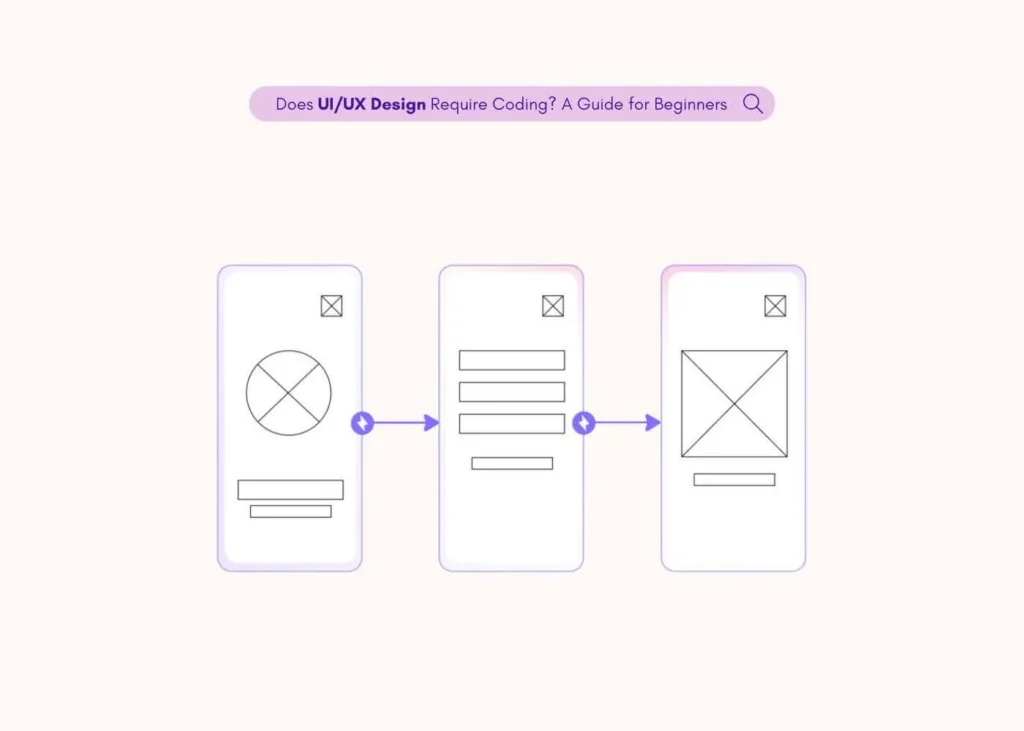
One important distinction: Wireframes show the layout and structure of a single screen. Storyboards show the full human context, including who the user is, what they are doing, how they feel, and how they interact with the product across multiple moments. Wireframes focus on screens. Storyboards focus on stories.
Why UX Storyboarding Matters for User-Centered Design
Storyboarding is not just a nice creative exercise. It delivers real, measurable benefits to product teams. Here is why it matters.
Builds empathy: Storyboards help designers and stakeholders step into the user’s shoes. By visualizing a real person in a real situation, the team develops a deeper understanding of user needs and frustrations. Research from Stanford Graduate School of Business suggests that stories are 22 times more memorable than simple facts. Storyboards turn abstract research data into memorable visual narratives.
Aligns teams and stakeholders: According to a UX research study, a six-panel storyboard can communicate a user’s problem faster than a 20-page research report. Product managers, developers, designers, and executives can all look at the same panels and reach a shared understanding without lengthy meetings.
Uncovers pain points early: Walking through a storyboard panel by panel reveals missing steps, confusing flows, and hidden obstacles. These issues are far cheaper to fix at the storyboard stage than after development has started. According to Forrester Research, every $1 invested in UX design yields a return of $100, a 9,900% ROI. Catching problems early through storyboarding is one reason that return is so high.
Supports prioritization: Storyboards help teams focus on features that matter most to users. By seeing the full journey, teams can identify which moments have the biggest impact on user satisfaction and allocate resources accordingly.
Encourages low-cost iteration: Pen-and-paper storyboards cost almost nothing to create and modify. Teams can test multiple scenarios, gather feedback, and iterate quickly without investing in high-fidelity design work.
Strengthens visual communication: Visuals are processed faster than text. Storyboards make research findings easier to share, easier to remember, and easier to act on. This is especially valuable when presenting to stakeholders who were not involved in the research process.
Types of UX Storyboards
Not every storyboard serves the same purpose. The two main types differ in scope and detail. Choosing the right one depends on your project stage and goals.
Big Picture Storyboard
A big picture storyboard zooms out to cover the full user journey. It includes what happens before the user touches the product, during use, and after. For example, a big picture storyboard for a food delivery app might show a person feeling hungry at home, searching for a solution on their phone, downloading the app, browsing restaurants, placing an order, and enjoying the meal.
This type works best during the discovery phase. It is ideal for aligning stakeholders on the broader context before any detailed design work begins.
Close-Up (Feature-Specific) Storyboard
A close-up storyboard zooms into a specific interaction inside the product. Examples include an onboarding flow, a checkout step, or an error state. Each panel maps a micro-moment within a single feature.
This type works best during the detailed design phase. It is ideal for developer handoff, usability testing, and refining specific wireflows within the product.
Quick rule of thumb: Choose big picture for early-stage alignment. Choose close-up for detailed design and testing.
7 Steps to Create a User-Centered UX Storyboard
These seven steps work for both big picture and close-up storyboards. Follow them in order, and you will have a clear, research-backed storyboard that your entire team can rally around.
Step 1: Define Your Goal
Every storyboard starts with a clear objective. The goal determines the storyboard’s scope, fidelity, and audience.
Ask yourself: Why am I creating this storyboard? Common goals include:
- Visualizing user research findings for stakeholders
- Gathering early feedback on a product concept
- Supporting brainstorming sessions during a design sprint
Your goal also determines whether to create a big picture or close-up storyboard. If you need to show the full context of a user’s day, go big picture. If you need to detail a specific checkout flow, go close-up. Write your goal down before moving to the next step. This single sentence will keep every panel focused and relevant.
Step 2: Conduct User Research
Storyboards must be grounded in real data, not assumptions. Before sketching a single panel, gather information about your users and how they interact with your product or problem space.
Use a mix of research methods:
- User interviews to understand motivations, frustrations, and goals
- Usability tests to observe how users interact with existing products
- Surveys to collect broader patterns across your audience
- Analytics review to identify engagement metrics like bounce rates, time on task, and conversion drop-offs
According to the Maze Future of User Research Report 2026, 66% of organizations reported increased demand for user research this year. This growing emphasis on research reflects a broader shift toward evidence-based design decisions. Your storyboard is only as strong as the data behind it.
Review your research findings and identify which scenarios are most worth storyboarding. Prioritize flows where users get frustrated, confused, or give up. These are the moments where storyboards deliver the most value. The same research insights that inform your storyboard will also help you create wireframes later in the design process.
Step 3: Create a User Persona
The persona becomes the main character of your storyboard. Think of them as the protagonist of a short story.
Build your persona from research data. Include:
- Role or job title (e.g., product manager, startup founder, busy parent)
- Primary goal (what they are trying to accomplish)
- Key challenges (what stands in their way)
- Behaviors and preferences (how they typically approach problems)
- Emotional state (how they feel about the current situation)
One critical rule: One storyboard equals one persona equals one scenario. If you have multiple personas, create separate storyboards for each. Trying to cover multiple user paths in a single storyboard turns it into a flowchart, and that defeats the purpose. Keep it focused on a single user’s experience from start to finish.
Step 4: Write the Scenario
The scenario is a one-sentence description of the persona’s situation and goal. It sets the scene for every panel that follows.
A good scenario includes three things:
- The setting (home, office, on the go)
- The challenge (what problem the user faces)
- The product interaction (how the user engages with the product)
Here is an example: “A busy product manager needs to quickly wireframe a mobile app idea before a stakeholder meeting, but she has no design skills and limited time.”
Write your scenario statement at the top of your storyboard. It acts as the title of your story and gives anyone viewing the storyboard immediate context about who the user is and what they are trying to do.
Step 5: Outline the Plot
The plot is the sequence of events your persona experiences. Before you sketch anything, write down each step in order.
Structure your plot with a clear beginning, middle, and end:
- Beginning: The trigger or problem that starts the journey (e.g., the user realizes they need a wireframe for tomorrow’s meeting)
- Middle: The interaction with the product (e.g., the user signs up, uses AI to generate a wireframe from a text description, customizes the layout)
- End: The resolution or benefit (e.g., the user shares the wireframe with their team and gets positive feedback)
Track the emotional arc at each step. For example: overwhelmed, curious, relieved, satisfied. These emotional states will guide your visuals in the next step.
Write each step on a sticky note or in a simple text outline. This makes it easy to reorder, add, or remove steps before committing to visuals. This outlining step catches logic gaps and missing moments that would be harder to fix once you start drawing. It is similar to how teams map out user flows before building detailed wireframes.
Step 6: Sketch the Panels
Now it is time to draw. And here is the most important thing to know: you do NOT need to be an artist. Stick figures and simple shapes work perfectly. The goal is clarity, not visual polish.
Each panel represents one moment in the journey. For every panel, include:
- The user in their environment (not just a floating UI screen, but the person at their desk, on the couch, or walking down the street)
- A caption describing the action (e.g., “Sarah opens the app and types a description of her wireframe idea”)
- An emoticon or facial expression showing the user’s emotion at that moment
Add arrows between panels to show the flow from one moment to the next. If you are working on paper, draw each step on a separate piece of paper or sticky note. This allows easy reordering if you realize a step is out of place.
Choose your fidelity level based on your audience. Use simple sketches for internal team discussions. Use more polished illustrations for client or stakeholder presentations. Either way, prioritize the message over the aesthetics. A stick figure in a kitchen holding a phone communicates more than a perfect mockup of an empty screen. This same principle of starting simple applies to low-fidelity wireframes, where clarity always beats polish in the early stages.
Step 7: Review, Get Feedback, and Iterate
Storyboarding is a collaborative process. Once your panels are complete, share them with your team.
Involve designers, developers, product managers, and stakeholders. Ask specific questions:
- Does this flow make sense?
- Are any steps missing?
- Does the emotional arc feel right?
- Are there technical constraints we have not considered?
Multiple team members bring diverse perspectives. A developer may spot a technical limitation. A product manager may identify a missing business requirement. A designer may suggest a simpler path through the flow.
Iterate based on the feedback you receive. Storyboards are low-cost to modify, so do not hesitate to redraw panels, reorder steps, or adjust the scenario. Treat the storyboard as a living document that evolves as your understanding of the user deepens.
Use presentation or follower mode to walk the team through the storyboard step by step. Real-time collaboration tools make this process seamless, especially for remote or cross-functional teams.
UX Storyboard Examples
Seeing real examples makes the storyboarding process concrete. Here are three practical UX storyboard scenarios across different app types.
Example 1: Food Delivery App
A hungry user is sitting at home after a long day at work. They open a food delivery app, browse nearby restaurants, filter by cuisine, and place an order. The app confirms the order and shows an estimated delivery time. The user receives the food and enjoys the meal. Emotional arc: frustrated (hungry and tired), hopeful (browsing options), satisfied (food arrives on time).
Example 2: Fitness App
A user wants to get in shape but feels overwhelmed by options. They download a fitness app, complete a quick onboarding quiz, and receive a personalized workout plan. They track their first workout and receive a motivational message afterward. Emotional arc: motivated (ready to start), engaged (following the plan), accomplished (first workout complete).
Example 3: AI Wireframe Tool for Product Managers
A product manager needs to wireframe a mobile app idea before a stakeholder meeting. She has no design background and limited time. She signs up for Visily, types a description of her screen idea using the Text to Design feature, and the tool generates a structured, editable wireframe in seconds. She customizes the layout, shares it with her team for feedback, and walks into the meeting with a polished prototype. Emotional arc: overwhelmed (no design skills, tight deadline), curious (trying the AI tool), relieved (wireframe generated instantly), confident (presenting to stakeholders).
These examples show how storyboards capture the full human context behind product interactions. For more visual inspiration on screen layouts, check out these wireframe examples that cover mobile apps, web apps, and websites.
Best Tools for Creating UX Storyboards
The right tool depends on your project stage, team size, and fidelity needs. Here is a breakdown by category.
Analog Tools
Pen and paper, sticky notes, and whiteboards are the fastest way to create low-fidelity storyboards. They are perfect for brainstorming sessions and early-stage ideation. No setup required. Just grab a marker and start sketching.
Digital Tools
- Miro is a collaborative whiteboard tool with storyboard templates, ideal for remote teams working together in real time.
- Figma integrates storyboarding into the broader design workflow, making it easy to transition from storyboard to wireframe to prototype.
- Canva offers drag-and-drop templates that make it simple to create polished storyboards without design skills.
AI-Powered Tools for Non-Designers
For product managers, startup founders, developers, and business analysts who want to go from storyboard concept to interactive prototype without learning complex design software, Visily is built specifically for this workflow.
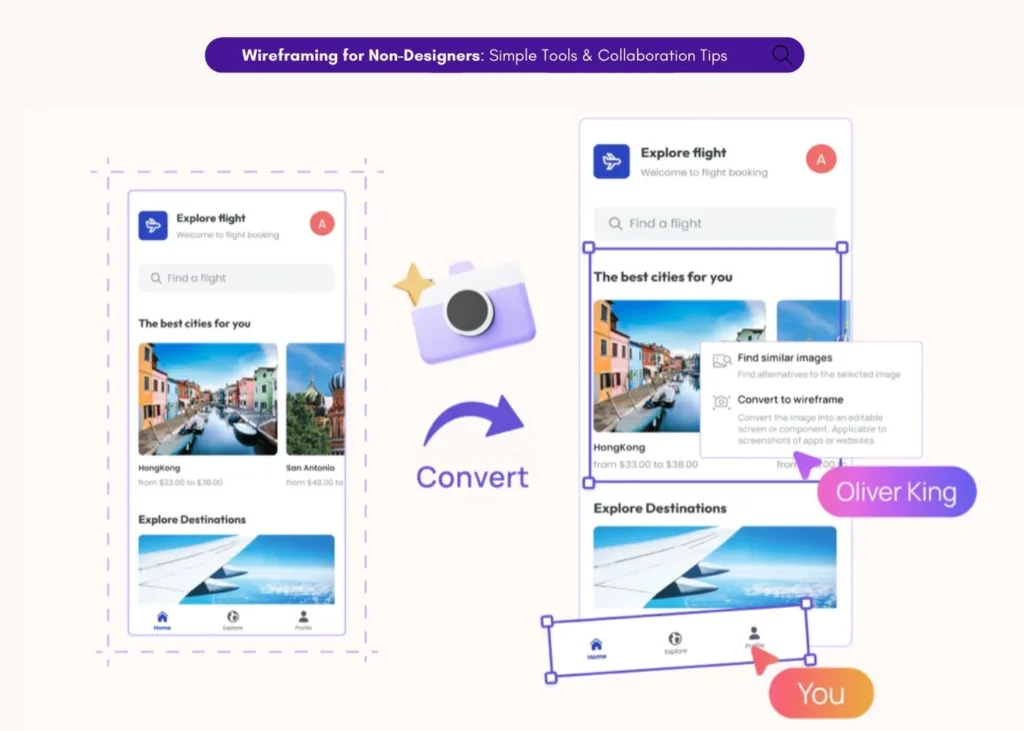
- Sketch to Design lets you upload hand-drawn storyboard sketches and converts them into clean digital wireframes automatically.
- Text to Design lets you describe a screen in plain language and generates structured, editable UI elements.
- 1,500+ templates provide pre-built UI screens that match common storyboard scenarios like onboarding, checkout, and dashboards.
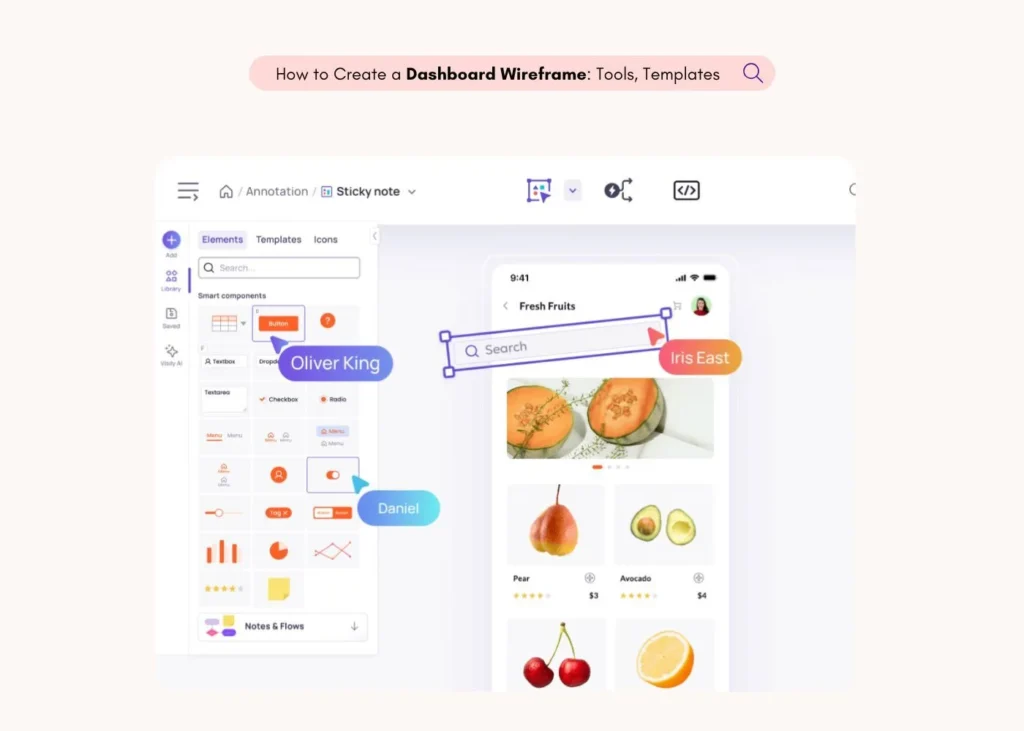
- Real-time collaboration lets your team review and comment on designs together, just like they reviewed the storyboard.
Browse wireframe templates to find a starting point that matches your storyboard scenario, or study wireframe design techniques to refine your screens after storyboarding.
UX Storyboard vs. Journey Map: What’s the Difference?
These two tools are often confused, but they serve different purposes. Here is how they compare.
| Dimension | UX Storyboard | Journey Map |
| Format | Illustrated panels (comic strip style) | Flowchart or diagram with text |
| Focus | One specific scenario, one user path | Entire user experience, multiple touchpoints |
| Detail level | Imagery-primary with concise captions | Text-heavy, includes data and metrics |
| Scope | Narrow, team-level tool | Broad, cross-departmental tool |
| Best for | Empathy building, early ideation | Process optimization, stakeholder alignment |
A storyboard shows one user’s specific scenario through illustrated panels. A journey map provides a detailed, text-heavy overview of the entire user experience across multiple touchpoints.
The good news is that these tools work well together. Storyboards add visual context and emotional depth to journey maps. You can use a journey map to identify the most critical touchpoints, then create storyboards to visualize specific moments within those touchpoints. Similarly, wireflows combine wireframes and flowcharts to provide yet another complementary view of the user experience.
5 Tips for Creating Effective UX Storyboards
These best practices will help you get more value from every storyboard you create.
1. Keep it simple: Clarity beats visual polish every time. Stick figures are fine. Simple shapes are fine. If your team can understand the story, the storyboard is working. Focus on the message, not the aesthetics.
2. Base every panel on real user data: Never assume what a user thinks, feels, or does. Ground every panel in findings from interviews, usability tests, surveys, or analytics. Assumptions lead to storyboards that look convincing but miss the mark.
3. One storyboard, one user path: Avoid branching into multiple directions. If your storyboard starts looking like a flowchart, you have gone too far. Keep it linear: one persona, one scenario, one journey.
4. Show emotions at every step: Use emoticons, facial expressions, or thought bubbles to capture how the user feels at each moment. Emotional states are what make storyboards powerful. They turn abstract data into human stories that teams remember and act on.
5. Treat it as a living document: Iterate based on feedback. Storyboards evolve as your understanding of the user deepens. Do not treat the first draft as the final version. Revisit and refine as new research comes in. Understanding the right wireframe elements to include will also help you translate storyboard scenes into actual screen designs later.
How Visily Helps You Go from Storyboard to Prototype
Once your storyboard is complete, the next step is turning those scenes into actual screens. Visily makes this transition seamless, especially for non-designers like product managers, startup founders, developers, and business analysts.
Here is how Visily’s features map directly to the storyboarding workflow:
Sketch to Design: Upload your hand-drawn storyboard sketches and Visily converts them into clean, editable digital wireframes automatically. No need to redraw anything from scratch.
Text to Design: Describe a screen from your storyboard in plain language, and Visily generates structured, editable UI elements that match your description. This is especially useful for turning scenario descriptions into actual screen layouts.
Lo-fi to hi-fi toggle: Switch between wireframe and high-fidelity mockup on the same board, just like moving from a rough storyboard sketch to a polished prototype. No work is lost when you change fidelity levels.
Real-time collaboration: Share your designs with the same team that reviewed your storyboard. Use commenting and follower mode for seamless feedback, whether your team is in the same room or spread across time zones.
1,500+ templates: Jump-start your screens with pre-built UI templates that match common storyboard scenarios, including onboarding flows, checkout processes, dashboards, and more. Browse website wireframe examples for inspiration.
Start turning your storyboard ideas into interactive prototypes. Try Visily, the AI-powered UI design tool, for free.
Frequently Asked Questions About UX Storyboarding
Do you need drawing skills to create a UX storyboard?
No. Stick figures and simple shapes work perfectly. The goal is clarity, not artistic polish. You only need three components: a scenario, visuals, and captions. If your team can follow the story, the storyboard is doing its job.
When should you use a storyboard in the UX design process?
Use storyboards after user research and before prototyping. They fit best during the ideation or discovery phase of design thinking. Storyboards are also useful for presenting usability test findings to stakeholders who were not present during the research.
How many panels should a UX storyboard have?
Most UX storyboards have 6 to 12 panels. Keep it concise. Each panel should represent one meaningful moment in the user’s journey. Aim for a maximum of 8 panels per page for readability. If your storyboard needs more than 12 panels, consider splitting it into two separate storyboards.
Can you create a UX storyboard digitally?
Yes. Digital tools like Miro, Figma, Canva, and Visily allow you to create, collaborate on, and share storyboards with your team in real time. AI-powered tools like Visily can even convert your hand-drawn sketches into editable digital wireframes using the Sketch to Design feature.
What is the difference between a storyboard and a wireframe?
A wireframe shows the layout and structure of a single screen. A storyboard shows the full human context: who the user is, what they are doing, how they feel, and how they interact with the product across multiple moments. Wireframes focus on screens. Storyboards focus on stories. Both are valuable at different stages of the design process, and they work best when used together.